Author Archives: nakulvachhrajani

Unknown's avatar

About nakulvachhrajani

Nakul Vachhrajani is a SQL Server MCTS, TOGAF certified Technical Architect with Capgemini having a total IT experience of more than 16 years. Nakul is an active blogger, and has been a guest columnist for SQLAuthority.com and SQLServerCentral.com. Nakul presented a webcast on the “Underappreciated Features of Microsoft SQL Server” at the Microsoft Virtual Tech Days Exclusive Webcast series (May 02-06, 2011) on May 06, 2011. He is also the author of a research paper on Database upgrade methodologies, which was published in a CSI journal, published nationwide. In addition to his passion about SQL Server, Nakul also contributes to the academia out of personal interest. He visits various colleges and universities as an external faculty to judge project activities being carried out by the students. Disclaimer: The opinions expressed herein are his own personal opinions and do not represent his employer’s view in anyway.

#0369 – Visual Studio Solutions – SSIS and Coded UI projects – encounter “System.ArgumentNullException” and tests do not build successfully


Recently, we undertook a project to write a couple of automation tools for the utilities that we use to move data around.

The automation solution involved a couple of SSIS packages that created a few data views, generated some key columns and cross-referenced records with predefined static data to facilitate data comparison. In addition, we also wrote a couple of Coded UI tests which would read configuration parameters from a simple Excel file and run through the utilities so that they can run independently without any need of human interaction.

The issue

Unfortunately, it seems that at least in Visual Studio 2012, one cannot have both – an SSIS project and a Coded UI project. This is because the Coded UI tests fail to build with a “System.ArgumentNullException” error.

Here are the simple steps to reproduce the issue:

  1. Launch VS2012
  2. In an new solution, add a new Integration Services project. Leave defaults and save the solution
  3. In this solution, add a new Coded UI Test project. Leave defaults and save the solution. The solution now has the 2 projects as required
  4. Go to Test -> Windows -> Test Explorer
  5. In the solution explorer, right click on the solution and choose “Build Solution”
  6. Build fails unexpectedly with the following error:
System.ArgumentNullException: Value cannot be null.
Parameter name: source
at Microsoft.VisualStudio.Shell.ValidateArg.NotNull[T](T arg, String parameterName)
at Microsoft.VisualStudio.Shell.ValidateArg.NotNullOrEmpty[T](IEnumerable`1 arg, String parameterName)
at Microsoft.VisualStudio.Shell.Interop.VSProjectExtensions.CompareNormalizedPath(String source, String target)
at Microsoft.VisualStudio.Shell.Interop.VSProjectExtensions.GetKeyOutputForIVsOutputGroup(IVsOutputGroup outputGroup)
at Microsoft.VisualStudio.Shell.Interop.VSProjectExtensions.GetProjectOutputPath(IVsProjectCfg2 projectConfig, String groupName)
at Microsoft.VisualStudio.Shell.Interop.VSProjectExtensions.GetKeyOutputForGroup(IVsSolutionBuildManager buildManager, IVsProject project, String groupName)
at Microsoft.VisualStudio.TestWindow.VsAdapters.VsTestContainer.get_Source()
at Microsoft.VisualStudio.TestWindow.VsAdapters.VsTestContainer.CreateTimeStamp()
at Microsoft.VisualStudio.TestWindow.VsAdapters.VsTestContainer..ctor(ITestContainerDiscoverer discoverer, ILogger log, IVsProject project, IServiceProvider serviceProvider, IVsAppContainerUtilities appContainerUtilities)
at Microsoft.VisualStudio.TestWindow.VsAdapters.VsProjectOutputContainerDiscoverer.<get_TestContainers>b__0(IVsProject p)
at System.Linq.Enumerable.WhereSelectEnumerableIterator`2.MoveNext()
at System.Linq.Enumerable.WhereEnumerableIterator`1.MoveNext()
at System.Collections.Generic.List`1..ctor(IEnumerable`1 collection)
at System.Linq.Enumerable.ToList[TSource](IEnumerable`1 source)
at Microsoft.VisualStudio.TestWindow.Controller.TestContainerDiscovererExtension.GetSortedContainers(ITestContainerDiscoverer discoverer)
at Microsoft.VisualStudio.TestWindow.Controller.TestContainerProvider.GetContainersFromDiscoverer(ITestContainerDiscoverer discoverer)

The Workaround

The workaround to build and run the Coded UI tests is to simply unload (removal of the project is not necessary) the SSIS project(s) for the time being. Once the Coded UI tests are done, the SSIS project(s) can be loaded back into the solution before checking it back into source control.

MS Connect Case

While the workaround is simple enough, it can be slightly inconvenient when there are multiple team members who consume the solution. I therefore wrote up a Connect case for this issue (ID# 2194579). Here’s the link: https://connect.microsoft.com/VisualStudio/feedback/details/2194579/solution-with-both-coded-ui-and-integration-services-projects-encounters-system-argumentnullexception-and-tests-do-not-build-successfully

If you encounter the same issue, or if you believe it should be fixed, please “up” vote on the MS connect item linked above.

Until we meet next time,
Be courteous. Drive responsibly.

#0368 – SQL Server – Myths – Windows Authentication – Windows login name change does not mandate a change to SQL login


In today’s world, mergers and acquisitions of organizations are a reality. Having been through a couple of M&As in the last couple of years myself, I have had a unique opportunity to experience changes which would not be experienced in the normal course of work.

One such change is the changing of the domain logins. M&As often come with renaming of domain logins to confirm to a common standard. The question that came up in our team was:

What happens to our SQL Servers that use windows authentication if the login name changes?

The answer? Nothing. SQL Server continues to work as usual if the login name is the only thing that changed (and your applications do not use the physical “login name” in any way).

Here’s a demo for clarity.

On my VM, I created a user “OldUser” and logged in to SSMS using Windows Authentication when running as that user.

Screenshot showing the use of an existing windows login for authentication into a SQL Server instance.

Using an Old Login to login to SSMS

For the record, we will also execute the following query:

SELECT SUSER_SNAME() AS LoginName,SUSER_SID() AS LoginSID;
Query showing the Old User's SID

OldUser’s SID

Now, because this is a local login, all I do is rename the Windows login using Computer Management. The same behaviour applies to logins renamed via Active Directory as well.

Renaming the "OldUser" to "NewUser" in Computer Management

Renaming the “OldUser” to “NewUser”

I load the SSMS again – this time as “NewUser”.

Login to SSMS using the new, renamed login

Login to SSMS using the new, renamed login

Notice how the authentication works even though the login name has changed.

Wrapping it up…

Windows authentication in SQL Server is based on the SID. Hence, even though the login name changed, SQL Server allowed me to login because the SID did not change. In fact, this is why when we create or modify a login, the only requirement is to ensure that the SID of the login is same as the one we want to create/modify.

In a practical scenario, the IT teams would not re-generate the SIDs because that would mean too much work – realigning file & folder shares, resetting SSO and what have you. Instead, they simply update the login name (or the human interpretative part of the login).

What this means is that the authentication on the SQL Servers continue to work as usual – even after the login changes. No manual intervention is required!

Note of caution: Because the SQL Login name and the Windows login name are independent, renaming the Windows login will NOT rename the SQL login. The entry under sys.server_principals continues to read the old value. So, if your applications are designed to work based on the login name in sys.server_principals, you need to use ALTER LOGIN statements whenever IT changes the Windows login names.

Further Reading

In case you are really interested in digging deeper into SQL Server,

  • Security considerations for a SQL Server installation [MSDN Link]

Until we meet next time,
Be courteous. Drive responsibly.

#0367 – SQL Server – Fetching connection session options using SESSIONPROPERTY


A couple of years ago, I wrote an article which demonstrated that the SET options defined for a connection influence query execution and query results. One of the questions that came up in the research was how to determine which SET options are being used for a given session. It was then when I learnt about the system function – SESSIONPROPERTY().

The SESSIONPROPERTY() function can be used to return the current session value of the following SET options:

  • ANSI_NULLS
  • ANSI_PADDING
  • ANSI_WARNINGS
  • ARITHABORT
  • CONCAT_NULL_YIELDS_NULL
  • NUMERIC_ROUNDABORT
  • QUOTED_IDENTIFIER

Here’s an example:

SELECT SESSIONPROPERTY('ANSI_NULLS') AS IsAnsiNullsOn,
       SESSIONPROPERTY('ANSI_PADDING') AS IsAnsiPaddingOn,
       SESSIONPROPERTY('ANSI_WARNINGS') AS IsAnsiWarningsOn,
       SESSIONPROPERTY('ARITHABORT') AS IsArithAbortOn,
       SESSIONPROPERTY('CONCAT_NULL_YIELDS_NULL') AS IsConcatNullYieldsNull,
       SESSIONPROPERTY('NUMERIC_ROUNDABORT') AS IsNumericRoundabortOn,
       SESSIONPROPERTY('QUOTED_IDENTIFIER') AS IsQuotedIdentifierOn;
GO
Output demonstrating the usage of SESSIONPROPERTY() system function

Output demonstrating the usage of SESSIONPROPERTY() system function

Please do keep in mind that the SET options take effect based on a combination of server-level, database-level, and user-specified options. Hence, manipulating these options needs to be done with care.

Further Reading

  • SQL Server Stored Procedures and SET options [Link]
  • SESSIONPROPERTY [MSDN Link]

Until we meet next time,
Be courteous. Drive responsibly.

#0366 – SQL Server – SSMS – Simulating a TCP/IP connection on the same machine as the server


Most development environments that I have worked in have a developer edition of Microsoft SQL Server on the local machine of the developer. Hence, both the client (SSMS) and the database server are often on the same machine.

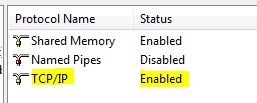
What this means is that the default connection mechanism used for all connections will be “Shared Memory”. However, when working on features like auditing, the ability to simulate a TCP/IP connection becomes important. Today, I document a mechanism that you can use to initiate a TCP/IP connection even when both server and client (SSMS) are the on the same machine, provided the server has been configured to allow TCP/IP connections in the Configuration Manager.

SQLTwins, Post #0366 - Ensuring that TCP/IP connections to the server are enabled via the SQL Server Configuration Manager

SQL Server Configuration Manager – ensuring that TCP/IP connections to the server are enabled

When initiating a new connection using the SQL Server Management Studio, simply click on the “Options” button in the “Connect to Database Engine” window, and navigate to the “Connection properties” tab.

SQLTwins, Post #0366 - SQL Server Management Studio (SSMS) - The "Connect to Database Engine" window

SQL Server Management Studio (SSMS) – The “Connect to Database Engine” window

SQLTwins, Post #0366 - SQL Server Management Studio (SSMS) - Using the Connection Properties tab to change the Network protocol when connecting to a SQL Server instance

SQL Server Management Studio (SSMS) – Using the Connection Properties tab to change the Network protocol

In the “Network” group, locate the “Network Protocol” drop-down. Change the value from “<default>” to “TCP/IP“.

Finally, verify the credentials in the “Login” tab and click “Connect“. That’s it!

Use the CONNECTIONPROPERTY() function described in my previous post to confirm that you are indeed connected via TCP/IP.

Further Reading

  • Testing your connection strings using SSMS [Link]
  • Using CONNECTIONPROPERTY to determine connection properties [Link]

Until we meet next time,
Be courteous. Drive responsibly.

#0365 – SQL Server – Auditing – Fetching properties of the current connection using CONNECTIONPROPERTY


Most enterprise applications implement auditing in areas of application that have business importance, data cleanup and data quality improvement. It therefore becomes important to track the following:

  1. From where a particular data manipulation request is coming? (Client Name, IP address, etc)
  2. What is the connection mechanism used?
  3. Which port is being used by the connection?
  4. What is the payload type (TSQL/SOAP or other)

While Microsoft SQL Server already provides us a way to access connection properties using the DMV – sys.dm_exec_connections, the challenge is in finding the required information for the current connection only, and not for all connections to the server.

The solution is therefore to use the system function – CONNECTIONPROPERTY().

CONNECTIONPROPERTY returns the connection properties for the connection on which the request came in. Hence, unless the auditing runs on a separate connection, we would always get information about the connection that is actually performing the data manipulation. This makes the function an ideal method to implement auditing within triggers.

Allow me to demonstrate it with 2 examples – one where the connection was done using Shared Memory (my SSMS client and the database engine are on the same machine) and using TCP/IP.

SELECT CONNECTIONPROPERTY('net_transport') AS TransportProtocol,
       CONNECTIONPROPERTY('protocol_type') AS PayloadType, 
       CONNECTIONPROPERTY('auth_scheme') AS AuthenticationUsed,
       CONNECTIONPROPERTY('local_net_address') AS TargetServerIPAddressIfTCPUsed,
       CONNECTIONPROPERTY('local_tcp_port') AS TargetServerTCPPortIfTCPUsed,
       CONNECTIONPROPERTY('client_net_address') AS ClientAddress,
       CONNECTIONPROPERTY('physical_net_transport') AS PhysicalTransportProtocol;
SQLTwins, Post #0365 - Output of CONNECTIONPROPERTY() when using a Shared Memory connection

Output of CONNECTIONPROPERTY() when using a shared memory connection

SQLTwins, Post #0365 - Output of CONNECTIONPROPERTY() when using a TCP/IP connection

Output of CONNECTIONPROPERTY() when using a TCP/IP connection

As demonstrated, the CONNECTIONPROPERTY() is the easiest way (in my opinion) to get the properties of the current connection for auditing purposes.

Further Reading

Until we meet next time,
Be courteous. Drive responsibly.