
A quick query at the office
The other day, one of the developers at the office asked me a seemingly very simple question. They had an application with a form that presented a record to the user by default as “read-only”. If a user wishes to edit the record, they need to click on a little “edit” button and the form would magically become editable. The developer wanted to know how could they prevent a problem commonly known as the “phantom update”.
A “phantom update” is a situation that can occur if two users fetch a record at almost the same time, and one updates the record before the other. What happens is that all update that happened before the final update are lost. Here’s a small demonstration:
A demonstration of the problem
We will first begin by creating a test database and some test objects.
/* Step 01: Create a test database */
CREATE DATABASE [OptimisticConcurrency];
GO

/* Step 02: Create Test objects                                             */
/*          Source: http://support.microsoft.com/kb/917040                  */
/* Since TIMESTAMP is a deprecated feature, we are using ROWVERSION instead */
USE [OptimisticConcurrency]
GO
CREATE TABLE [MyTest] (myKey   INT PRIMARY KEY,
                       myValue INT,
                       RV      ROWVERSION
                      )
GO

/* Step 03: Generate Test Data                             */
/*          Source: http://support.microsoft.com/kb/917040 */
USE [OptimisticConcurrency]
GO
INSERT INTO [MyTest] (myKey, myValue)
VALUES (1, 0),
       (2, 0)
GO
Now, let us try to see the problem of the “phantom update”:
-- Assume that the below SELECT statement is the process of two connections fetching the data
SELECT *
FROM [dbo].[MyTest];
GO

-- Assume that this update is happening from connection #1
UPDATE [dbo].[MyTest]
SET [myValue] = 2
WHERE [myKey] = 1;
GO

-- Assume that this update is happening from connection #2, a different SSMS Query window
UPDATE [dbo].[MyTest]
SET [myValue] = 1
WHERE [myKey] = 1;
GO

-- Now, let us see the values that have actually been committed to the database
SELECT *
FROM [dbo].[MyTest];
GO
The following is the result set. The update setting the [dbo].[MyTest].[myValue] to 2 has been lost.

The solution
The best way to handle this scenario is to implement concurrency, which means allowing multiple users to access the same record at the same time.
In simple terms, what normally happens during an update is locking, i.e. while a particular record is being accessed by a connection, another connection cannot access the same. To prevent this, Microsoft SQL Server 2005 supports both Optimistic and Pessimistic concurrency models through T-SQL statements and also via programming interfaces like ADO, ADO.NET, OLE DB, and ODBC.
Because most systems are 80% read, 20% write systems, the probability of two connections attempting to update the same record is decreased. On the other hand, the record should be accessed by multiple connections without experiencing any locking. Optimistic concurrency uses this statistical information to always assume that the record under consideration would not be modified until the user holding the current connection decides to do so.
Optimistic concurrency can be used within Microsoft SQL Server by the use of the ROWVERSION column on a table (the test environment created above has the ROWVERSION column in it already). The Books On Line provides a wonderful, simple explanation of the ROWVERSION, which I have quoted below:
ROWVERSION is a data type that exposes automatically generated, unique binary numbers within a database. Each database has a counter that is incremented for each insert or update operation that is performed on a table that contains a ROWVERSION column within the database. This counter is the database ROWVERSION. ROWVERSION is thus generally used as a mechanism for version-stamping table rows.
In the stored procedure below, we essentially check for changing ROWVERSION values by using the ROWVERSION value in the WHERE clause.
USE [OptimisticConcurrency];
GO

CREATE PROCEDURE [dbo].[proc_ModifyMyTest]
                @tKey      INT = 0,
                @tNewValue INT = 0,
                @tRV       ROWVERSION
AS
BEGIN
    --Create a table variable to hold the updated ROWVERSION value
    DECLARE @t TABLE (myKey int);

    --Update the record as required, and output the new ROWVERION into the
    --table variable created above
    UPDATE [dbo].[MyTest]
    SET [myValue] = @tNewValue
    OUTPUT [inserted].[myKey] INTO @t(myKey)
    WHERE [myKey] = @tKey
      AND [RV]    = @tRV;

    --Ensure if anything changed. If we used a stale ROWVERSION value (i.e. somebody updated the record before us),
    --nothing will be updated, in which case, raise an exception to the calling program
    IF (SELECT COUNT(*) FROM @t) = 0
      BEGIN
        RAISERROR ('Error encountered while changing row with myKey = %d. Please refresh your data and try again.',
                   16, -- Severity.
                   1, -- State.
                   @tKey) -- myKey that was changed
      END
END
GO
Now that we have a stored procedure ready for us to use during the update, we will repeat what we did earlier, only this time, we will use the stored procedure to update the values in the table MyTest. The script below should be self-explanatory.
/* Step 04: Now, run the following queries (entire step) against the [OptimisticConcurrency] database           */
/*          We will read the value once (similar to two users accessing the record for reading simultaneously   */
/*          Next, we will update the record once (similar to user #1 updating the record)                       */
/*          Finally, user #2 tries to update the record without refreshing the change, and encounters the error */
/*                                                                                                              */
/*          Please follow the instructions carefully for successful demo                                        */
/*                                                                                                              */
USE [OptimisticConcurrency];
GO

-- A. Declaration
DECLARE @stmnt    NVARCHAR(200);
DECLARE @params   NVARCHAR(100);
DECLARE @tRV      VARBINARY(8);
DECLARE @tMyKey   INT;
DECLARE @tMyValue INT;

-- B. We are reading the value (this is equivalent to two users opening the record for viewing simultaneously
--    In the application, all you will need to cache is the primary key and the rowversion value. Rest comes from the UI
PRINT '<<<< INFO >>>> Two users have now read the data into their local variables...';

SET @tMyKey   = 1
SET @tMyValue = 2
SET @tRV = (SELECT CONVERT(VARBINARY(8), [RV])
            FROM [dbo].[MyTest]
            WHERE [myKey] = @tMyKey
           );
SET @stmnt  = N'[dbo].[proc_ModifyMyTest] @tKey, @tNewValue, @tRowValue'
SET @params = N'@tKey INT, @tNewValue INT, @tRowValue ROWVERSION'

-- C-1. Now, User #1 fires the update, and is successful
--      Using sp_executesql will execute the query under a different connection
PRINT '<<<< INFO >>>> User #1 is now firing an update...';
EXEC sp_executesql @stmnt     = @stmnt,
                   @params    = @params,
                   @tKey      = @tMyKey,
                   @tNewValue = @tMyValue,
                   @tRowValue = @tRV;

-- C-1. Now, User #2 fires the update, and is unsuccessful
--      This is because User #2 is using the same Row Version value, which is invalid
--      because Connection #1 has already changed the record
SET @tMyValue = @tMyValue + 1
PRINT '<<<< INFO >>>> User #2 is now firing an update...';
EXEC sp_executesql @stmnt     = @stmnt,
                   @params    = @params,
                   @tKey      = @tMyKey,
                   @tNewValue = @tMyValue,
                   @tRowValue = @tRV;
GO
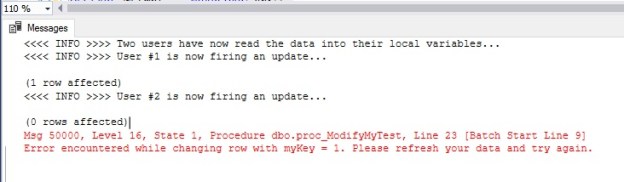
The first update will go successful because the underlying record has not been updated before the stored procedure call. After user #1, user #2 then fires off an update using what is now stale information. The mismatch of the ROWVERSION column prevents user #2 from updating the data modified by user #1.
The execution of the above script will produce the following output when run from the SQL Server Management Studio. The exception being thrown during the second update can be trapped by the UI and a nicely decorated message shown to the user.
Msg 50000, Level 16, State 1, Procedure dbo.proc_ModifyMyTest, Line 23 [Batch Start Line 9]
Error encountered while changing row with myKey = 1. Please refresh your data and try again.

Tip:
The global variable @@DBTS returns the last-used timestamp value (VARBINARY) of the current database.
Conclusion
Optimistic concurrency is widely used in production systems. While the locking and concurrency models are huge topics to cover in a handful of articles, I hope that this post gives you a simple, conceptual overview of the Optimistic Concurrency model.
Please note:
- The ROWVERSION data type is just an incrementing number and does not preserve a date or a time
- A table can have only one ROWVERSION column
- ROWVERSION should not be used as keys, especially primary keys
- Using a SELECT INTO statement has the potential to generate duplicate ROWVERSION values
- Finally for those who came from SQL 2005, the TIMESTAMP is deprecated. Please avoid using this in new DDL statements
- Unlike TIMESTAMP, the ROWVERSION column needs a column name in the DDL statements
References
- Types of concurrency control – http://msdn.microsoft.com/en-us/library/ms189132(SQL.90).aspx
- Database concurrency and Row Versioning: http://msdn.microsoft.com/en-us/library/cc917674.aspx
- TIMESTAMP column (SQL 2005): http://msdn.microsoft.com/en-us/library/ms182776(v=SQL.90).aspx
- ROWVERSION column (SQL 2008 and above): http://msdn.microsoft.com/en-us/library/ms182776(v=SQL.100).aspx
- Optimistic Locking in SQL Server 2005 – http://www.mssqltips.com/tip.asp?tip=1501
Until we meet next time,
Be courteous. Drive responsibly.


 SQLTwins by Nakul Vachhrajani