A script to verify a database backup


Today, I will be sharing a very small, but important script. Recently, one of the database backups we had received failed to restore. I was faced with a problem of determining whether the problem was with the backup itself, or whether it was an I/O subsystem issue or some other failure.

Like with all tools & utilities, SQL Server provides great options when used via commands instead of the UI. Similarly, the RESTORE command provides the facility to very easily validate a backup for you. Please find below the script I used to validate my backup and was able to determine that the backup received was indeed, corrupt.

USE MASTER
-- Add a new backup device
-- Ensure that the SQL Server can read from the physical location where the backup is placed
--                    TYPE      NAME		   PHYSICAL LOCATION
EXEC SP_ADDUMPDEVICE 'disk','networkdrive','\VPCW2K8Database BackupTest.bak'

-- Execute the Restore operation in VERIFY ONLY mode
-- Provide the actual paths where you plan to restore the database.
-- This is because VERIFYONLY also checks for available space
RESTORE
VERIFYONLY
FROM  networkdrive
WITH
MOVE N'TESTDB_DATA'    TO N'E:TestDBTestDB_Data.mdf',  
MOVE N'TESTDB_INDEXES' TO N'E:TestDBTestDB_Idx.mdf',  
MOVE N'TESTDB_LOG'     TO N'E:TestDBTestDB_LOG.ldf'

-- DROP THE DEVICE
--                   Name         , Physical File (OPTIONAL - if present, the file is deleted)
EXEC SP_DROPDEVICE 'networkdrive'

The checks performed by RESTORE VERIFYONLY include (per Books On Line):

  • That the backup set is complete and all volumes are readable
  • Some header fields of database pages, such as the page ID (as if it were about to write the data)
  • Checksum (if present on the media)
  • Checking for sufficient space on destination devices

What methods do you use to validate your backups? Do leave a small note as your comments.

Until we meet next time,

Be courteous. Drive responsibly.

XPS Error – Your current security settings do not allow this file to be downloaded.


This Friday, I will take a break from the SQL world and share with you a scare that I recently overcame.

XPS or XML Paper Specification is gaining popularity as an alternate document format for exchange over the Internet and E-mail. Sometime in the first week of April, somebody sent me a XPS file for my review via E-mail.

As soon as I attempted to open the file (in Internet Explorer), I encountered the following message:

Security Error – Your current security settings do not allow this file to be downloaded.” 

I did not expect this. Nothing had changed on my computer – no new installations, no changes to security settings – simply nothing! And yet, I was able to open XPS documents that I generated just fine – but this document that I had received did not open. How is this even possible?

After much toiling (about 20minutes!), I figured out the solution. To protect our security, Microsoft does not trust anything that comes from external sources and was hence blocking the opening of the XPS document because the operating system thought it to be a potential threat.

So, this is what I did:

  1. Right-click on the file
  2. Click the “Unblock” button in the “Security” section of the “General” file  properties tab
  3. Once done, I attempted to open the file, and success!


It’s a different thing altogether that I was not able to complete my review on that day, but it’s okay.

Finally, have you ever come across such an issue? If yes, what was your solution? Do let us know.

Until we meet next time,

Be courteous. Drive responsibly.

Getting started with Contained Databases in SQL 11 (“Denali”) – Part 04 – Converting a non-contained database


Since the start of the week, I am attempting to explore the concept of contained databases – something that I learnt about during a hands-on lab conducted by Jacob Sebastian. Please read my posts Part 01, Part 02 and Part 03 in case you missed them.

To get us back into context, let’s revisit the definition of a contained database:

"A contained database has no external dependencies on server-based settings or metadata to define the database. Users defined in a contained database do not have a dependency on logins created on the server, and therefore contain all information necessary to authenticate a user within the database."

On Day #2, we saw how to create our first contained database in the very latest SQL 11 (“Denali”) CTP01, and also learnt a bit about the changes made to the ALTER DATABASE clause in order to support contained databases. Yesterday, we saw how to move a contained database from database server instance #1 to #2.

But, most (I believe the number to be close to 80%) of the applications today are pre-existing applications, which means that they are already up and running on SQL Server 2008 or below. This also means that post-release, they will make the move to SQL 11 (“Denali”). At that time, would it not be good to know how to migrate or convert a non-contained database to a contained database?

For our exercise today, we will attempt to convert the uncontained AdventureWorks2008R2 databases to a contained database.

Creating uncontained users on an uncontained database

Pre-requisites: Please restore the AdventureWorks2008R2 on the SQL 11 (“Denali”) from the CodePlex links – http://msftdbprodsamples.codeplex.com/releases/view/55330

  1. Login to the SSMS and connect to our test instance of SQL 11 (“Denali”)
  2. Run the following script against the master database
    --Create a login on the server
    CREATE LOGIN UncontainedUser
    WITH PASSWORD = 'pass@word1'
    
    --Create a "non-contained" users for the newly created login on the server
    USE AdventureWorks2008R2
    GO
    CREATE USER UncontainedUser FOR LOGIN UncontainedUser
    GO
  3. This query creates a new server-level login, and an associated database-level user mapped to the server-level login

Identifying uncontained objects

Now it is time to identify uncontained objects that will cause issues with the migration. Our diagnostic tool in this exercise would be nothing else except the Dynamic Management Views (DMV)! With each passing release of SQL Server, DMVs are gathering immense power, and we will find them especially useful when working with contained databases.

The DMV that we will be using is sys.dm_db_uncontained_entities. This view is new to SQL 11 (“Denali”) and according to Books On Line,

Shows any uncontained objects used in the database. Uncontained objects are objects that cross the application boundary in a contained database. This view is accessible from both a contained database and a non-contained database. If sys.dm_db_uncontained_entities is empty, your database does not use any uncontained entities.

  1. In the Object Explorer pane, expand the Databases node, select the AdventureWorks2008R2 database, and then click the New Query button
  2. In the query window, run the following T-SQL command
    USE AdventureWorks2008R2
    GO
    SELECT class_desc,statement_type,feature_name,feature_type_name 
    FROM sys.dm_db_uncontained_entities
  3. Here are the results from executing the query
    image

    As discussed earlier in the week, we do not need to worry about the entry related to the ROUTE class. Besides this, we have the following uncontained objects in our AdventureWorks2008R2 database:

    1. A computed column based on the output of a system built-in function
    2. A database principal (the user “UncontainedUser” that we created above
    3. Three (3) full-text indices
  4. Run the following query against the AdventureWorks2008R2 database. This query produces a list of any users that have been configured in the database for SQL Server authentication and are mapped to a login that is not disabled
    USE AdventureWorks2008R2
    GO
    SELECT dp.name 
    FROM sys.database_principals dp 
    JOIN sys.server_principals sp ON dp.sid = sp.sid
    WHERE dp.authentication_type = 1
      AND sp.is_disabled = 0 
  5. In our case, the result is the one uncontained user that we created above
    image

Migrating AdventureWorks2008R2 database to a contained database

  1. Before we begin, please ensure that the SQL 11 (“Denali”) instance is all setup to handle contained databases (refer my posts from earlier this week for details)
  2. In the Object Explorer pane, expand the System Databases node, select the Master database, and then click the New Query button
  3. After ensuring that there are no open connections to AdventureWorks2008R2, run the following T-SQL command
    USE master
    GO
    ALTER DATABASE AdventureWorks2008R2 SET CONTAINMENT=PARTIAL;
    GO
  4. After the query completes successfully, select the AdventureWorks2008R2 database in the database list
  5. Run the following T-SQL command:
    USE AdventureWorks2008R2
    GO
    EXEC sp_migrate_user_to_contained @username = N'UnContainedUser', 
                                      @rename = N'keep_name', 
                                      @disable_login = N'disable_login'
    Per Books On Line (refer BOL page here):

    Converts a database user that is mapped to a SQL Server login, to a contained database user with password. In a contained database, use this procedure to remove dependencies on the instance of SQL Server where the database is installed.

  6. Now run the following query which we originally used to identify uncontained users in a database
    USE AdventureWorks2008R2
    GO
    SELECT dp.name 
    FROM sys.database_principals dp 
    JOIN sys.server_principals sp ON dp.sid = sp.sid
    WHERE dp.authentication_type = 1
      AND sp.is_disabled = 0 

Note that “UnContainedUser” no longer shows up in the list. This means that it has been migrated to a contained user and the login has been disabled at the server level. The server-level login has now been disabled.

image

An attempt to login conventionally fails:

image

Validating the move to Partially Contained database

To validate whether or not the partial containment succeeded, let’s see if we can login using the newly contained login to the AdventureWorks2008R2 in the contained mode.

  1. In the Object Explorer, click on the Connect drop-down list and choose “Database engine”
  2. Change the authentication to “SQL Server Authentication”
  3. In the login name and password boxes, pass in the login name and the password of the “UncontainedUser”
  4. Do not hit “Enter” key or click on “Connect”. Instead, click on the “Options” button on the “Connect to Server” dialog box
  5. In the Connect to Database box, type in the name of the contained database, in our case “AdventureWorks2008R2”

image

Now, click on “Connect” and confirm that we are indeed in “contained mode”.

image

In conclusion

Contained databases hold a lot of promise in reducing the administrative overhead associated with a database. I hope that you liked all the posts this week, and hope that you will now go and experiment with this wonderful concept. If you have any interesting findings or and/or links to other great posts on contained databases, do feel free to share them in the comments on this page.

Until we meet next time,

Be courteous. Drive responsibly.

Getting started with Contained Databases in SQL 11 (“Denali”) – Part 03 – Moving Contained Databases


Since the start of the week, I am attempting to explore the concept of contained databases – something that I learnt about during a hands-on lab conducted by Jacob Sebastian. Please read my posts Part 01 and Part 02 in case you missed them.

To get us back into context, let’s revisit the definition of a contained database:

"A contained database has no external dependencies on server-based settings or metadata to define the database. Users defined in a contained database do not have a dependency on logins created on the server, and therefore contain all information necessary to authenticate a user within the database."

Yesterday, we saw how to create our first contained database in the very latest SQL 11 (“Denali”) CTP01, and also learnt a bit about the changes made to the ALTER DATABASE clause in order to support contained databases.

Migrating databases

In order to install a database for an application, server-wide settings potentially must be configured and logins created. When application and database administrators want to move a database from one server instance to another, they need to make sure that each of those settings is identical between instances, and they need the same logins created. I have seen such checklists (excluding the preparation and actual time to apply the changes) running into a number of hours.

SQL 11 (“Denali”) attempts to limit these administrative efforts by introducing contained databases. We will see how by moving the “ContainedDB” we created yesterday across two SQL Servers.

Backing up a contained database

Backing up contained databases is no different than backing up a non-contained database – there is absolutely no difference. So, here’s how you can backup a contained database:

  1. Login to SQL 11 (“Denali”) via the SSMS
  2. In the object explorer, navigate out to “ContainedDB”
  3. Right click, go to Tasks->Backup

Alternatively, you may also want to use the following simple script:

BACKUP DATABASE ContainedDB
TO DISK='E:DatabasesBackupContainedDB.bak'

Restoring a contained database

Once backed up, copy or move the backup to a folder that can be accessed by another instance of SQL 11 (“Denali”). The other instance can be on the same physical machine, or on a remote machine on the network. In my case, I had another instance on the same machine and hence, all I had to do was to use the same physical location as part of the restore.

Again, we have two mechanisms to restore a database, the easy way being via SSMS:

  1. Login to SQL 11 (“Denali”) via the SSMS
  2. In the Object Explorer, navigate out to the “Databases” node
  3. Right-click, and go to Restore Database

Alternatively, you may want to use the following script:

RESTORE DATABASE ContainedDB
FROM DISK='E:DatabasesBackupContainedDB.bak'

Because RESTORE is the opposite of a BACKUP, it’s no wonder that the scripts are quite similar. Yet, when we run the script, we end up in the following error:

Msg 12824, Level 16, State 1, Line 1

The sp_configure value ‘contained database authentication’ must be set to 1 in order to restore a contained database.  You may need to use RECONFIGURE to set the value_in_use.

Msg 3013, Level 16, State 1, Line 1

RESTORE DATABASE is terminating abnormally.

So, what went wrong? Any answers?….

It’s quite simple. Remember from Part 01 that one of the first things we learnt was that SQL 11 (“Denali”) came with the contained database feature turned OFF by default. Hence, in order to create a contained database, one of the first things we did yesterday was to enable the SQL Server to use contained databases. Similarly, to restore a partially contained database, the SQL Server instance needs to have containment enabled.

You can run the following script to enable support of contained databases in SQL 11 (“Denali”). Remember to restart the SQL Server instance after running the script below.

--Enabled Advanced options
sp_configure 'show advanced options',1
RECONFIGURE
GO
--Enabled Database Containment
sp_configure 'contained database authentication',1
RECONFIGURE
GO
--Disable Advanced options
sp_configure 'show advanced options',0
RECONFIGURE
GO

Once the SQL Server instance is restarted, re-run the script to restore the database. The restore will be successful.

Ensuring that the migration worked fine

What better way to test whether or not the migration succeeded is to login to the SQL Server using the credentials of the contained user created in our “ContainedDB”? No such login exists on the SQL Server, and hence, if the login succeeds, the migration worked fine!

  1. In the Object Explorer, click on the Connect drop-down list and choose “Database engine”
  2. Change the authentication to “SQL Server Authentication”
  3. In the login name and password boxes, pass in the login name and the password of the user created (user: “ContainedUser”) yesterday
  4. Do not hit “Enter” key or click on “Connect”. Instead, click on the “Options” button on the “Connect to Server” dialog box
  5. In the Connect to Database box, type in the name of the contained database, in our case “ContainedDB”
    image
  6. Now click on “Connect” to connect to the SQL Server
  7. Notice the level of rights that this user is granted
    image
    NOTE: Please note that no login with this name exists on the SQL Server! Yet, the login succeeded.

Isn’t working with contained databases easy? I would say that if you have your hands on a copy of SQL 11 (“Denali”) CTP01, give contained databases a try. You will wonder what took so long for this feature to come.

Tomorrow, we will explore how to convert an existing non-contained database to a contained database.

Until tomorrow,

Be courteous. Drive responsibly.

Getting started with Contained Databases in SQL 11 (“Denali”) – Part 02 – Creating contained databases & changes to ALTER DA


Yesterday, I attempted to explore the concept of contained databases. Today, we will see how to create our first contained database in the very latest SQL 11 (“Denali”) CTP01.

(If you intend to follow along, you will need a instance of SQL 12 or higher)

To get us back into context, let’s revisit the definition of a contained database:

“A contained database has no external dependencies on server-based settings or metadata to define the database. Users defined in a contained database do not have a dependency on logins created on the server, and therefore contain all information necessary to authenticate a user within the database.”

Creating a “contained” database

Here is a step-by-step guide to create your first “contained” database:

Assumption: It is assumed that the reader have fair amount of exposure to SSMS and SQL Server database fundamentals before beginning this exercise.

  1. Login to the SQL Server Management Studio (SSMS)
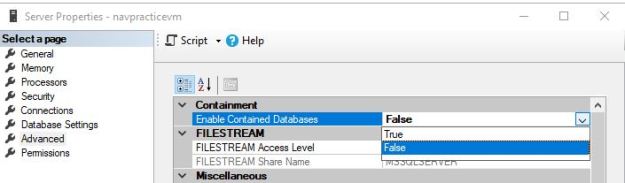
  2. Right-click on the Server instance name in the Object Explorer and click “Properties”
  3. Select the “Advanced” page
  4. Set the “Enabled contained databases” to TRUE
  5. Now, restart the SQL Server Instance by right-clicking the instance name in SSMS and selecting “Restart”
  6. After the restart, log back into SSMS, right-click on the Database node and select New database
  7. Name the database “ContainedDB
  8. Navigate out to the Options page and select the containment mode as “Partial”
  9. Click “OK” to create the database
This screenshot shows how to enable containment for a given SQL Server instance
Enabling Containment for a given SQL Server instance
This screenshot shows the containment options available when creating a database in SQL Server Management Studio
Containment options available when creating a database in SSMS

T-SQL to enable containment

--Enabled Advanced options
sp_configure 'show advanced options',1;
RECONFIGURE
GO

--Enabled Database Containment
sp_configure 'contained database authentication',1;
RECONFIGURE;
GO

--Disable Advanced options
sp_configure 'show advanced options',0;
RECONFIGURE;
GO

T-SQL to create a partially contained database

--Notice that we now have a new option - CONTAINMENT!
USE [master];
GO
CREATE DATABASE [ContainedDB]
CONTAINMENT=PARTIAL
ON 
( NAME = Sales_dat,
    FILENAME = 'C:Program FilesMicrosoft SQL ServerMSSQL11.MSSQLSERVERMSSQLDATAContainedDB.mdf',
    SIZE = 10,
    MAXSIZE = 50,
    FILEGROWTH = 5 )
LOG ON
( NAME = Sales_log,
    FILENAME = 'C:Program FilesMicrosoft SQL ServerMSSQL11.MSSQLSERVERMSSQLDATAContainedDB.ldf',
    SIZE = 5MB,
    MAXSIZE = 25MB,
    FILEGROWTH = 5MB ) ;
GO

Creating a contained user within the newly created contained database

  1. Login to SQL instance used in the test above via SSMS
  2. Using the Object Explorer, navigate out to “ContainedDB”->Security
  3. Right-click on “Users” and choose “New User”
  4. In the New User dialog, enter the user name and password of your choice to create a new user. I created a user called “ContainedUser”
  5. Navigate out to the Membership page, and select the “db_owner” checkbox

Let’s Login!

It’s time to login to SQL Server using our newly created user. But wait! Don’t we need that this database user is mapped to a login? No! That’s the whole beauty of contained databases!

  1. In the Object Explorer, click on the Connect drop-down list and choose “Database engine”
  2. Change the authentication to “SQL Server Authentication”
  3. In the login name and password boxes, pass in the login name and the password of the user created in the steps above
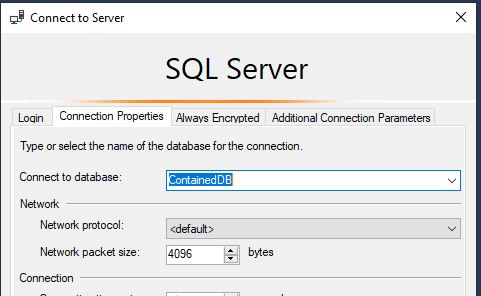
  4. Do not hit “Enter” key or click on “Connect”. Instead, click on the “Connection Properties” tab
  5. In the Connect to Database box, type in the name of the contained database, in our case “ContainedDB”
    Now click on “Connect” to connect to the SQL Server
  6. Notice the level of rights that this user is granted
This screenshot demonstrates how to explicitly specify a database when connecting to SQL Server.
Explicitly connecting to a database via SSMS
Screenshot showing that although the user (ContainedUser) had db_owner membership, the server/instance-level objects are not exposed to this user under this connection.
Notice that no server-level objects are accessible!

NOTE: Although the user (ContainedUser) had db_owner membership, the server/instance-level objects are not exposed to this user under this connection.

Does this database contain any non-contained  entities?

So, now that the database and the users are created and login process tested, it is essential to ensure that the database is indeed contained and there are no uncontained entities.

Launch a new query editor window using the contained database connection created above, and execute the following query against the “ContainedDB”

USE [ContainedDB];
GO
SELECT * FROM sys.dm_db_uncontained_entities;
GO

You should only see one record for the ROUTE class_desc. This is expected.

Screenshot showing the list of non-contained entities in a partially contained database
List of non-contained entities in a partially contained database

Some finer points…

  1. Only the partial containment mode is supported currently
  2. The following entities are not allowed in a partially contained database
    • Uncontained tables (for example, a table that uses an uncontained function in a constraint or computed column)
    • Check constraints that directly use uncontained entities or functions
    • Numbered procedures
    • Computed columns that directly use uncontained entities or functions
    • Schema-bound objects that depend on built-in functions with collation changes
    • Binding change resulting from collation changes, including references to objects, columns, symbols or types

Tomorrow, we will move this newly created database to another SQL Server instance, and see how easy it can be.

Until tomorrow,

Be courteous. Drive responsibly.