
Tag Archives: DBA

Articles for the DBA – accidental or otherwise

#0433 – SQL Server – Tips – Returning parameters from stored procedures (Part 2 of 2)


Last week, I wrote about how to share tables with stored procedures. This allows data sets to be passed in and then returned with modifications. In case you missed it, do read my post here: https://nakulvachhrajani.com/2025/08/04/0432-sql-server-tips-returning-parameters-from-stored-procedures-part-1-of-2/.

Returning result sets and sharing tables is great when there is little post processing involved. Applications that need to process individual entities, do so after the procedure returns them. Returning a cursor as an output parameter can be more efficient compared to returning a large result set. A forward-only cursor allows the application to iterate through the cursors and retrieve data as required v/s keeping the entire result set in memory.

An Example

Here’s an example on how to return cursors from a stored procedure. What I have here are two (2) stored procedures.

Procedure: The “inner” procedure – returning the cursor

USE [WideWorldImporters];
GO

IF OBJECT_ID('dbo.usrproc_GetSupplierList', 'P') IS NOT NULL
    DROP PROCEDURE dbo.usrproc_GetSupplierList;
GO

CREATE PROCEDURE dbo.usrproc_GetSupplierList
	@supplierListCursor CURSOR VARYING OUTPUT
AS
BEGIN
	SET NOCOUNT ON;

	SET @supplierListCursor = CURSOR FORWARD_ONLY STATIC
		FOR SELECT [ws].[SupplierID],
				   [ws].[SupplierName],
				   [ws].[SupplierReference]
			FROM [Website].[Suppliers] AS [ws] WITH (NOLOCK);
	OPEN @supplierListCursor;
END
GO

Consumer: The “outer” script – consuming the cursor

USE [WideWorldImporters];
GO

DECLARE @sqlTwinsCursor     AS CURSOR;
DECLARE @supplierIdentifier AS INT;
DECLARE @supplierName       AS NVARCHAR(100);
DECLARE @supplierReference  AS NVARCHAR(20);

--OUTPUT clause brings the CURSOR 
EXECUTE dbo.usrproc_GetSupplierList
    @supplierListCursor = @sqlTwinsCursor OUTPUT;

WHILE (@@FETCH_STATUS = 0)
    BEGIN
        FETCH NEXT FROM @sqlTwinsCursor INTO @supplierIdentifier, 
											 @supplierName, 
											 @supplierReference;

		--Consume the values 
		SELECT [ppo].[PurchaseOrderID],
		       [ppo].[SupplierID],
			   [ppo].[OrderDate],
			   [ppo].[ExpectedDeliveryDate],
			   [ppo].[DeliveryMethodID],
			   [ppo].[IsOrderFinalized]
		FROM [Purchasing].[PurchaseOrders] AS [ppo]
		WHERE [ppo].[SupplierID] = @supplierIdentifier
		  AND [ppo].[SupplierReference] = ISNULL (@supplierReference,[ppo].[SupplierReference]);
    END

--Close & deallocate the cursor
CLOSE @sqlTwinsCursor;

DEALLOCATE @sqlTwinsCursor;
GO

In case you are following along, here’s how the output should look like:

Cursor States

Cursor states only matter at return time. As outlined in the official documentation:

“It’s valid to close a cursor part of the way through the procedure, to open it again later in the procedure, and return that cursor’s result set to the calling batch, procedure, or trigger.”

I trust you will find the ability to return cursors from stored procedures helpful in improving the efficiency of your applications. Drop a note in the comments below on how you used it and the benefits you got.

Further Reading

Until we meet next time,

Be courteous. Drive responsibly.
#0432 – SQL Server – Tips – Returning parameters from stored procedures (Part 1 of 2)


In my earlier post, I talked about returning scalar values from a stored procedure using the OUTPUT clause. And that made to share a few tips that I have learnt and used through the years.

Returning scalar values is a relatively simple ask. But what if we need to return the entire result set?

The answer is simple – it can’t be done with an OUTPUT clause. Returning a table has to be done in the classical way (been in use since SQL 2000)!

So, today, I will show how to return a table from a stored procedure. Let’s run a quick test.

The Test

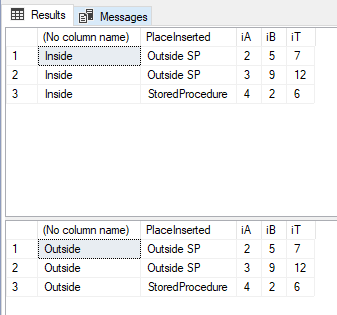
The test scenario here is straight-forward. I have a stored procedure ([dbo].[usrproc_SharingTempTablesTesting]) that accepts some inputs and stores the values into a temp. table. The contents of that table are retrieved outside the procedure – thus proving that the table was shared.

The stored procedure is below:

USE [tempdb];
GO

--00. Safety check
IF OBJECT_ID('usrproc_SharingTempTablesTesting') IS NOT NULL
BEGIN
    DROP PROCEDURE usrproc_SharingTempTablesTesting;
END
GO

--01. Create stored procedure
CREATE PROCEDURE [dbo].[usrproc_SharingTempTablesTesting]
    @intA INT,
    @intB INT
AS
BEGIN
  SET NOCOUNT ON

  INSERT INTO #SharingTempTables ([PlaceInserted], [iA], [iB]) 
  VALUES ('StoredProcedure', @intA, @intB)
 
  --Selecting data from the temp. table
  SELECT 'Inside',* FROM #SharingTempTables  
END
GO

Now, let’s create a temporary table, populate it with values and then call the stored procedure and consume the output:

USE [tempdb];
GO
--00. Safety Check
IF OBJECT_ID('#SharingTempTables') IS NOT NULL
BEGIN
    DROP TABLE #SharingTempTables;
END
GO

--01. Create temp. table
CREATE TABLE #SharingTempTables ([PlaceInserted] NVARCHAR(255) NOT NULL,
                                 [iA]            INT           DEFAULT 0, 
                                 [iB]            INT           DEFAULT 0,
                                 [iT]            AS (iA + iB)
                                )
GO

--02. Insert some test data
INSERT INTO #SharingTempTables ([PlaceInserted], [iA], [iB])
VALUES ('Outside SP', 2, 5), 
       ('Outside SP', 3, 9);
GO

--03. Execute the stored procedure
EXEC [dbo].[usrproc_SharingTempTablesTesting] @intA = 4, @intB = 2;
GO

--04. Select data from the temp table
SELECT 'Outside',* FROM #SharingTempTables
GO

I trust this simple demonstration will help you to understand how to exchange information into a stored procedure and refer the same outside too.

Until we meet next time,

Be courteous. Drive responsibly.

#0427 – SQL Server – Msg 8152, Level 16: Which column is causing “String or binary data would be truncated.”?


As a database administrator or developer, I’m quite sure that you’ve encountered the following error when working with your database queries in SQL Server.

Msg 8152, Level 16, State 30, Line 27
String or binary data would be truncated.

The statement has been terminated.

As is quite obvious by the text, this error occurs when you try to insert or update data that exceeds the maximum length of a column. While this error is common and quite straightforward to understand, it can be frustrating to troubleshoot – especially when you’re not sure which column is causing the issue (e.g. in the case of integrations or data imports).

In newer versions of SQL Server (2019 and above), the error message has become much more descriptive and I have found it very helpful to quickly identify and resolve the problem.

Let’s check it out with a code example. I am creating a test database and then changing the compatibility level of that database to 130 to simulate SQL 2016 equivalent behaviour. Then I will attempt to insert data (~42 characters) that exceeds the maximum length of the [SomeColumn1] column (25 characters).

SET ANSI_WARNINGS ON;
GO

USE [master];
GO
CREATE DATABASE [SqlTwinsDB];
GO
USE [master];
GO
ALTER DATABASE [SqlTwinsDB]
SET COMPATIBILITY_LEVEL = 130; --Simulating SQL 2016 on my SQL 2022 instance
GO


USE [SqlTwinsDB];
GO
--Safety Check
BEGIN
	IF OBJECT_ID('[dbo].[stringLengthError]','U') IS NOT NULL
	BEGIN
		DROP TABLE [dbo].[stringLengthError];
	END
END

--Declarations
BEGIN
	CREATE TABLE [dbo].[stringLengthError]([Id]          INT         NULL,
	                                       [SomeColumn1] VARCHAR(25) NULL,
										   [SomeColumn2] VARCHAR(25) NULL
						    		      );
END

--Run the test
BEGIN
	INSERT INTO [dbo].[stringLengthError] ([Id],
	                                       [SomeColumn1],
										   [SomeColumn2]
										  )
	VALUES (1, 
	        REPLICATE('nav',14), --14*3 = 42 characters, can't fit into [SomeColumn1]
			REPLICATE('nav',5)   --14*3 = 42 characters,  will fit into [SomeColumn2]
		   );
END

/* Expectation: Get the following error:

Msg 8152, Level 16, State 30, Line 27
String or binary data would be truncated.
The statement has been terminated.

Problem is: We don't know which column is generating the error, 
            unless we know the data and do some calculations.
*/

--Cleanup
BEGIN
	IF OBJECT_ID('[dbo].[stringLengthError]','U') IS NOT NULL
	BEGIN
		DROP TABLE [dbo].[stringLengthError];
	END
END
GO

The error message we get is quite generic and doesn’t provide any information about which column is causing the issue. This would mean that we would have to dump the data into another temporary table/file and begin the tedious task of comparing the lengths and finding which field/column is being hit with the offending data.

Msg 8152, Level 16, State 30, Line 27
String or binary data would be truncated.

The statement has been terminated.

Let us repeat this test with Compatibility Level set to 150 or higher (I will go with the default (160) for my version. Since the database is already created, I will simply change the compatibility level and try again.

SET ANSI_WARNINGS ON;
GO

USE [master];
GO
ALTER DATABASE [SqlTwinsDB]
SET COMPATIBILITY_LEVEL = 160;
GO

USE [SqlTwinsDB];
GO
--Safety Check
BEGIN
	IF OBJECT_ID('[dbo].[stringLengthError]','U') IS NOT NULL
	BEGIN
		DROP TABLE [dbo].[stringLengthError];
	END
END

--Declarations
BEGIN
	CREATE TABLE [dbo].[stringLengthError]([Id]          INT         NULL,
	                                       [SomeColumn1] VARCHAR(25) NULL,
										   [SomeColumn2] VARCHAR(25) NULL
						    		      );
END

--Run the test
BEGIN
	INSERT INTO [dbo].[stringLengthError] ([Id],
	                                       [SomeColumn1],
										   [SomeColumn2]
										  )
	VALUES (1, 
	        REPLICATE('nav',14), --14*3 = 42 characters, can't fit into [SomeColumn1]
			REPLICATE('nav',5)   --14*3 = 42 characters,  will fit into [SomeColumn2]
		   );
END

--Cleanup
BEGIN
	IF OBJECT_ID('[dbo].[stringLengthError]','U') IS NOT NULL
	BEGIN
		DROP TABLE [dbo].[stringLengthError];
	END
END
GO

This time, we still get the “String or binary data would be truncated” error, but with:

  • With a different message code (2628 instead of 8152)
  • A more verbose error which shows:
    • The field that is causing the error
    • The value that is being truncated
Msg 2628, Level 16, State 1, Line 31
String or binary data would be truncated in table 'SqlTwinsDB.dbo.stringLengthError', column 'SomeColumn1'. Truncated value: 'navnavnavnavnavnavnavnavn'.
The statement has been terminated.

Personally speaking, I find this to be a significant enhancement & a real time-saver when troubleshooting large data imports. Tip: If you’re working on an integration project and frequently encounter these types of errors, it may be worth considering upgrading your database engine to take advantage of this feature.

Sometimes, you may not even get this error and the truncation would happen silently. Do read my previous post https://nakulvachhrajani.com/2014/08/04/0341-sql-server-random-string-or-binary-data-would-be-truncated-errors-during-bulk-data-loads/ that talks about connection configuration parameters (more specifically, ANSI_WARNINGS) that may affect this behaviour.

Untill we meet next time,

Be courteous. Drive responsibly.

#0425 – SQL Server – Backup exists but doesn’t display on the restore window in SSMS. Why? How to fix?


Recently, I ran into a forum post where the ask was to figure out why a perfectly valid backup was not visible when attempting to restore it via the wizard in SSMS. Today, I will reproduce the issue, explain the root cause and provide the solution for the same.

Building the scenario

In one of the my test SQL Servers, I have a copy of the [AdventureWorks2019] sample database, which I have backed up using the following simple script.

USE [master];
GO
BACKUP DATABASE [AdventureWorks2019]
 TO DISK = 'C:\Program Files\Microsoft SQL Server\MSSQL14.SQL2K17\MSSQL\Backup\AdventureWorks2019.bak'
    WITH COMPRESSION;
GO

Now, to simulate the movement of the backup to a different machine, I created a new folder under my default “Documents” folder and placed the backup there.

Screenshot showing the placement of the target folder where the backup is placed

Reproducing the symptom

Restoring via SSMS

  1. Connect to the target SQL Server using SSMS
  2. Right-click on the “Databases” folder in the Object Explorer
  3. Choose to Restore a database
  4. Under “Source”, select the radio-option for restoring from a “Device”
  5. Use the ellipsis to open the “Select Backup Devices” window and open the File explorer by choosing “Add”
  6. Navigate to the folder where the backup has been placed
    1. Expected Result: We should be able to see the folder and the backup file
    2. Actual Result: The backup file is not seen (the folder may or may not be seen)
Screenshot showing that the backup exists, but it is not seen in the "Locate Backup File" window
Screenshot showing that the backup exists, but it is not seen in the “Locate Backup File” window

Restoring via T-SQL

While the UI keeps things a bit mysterious, attempting to restore via T-SQL does point us to the right direction.

USE [master];
GO
RESTORE DATABASE [AdventureWorks2019_Copy]
    FROM DISK = 'C:\Users\sqltwins\Documents\AdventureWorksBackup\AdventureWorks2019.bak';
GO

Here’s the error that we run into:

Msg 3201, Level 16, State 2, Line 3
Cannot open backup device 'C:\Users\sqltwins\Documents\AdventureWorksBackup\AdventureWorks2019.bak'. Operating system error 5(Access is denied.).
Msg 3013, Level 16, State 1, Line 3
RESTORE DATABASE is terminating abnormally.

Notice that the error clearly says – “Access is denied.

Root Cause

As highlighted by the results of the T-SQL script, SQL Server is actually running into a security problem. The operation is done under the context of the SQL Server instance service user (i.e. the user under which the SQL Server service runs).

Because the user doesn’t have access to the folder we just created, the service cannot see the files underneath.

Solution

The solution is to use the SQL Server Configuration Manager to figure out the user under which the SQL Server service runs.

Once the user is identified, provide access to the target folder to the user and the files should now be visible – both to SSMS and to T-SQL.

Screenshot showing the backup file is now visible once the SQL Server instance service has been granted to the folder

Further Reading/References:

Until we meet next time,

Be courteous. Drive responsibly.

#0423 – SQL Server – Exporting Database Diagrams for offline viewing


We a colleague of mine used Database Diagrams to explain our database structure to a new team member. Now typically, we would have started to “draw” the relationships on a white board, but in a world where everyone was working remotely, this was the only option.

The Visual Aspect

I am sure almost everyone in the audience has also used database diagrams at some point as a means of database documentation before switching to methods (like Extended Properties) more suited to modern database development and deployment techniques.

Unfortunately, these techniques do not have the ability to demonstrate the relationships visually. Database diagrams provide this unique ability and hence, warrant a rethink in terms of usage.

Now, the goal of this post is not to show “how” to build a database diagram, but to:

  1. Demonstrate effective ways of providing as much detail as possible on the diagram
  2. Show how to export the diagram for offline reference

Increasing the level of detail in a Database Diagram

For effective database diagraming, the recommendation is to group the tables/information shown on the diagram by one of the following two (2) strategies:

  1. By schema: If you use database schemas, group objects by schema and have at least one database diagram per schema
  2. By Use-case: Alternatively, tables that are related from a domain perspective (or for a particular use-case, e.g. Authentication) can be selected and be the subject of a diagram

Once you have put all the required tables on the diagram, you may want to right-click on the canvas and choose “Show Relationship Labels”. Additional annotations may also be applied as necessary by using the “New Text Annotation” functionality.

Image showing how to enable visibility of relationship labels on the diagram by right-clicking on the canvas and choosing "Show Relationship Labels"
Image showing how to enable visibility of Relationship labels on a database diagram

By default, the database diagram will only show the table name and list of columns. For maximum details, you can right-click on the table name -> select “Table View” -> select “Standard”.

Screenshot showing how to select the "Standard" view of tables on a database diagram. This will add more details (like datatype and null-ability of columns).
Screenshot showing how to select the “Standard” table view, which increases the level of detail on the diagram

As you will notice, using the “Standard” table view will add more details (like datatype and null-ability of columns) on the diagram. The columns can be added/removed by using the “Modify Column” option of the same menu.

Screenshot showing the "Modify Columns" screen which allows the user to select/choose columns on the table that may be necessary to review the design.
Column selector for the “Standard” view
Image showing how the standard view adds more details (like datatype and null-ability of columns) on the diagram.
“Standard” view of database tables on a diagram.

This process will need to be done for all tables. Once done, arrange the diagram on the canvas manually.

Exporting the Database Diagram

Once a database diagram is prepared, it can be saved in the database. However, there is no way to export or save a diagram into a file that can be sent via E-mail or stored on a collaboration tool for offline viewing. There is however, a very simple way by which the ultimate goal can be achieved – by storing it as an image!

Now, I am now talking about taking multiple screenshots and stitching them together in an image editing app. It is very simple to copy the diagram as an image.

Simply right-click on the canvas and choose “Copy Diagram to Clipboard”

Screenshot showing how to copy the database diagram to the clipboard.
Image showing how to copy the diagram to clipboard.

Once the diagram is on the clipboard, it can be pasted as an image to any image editing application or document!

Further Reading

I trust this little tip comes to your assistance someday.

Until we meet next time,

Be courteous. Drive responsibly.