Tag Archives: Development

Articles on Microsoft SQL Server development

#0412 – SQL Server – SSIS – Error – The value type (__ComObject) can only be converted to variables of type Object. Variables may not change type during execution.


Recently, we were manipulating a string in an “Execute SQL” task inside a SSIS package, when we ran into the following sequence of errors.

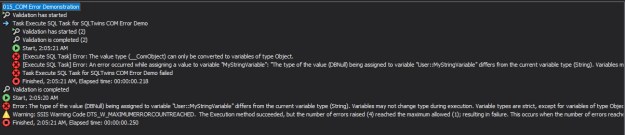
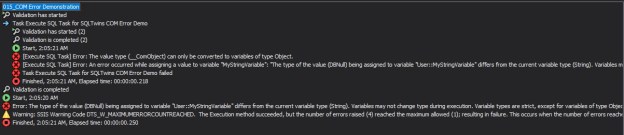
[Execute SQL Task] Error: The value type (__ComObject) can only be converted to variables of type Object.
[Execute SQL Task] Error: An error occurred while assigning a value to variable "MyStringVariable": "The type of the value (DBNull) being assigned to variable "User::MyStringVariable" differs from the current variable type (String). Variables may not change type during execution. Variable types are strict, except for variables of type Object.".
Error: The type of the value (DBNull) being assigned to variable "User::MyStringVariable" differs from the current variable type (String). Variables may not change type during execution. Variable types are strict, except for variables of type Object.

The Execute SQL was similar to something that we had done hundreds of times before, and therefore we were stumped by the error. I found the root cause interesting and hence wanted to write about it right away.

The Test Setup

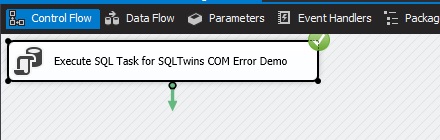
Before we go ahead, allow me to walk through the sample SSIS package which we used to reproduce the issue. As I mentioned, it is a simple SSIS package with a single “Execute SQL Task”.

0412_01_SSISExecuteSQLTask

The Execute SQL task in the sample SSIS package

The “Execute SQL” task simply executes a T-SQL statement that returns a single-row result set and sets a package variable of type “string“.

DECLARE @myVariable VARCHAR(MAX);

SET @myVariable = 'SQLTwins';

SELECT @myVariable AS myVariable;
0412_02_SSISVariable

User Variable of type “string” in the test package

0412_03_SSISExecuteSQLDetails

Execute SQL task details showing sample T-SQL script
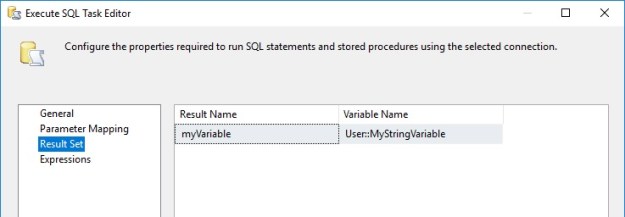
0412_04_SSISResultSetVariableMapping

Variable Mapping in the Execute SQL Task

When we execute this SSIS package, it fails with the error referenced above.

0412_05_ExecuteSQLFailure

Failed Execute SQL Task

0412_06_ExecuteSQLFailureDetails

Execute SQL Task Failure Details

The Solution

The solution was right there in our faces, but we failed to notice it for a while. If we read the error message carefully, we can isolate the following points:

  • The data-type of the variable from the Result Set output of the Execute SQL task is different from the data-type of the target user variable
  • SSIS detects this as an attempt to change the data-type, which is not allowed because variables types are strict unless defined as an “object”

Based on this, we set about looking at differences between the single-row result set and the SSIS user variable of type “string”. We soon realized that the result set was returning a VARCHAR(MAX).

It appears that the (MAX) was causing problems in the SSIS engine. As soon as we changed it to a fixed-length variable the package worked as expected.

DECLARE @myVariable VARCHAR(8000);

SET @myVariable = 'SQLTwins';

SELECT @myVariable AS myVariable;
0412_07_ExecuteSQLSuccess

Successful execution of Execute SQL after changing to a fixed-length data-type

Hope this little tip helps in your development efforts someday.

Until we meet next time,

Be courteous. Drive responsibly.
 

#0410 – SQL Server – Dividing a TimeSpan by an Integer to find average time per execution


I recently encountered an interesting question on the forums the other day. The question was how to determine the average time taken by a single execution of the report provided we know how many times the report ran and the total time taken for all those executions.

The challenge is that the total time taken for all the report executions is a timespan value (datatype TIME in SQL Server). A TIME value cannot be divided by an INTEGER. If we try to do that, we run into an error – an operand clash.

USE [tempdb];
GO
DECLARE @timeSpan TIME = '03:18:20';
DECLARE @numberOfExecutions INT = 99;

SELECT @timeSpan/@numberOfExecutions;
GO
Msg 206, Level 16, State 2, Line 6
Operand type clash: time is incompatible with int

The solution is to realize that a timespan/TIME value is ultimately the number of seconds passed from a given instant. Once the timespan is converted to the appropriate unit (number of seconds), dividing by the number of executions should be quite simple.

Here’s the working example:

USE [tempdb];
GO
DECLARE @timeSpan TIME = '03:18:20';
DECLARE @numberOfExecutions INT = 99;

SELECT @timeSpan AS TotalActiveTime,
       DATEDIFF(SECOND,'1900-01-01 00:00:00.000',CAST(@timeSpan AS DATETIME)) AS TotalExecutionTimeInSeconds,
       DATEDIFF(SECOND,'1900-01-01 00:00:00.000',CAST(@timeSpan AS DATETIME))/(@numberOfExecutions * 1.0) AS TimePerExecution;
GO

/* RESULTS
TotalActiveTime  TotalExecutionTimeInSeconds TimePerExecution   
---------------- --------------------------- -------------------
03:18:20.0000000 11900                       120.20202020202020
*/

I trust this simple thought will help in resolving a business problem someday.

Until we meet next time,

Be courteous. Drive responsibly.

Collapsed Regions using BEGIN_END

#0409 – SQL Server – Code Blocks – Equivalent of #region…#endregion


I was recently participating in a forum and came across an interesting question. What attracted my attention was that the person was trying to keep their T-SQL code clean and readable (which in itself is a rare sight).

The person was trying to group their T-SQL code into regions. In the world of application development technologies (e.g. C#) we would typically use the #region….#endregion combination. However, it does not work with T-SQL because the hash (#) is used to define temporary tables.

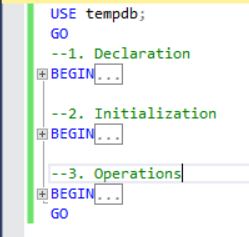
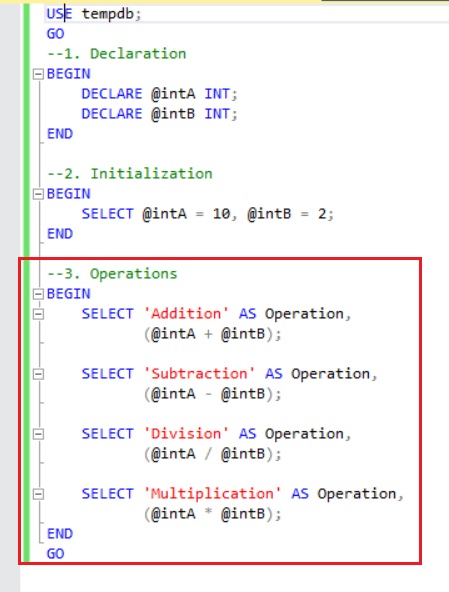
In T-SQL, the basic control-of-flow statements  that allow you to group the code are the BEGIN…END keywords. The BEGIN…END keywords can be used to logically group code so that they can be collapsed or expanded as required.

Collapsed Regions using BEGIN_END

Collapsed Regions using BEGIN_END

Expanded Regions using BEGIN_END

Expanded Regions using BEGIN_END

Summarizing,

The BEGIN…END keywords are therefore the functional equivalents of the #region…#endregion statements.

Until we meet next time,

Be courteous. Drive responsibly.
#0408 – SQL Server – Msg 1750: Could not create constraint or index


An trivial problem came to my desk recently. We were having some issues in creating a table. The script was quite simple, and yet we were facing errors as shown below.

USE tempdb;
GO
IF OBJECT_ID('dbo.ConstraintsCheck','U') IS NOT NULL
    DROP TABLE dbo.ConstraintsCheck;
GO

CREATE TABLE dbo.ConstraintsCheck 
    (RecordId INT NOT NULL IDENTITY(1,1),
     Field1   INT NOT NULL,
     Field2   INT NOT NULL
     CONSTRAINT chk_IsField2GreaterThanField1 CHECK (Field2 > Field1)
    );
GO

The script was being run via an installer, and hence all we got was the last part of the error message:

Msg 1750, Level 16, State 0, Line 7
Could not create constraint or index. See previous errors.

If you have already caught the error, great work! As for us, it took a couple of minutes and running the script via SSMS before we realized that the issue was a just a plain human error.

Here’s the full error that we got when the script was executed in SSMS:

Msg 8141, Level 16, State 0, Line 7
Column CHECK constraint for column 'Field2' references another column, table 'ConstraintsCheck'.
Msg 1750, Level 16, State 0, Line 7
Could not create constraint or index. See previous errors.

The first message that is thrown is the key – it clearly tells us that the CHECK constraint definition cannot be created because it references another column. However, this is a fairly common requirement which is what threw us off.

Finally we realized that we did not have a comma in the T-SQL script before the constraint was defined. Without the comma, SQL Server is trying to create a column constraint, when what we wanted was a table constraint. Here’s the extract from TechNet:

  • A column constraint is specified as part of a column definition and applies only to that column.
  • A table constraint is declared independently from a column definition and can apply to more than one column in a table.

So, we just added the comma to convert the column constraint to a table constraint and we were all set.

USE tempdb;
GO
IF OBJECT_ID('dbo.ConstraintsCheck','U') IS NOT NULL
    DROP TABLE dbo.ConstraintsCheck;
GO

CREATE TABLE dbo.ConstraintsCheck 
    (RecordId INT NOT NULL IDENTITY(1,1),
     Field1   INT NOT NULL,
     Field2   INT NOT NULL, --<-- A comma here makes it a legal Table Constraint
     CONSTRAINT chk_IsField2GreaterThanField1 CHECK (Field2 > Field1)
    );
GO

References:

Until we meet next time,

Be courteous. Drive responsibly.
#0407 – SQL Server – Clearing out the list of servers in SSMS


Today, I will talk about a very common question that I see in the forums. When you  work with a lot of SQL Server instances, the list of servers seen on the login screen in the SQL Server Management Studio (SSMS) becomes quite long, raising the question:

How to clear out the list of SQL Server instance names in SSMS?

SQL Server 2014 and above

Clearing out servers that no longer exist or to which you no longer need to connect to is quite simple in SQL Server 2014 and above. All you need to do is:

  1. Open SSMS
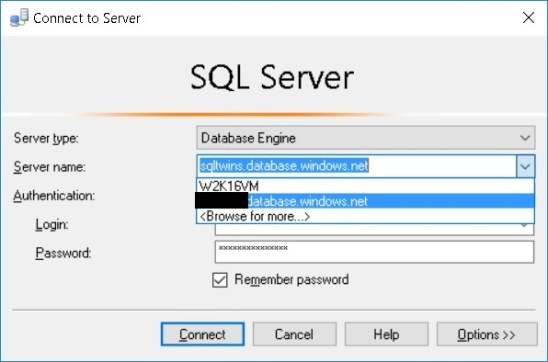
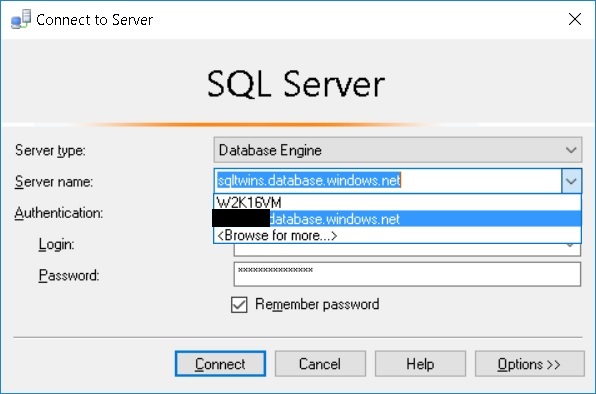
  2. In the login window,  expand the list of available SQL Server instances
  3. Use the keyboard’s down arrow or use the mouse to scroll down to the instance that needs to be deleted
  4. Once the required instance is selected in the list, just press “Delete” on the keyboard
SSMS_LoginWindow

Just select the appropriate SQL Server instance and press “Delete” to remove it from the SSMS login history

If you are still using an older version of SSMS due to various reasons, there is a manual workaround to this as shown below.

SSMS for SQL Server 2012 and below

  1. Close all open instances of SSMS on your workstation
  2. Depending upon your version of the SSMS client tools, navigate to and delete the files as shown in the table below:
  3. Launch SSMS
  4. It might take a little while to launch, as it recreates the “SqlStudio.bin”/”mru.dat
    • Once launched, you will see that the entire SSMS history is gone
SSMS Client Tools Version Path File to Delete
SQL 2012 %USERPROFILE%AppDataRoamingMicrosoftSQL Server Management Studio11.0 SqlStudio.bin
SQL 2008 %USERPROFILE%AppDataRoamingMicrosoftMicrosoft SQL Server100ToolsShell SqlStudio.bin
SQL 2005 %USERPROFILE%AppDataRoamingMicrosoftMicrosoft SQL Server90ToolsShell mru.dat

Until we meet next time,

Be courteous. Drive responsibly.