Tag Archives: Development

Articles on Microsoft SQL Server development

A Blank string is treated as a zero (0) when used in a query filter on an integer value due to implicit conversion.

#0384 – SQL Server – Basics – Implicit Conversion – Blank strings (”) are treated as integers


On one of the forums, I encountered an interesting question the other day. The person asking the query had a table which had integers, null values and blank strings. In order to clean up this data, it was required to distinctly identify each of these combinations, but the simple queries below seemed to return the same results.

USE tempdb;
GO
SELECT sv.RowValue,
       sv.RowValueInWords
FROM dbo.SomeValues AS sv
WHERE sv.RowValue >= 0;
GO

USE tempdb;
GO
SELECT sv.RowValue,
       sv.RowValueInWords
FROM dbo.SomeValues AS sv
WHERE sv.RowValue >= '';
GO

Behind the scenes

This behaviour is not a bug, but is by design of SQL Server. What is happening is that when faced with conflicting data types, SQL Server tries to perform implicit conversions to arrive at a common data type which can be used to compare both the values.

Implicit conversion is done by following the rules of data type precedence, which dictates the sequence of implicit conversion, i.e. a data type with lower precedence is converted to a data type that has higher precedence. If such implicit conversion is not possible, and the user has not specified an explicit conversion, an error is returned.

Per the rules outlined by data type precedence, character data types (VARCHAR/NVARCHAR/TEXT/NTEXT) have a precedence that is lower than integers (INT). Hence, when faced with comparing characters and numbers, SQL Server will always implicitly convert the string to a number. A blank string (”) is therefore treated as a zero (0) when implicit conversion takes place.

Allow me to present this with a demo.

A demo

In the example below, I recreate the scenario referenced in the forum post – I have a table with numbers, zero and NULLs.

USE tempdb;
GO
SET NOCOUNT ON;
GO
--Safety Check
IF OBJECT_ID('dbo.SomeValues','U') IS NOT NULL
BEGIN
    DROP TABLE dbo.SomeValues;
END
GO

--Creating the test table
CREATE TABLE dbo.SomeValues 
        (RowId           INT         NOT NULL IDENTITY(1,1),
         RowValue        INT             NULL,
         RowValueInWords VARCHAR(50) NOT NULL
        );
GO

--Inserting values in the test table
INSERT INTO dbo.SomeValues(RowValue, RowValueInWords)
VALUES (0,    'Zero'),
       (NULL, 'NULL'),
       (1,    'One'),
       (2,    'Two'),
       (3,    'Three'),
       (4,    'Four'),
       (5,    'Five');
GO

Now let me run the query presented in the forum post.

USE tempdb;
GO
SELECT 'Query with Zero' AS QueryCondition,
       sv.RowValue,
       sv.RowValueInWords
FROM dbo.SomeValues AS sv
WHERE sv.RowValue >= 0;
GO

USE tempdb;
GO
SELECT 'Query with Blank' AS QueryCondition,
       sv.RowValue,
       sv.RowValueInWords
FROM dbo.SomeValues AS sv
WHERE sv.RowValue >= '';
GO

SQL Server returned me the same result because the blank string was implicitly converted to a zero (0).
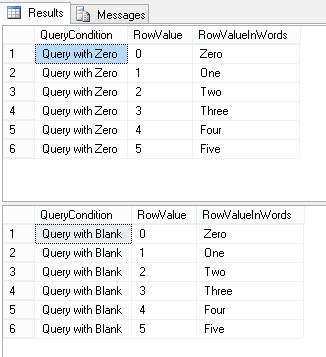
A Blank string is treated as a zero (0) when used in a query filter on an integer value due to implicit conversion.

Implicit Conversion may cause query filters to behave unexpectedly

Now, I will try and insert a blank string into the test table. We can see that the value will be inserted successfully.

--Let's try to insert a blank value
USE tempdb;
GO
INSERT INTO dbo.SomeValues (RowValue, RowValueInWords)
VALUES ('','Blank');
GO
/***********
RESULTS
***********/
--Command(s) completed successfully.

The question now is – what did SQL Server insert? If a blank value was indeed stored, it would violate the rules of the data type enforced by the column definition. Hence, I will now select the values from the table to see what was inserted.

USE tempdb;
GO
--See what was stored
SELECT sv.RowValue,
       sv.RowValueInWords
FROM dbo.SomeValues AS sv;
GO
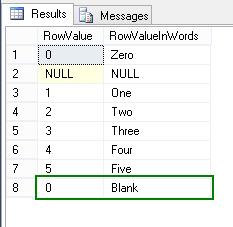
A blank string is inserted into the table as a zero due to implicit conversion

A blank string is inserted into the table as a zero due to implicit conversion

We can see from the results above that SQL Server performed an implicit conversion during the insert and stored a zero into the table. If the calling application tries to validate the data stored, it can continue to detect a mismatch between the expected and the actual data stored.

Summary

Implicit conversion is a boon if used wisely, but in most cases it can (and will) catch poorly written code and unsuspecting developers by surprise. Almost all operations in SQL Server are affected by implicit conversion as I have explored in the past with the following posts:

  • Best Practices – Avoid Implicit conversions as they may cause unexpected issues (Part 01) [Blog Link]
  • Best Practices – Avoid implicit conversions (Part 02) – Implicit conversions, COALESCE and ISNULL [Blog Link]
  • Msg 206; Operand Type Clash; Return type of a CASE expression follows datatype precedence [Blog Link]
  • Data Type Precedence in SQL Server [MSDN Link]

Until we meet next time,
Be courteous. Drive responsibly.
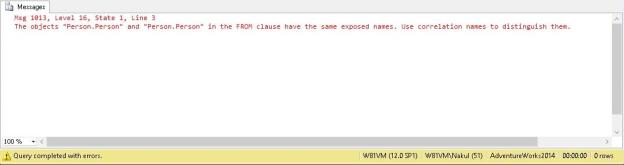
Msg 1013 indicating duplicate exposed names when the same object is referenced again in the query without an alias.

#0383 – SQL Server – Basics – Msg 1013 – The objects in the FROM clause have the same exposed names. Use correlation names to distinguish them.


Working with complex queries (those that have more than a handful of joins), one of the things that is difficult for novice developers is to keep track of where they are and which objects have already been referenced on the query.

One of the developers just walked up to me the other day with the following error (formatted for the sake of brevity):

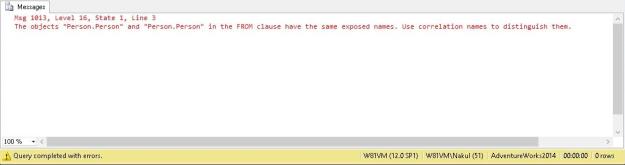
Msg 1013, Level 16, State 1, Line 3
The objects "Person.Person" and "Person.Person" in the 
FROM clause have the same exposed names. 
Use correlation names to distinguish them.

Now, I did not recollect if I had ever seen the error before, so my first response was to take a look at the query. As soon as I looked at the query, I immediately realized the problem – the query had a self join and no object aliases were used to distinguish between the two instances of the same object!

USE AdventureWorks2014;
GO
SELECT *
FROM Person.Person 
INNER JOIN Person.Person ON BusinesEntityID = BusinessEntityID;
GO
Msg 1013 indicating duplicate exposed names when the same object is referenced again in the query without an alias.

Msg 1013 indicating duplicate exposed names when the same object is referenced again in the query without an alias.

Lesson Learned

Once the objects in the query were given aliases, the error was resolved.

However, this incident enforces what I have always practiced and believed to be a best practice – always ensure that object names, queries and other literals used in a query have proper aliases.

Using proper aliases ensures that as a developer, reviewer or as a support engineer, we always know exactly which instance of the object is being referred.

Until we meet next time,
Be courteous. Drive responsibly.
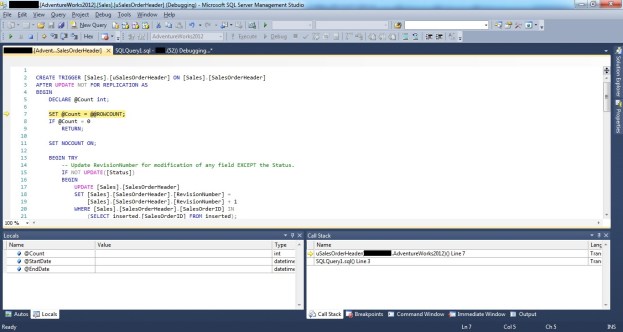
Showing how to debug a DML trigger by stepping into a DML trigger during a SSMS T-SQL Debugging session

#0382 – SQL Server – SSMS – Debugging a T-SQL DML Trigger


I often receive questions related to debugging code using SSMS. Based on these questions, I have written a lot of blog posts in the past, however I was recently asked the question:

How can I debug a DML trigger in SSMS?

I realized that while I had encountered the same question and researched it in my initial days (when I worked on SQL Server 2000), I had never written about it. So, here goes.

In order to demonstrate how to debug a trigger, all we need to do is debug the statement that initiates the trigger.

For this demonstration, I will fire an update on the [Sales].[SalesOrderHeader] table of the AdventureWorks database.

USE AdventureWorks2012;
GO
UPDATE soh
SET soh.SubTotal += 2
FROM Sales.SalesOrderHeader AS soh
WHERE soh.SalesOrderNumber = 'SO43697';

When we debug this query (using F10), the SSMS debugger launches and we can step through the code using the same key combinations as we have in Visual Studio.

Demonstrating how to debug DML triggers using SSMS

Debugging T-SQL script using SSMS

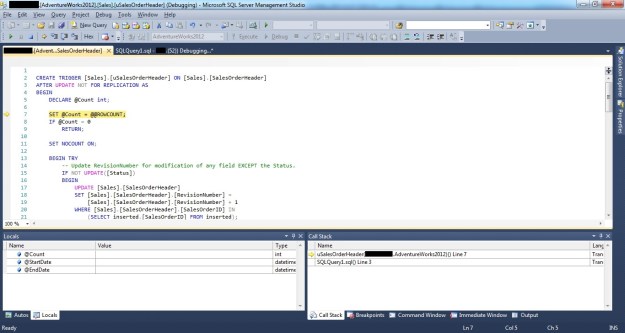
Executing the update should fire the DML trigger [uSalesOrderHeader] which can be debugged like any other T-SQL code by stepping into the trigger (press F11 when executing the update).

Showing how to debug a DML trigger by stepping into a DML trigger during a SSMS T-SQL Debugging session

Stepping into a DML trigger during a SSMS T-SQL Debugging session

That’s it. Debugging a trigger is no different than debugging a stored procedure or any other T-SQL script.

In case you would like to learn more about debugging in SSMS, please do refer my previous posts (links below). If there is anything specific that you would like to know more about, do drop in a line.

Further Reading

  • T-SQL Debugger – Underappreciated Features of Microsoft SQL Server [Blog Link]
  • Enabling T-SQL Debugger in SQL Server Management Studio (SSMS) [Blog Link]
  • SSMS – Tutorial – Part 03 – The T-SQL Debugger (L200) [Blog Link]
  • T-SQL Debugging – Connection Errors & Firewall settings [Blog Link]
  • T-SQL Debugging – SSMS errors – MSDBG2.DLL [Blog Link]
  • Setting, Labeling, Using & Searching Conditional Breakpoints [Blog Link]
  • Export/Import Breakpoints [Blog Link]
  • Using the “When Hit, Do Something” breakpoint configuration [Blog Link]
  • Using Data-Tips [Blog Link]
  • Editing, Exporting and Importing Data Tips [Blog Link]

Until we meet next time,
Be courteous. Drive responsibly.
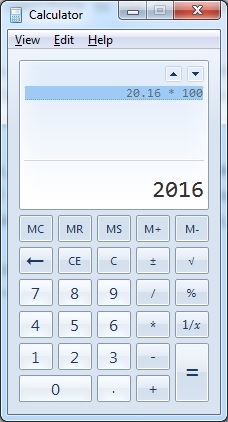
When we multiply a Decimal (20.16) with another number (100) using the calculator, the result is as expected (2016)

#0380 – SQL Server – Basics – Specify Scale and Precision when defining Decimal and Numeric datatypes


I had some interesting conversation during a code review that I was asked to conduct for a simple query that a team had written to support their project monitoring. The team was specializing in quality assurance and had minimal development experience. The team had used variables of decimal data types in their script, but they were declared without any precision or scale. When I gave a review comment on the declaration of variables, I was asked the question:

Does it make a difference if we do not specify scale and precision when defining variables of decimal or numeric datatypes?

I often look forward to such encounters for two reasons:

  1. When I answer their questions, the process reinforces my concepts and learnings
  2. It helps me contribute to the overall community by writing a blog about my experience

When the question was asked, I honestly admitted that I did not have a specific answer other than it was the best practice to do so from a long-term maintainability standpoint. Post lunch, I did a small test which I showed the team and will be presenting today.

The Problem

In the script below, I take a decimal variable (declared without a fixed scale or precision) with value (20.16) and multiply it by a constant number (100) and then by another constant decimal (100.0). If one uses a calculator, the expected result is:

  • 20.16 * 100 = 2016
  • 20.16 * 100.0 = 2016
When we multiply a Decimal (20.16) with another number (100) using the calculator, the result is as expected (2016)

Expected results when we multiply a Decimal with another number using the calculator

However, when we perform the same test via SQL Server, we are in for a surprise:

DECLARE @dVal1 DECIMAL = 20.16;

SELECT (@dVal1 * 100)   AS DecimalMultipliedByAnInteger, 
       (@dVal1 * 100.0) AS DecimalMultipliedByADecimal;
GO

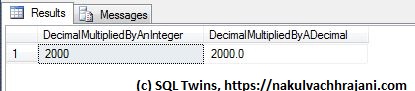
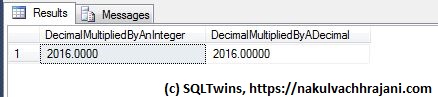
As can be seen from the seen from the results below, we do not get the expected results, but we find that the decimal value was rounded off before the multiplication took place.

Although the test input value is declared as a decimal, the result appears to be based only on the significand, not the mantissa part of the input.

Although the test input value is declared as a decimal, the result appears to be based only on the significand, not the mantissa part of the input.

Root Cause

The reason behind this behaviour is hidden in the following lines of the SQL Server online documentation on MSDN (formerly known as “Books-On-Line”) for decimal and numeric data-types available here: https://msdn.microsoft.com/en-us/library/ms187746.aspx.

…s (scale)
The number of decimal digits that will be stored to the right of the decimal point….Scale can be specified only if precision is specified. The default scale is 0…

The real reason however is a few lines below – rounding.

Converting decimal and numeric Data

…By default, SQL Server uses rounding when converting a number to a decimal or numeric value with a lower precision and scale….

What SQL Server appears to be doing here is that when a variable of DECIMAL datatype is declared without a precision and scale value, the scale is taken to be zero (0). Hence, the test value of 20.16 is rounded to the nearest integer, 20.

To confirm that rounding is indeed taking place, I swapped the digits in the input value from 20.16 to 20.61 and re-ran the same test.

DECLARE @dVal1 DECIMAL = 20.61;

SELECT (@dVal1 * 100)   AS DecimalMultipliedByAnInteger, 
       (@dVal1 * 100.0) AS DecimalMultipliedByADecimal;
GO

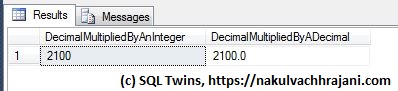
Now, the result was 2100 instead of 2000 because the input test value of 20.61 was rounded to 21 before the multiplication took place.

Because the test input value was declared as a decimal without precision and scale, rounding took place, resulting in a different result.

Because the test input value was declared as a decimal without precision and scale, rounding took place, resulting in a different result.

By this time, my audience was struck in awe as they realized the impact this behaviour would have had on their project monitoring numbers.

The Summary – A Best Practice

We can summarize the learning into a single sentence:

It is a best practice for ensuring data quality to always specify a precision and scale when working with variables of the numeric or decimal data types.

To confirm, here’s a version of the same test as we saw earlier. The only difference is that this time, we have explicitly specified the precision and scale on our input values.

DECLARE @dVal1 DECIMAL(19,4) = 20.16;

SELECT (@dVal1 * 100)   AS DecimalMultipliedByAnInteger, 
       (@dVal1 * 100.0) AS DecimalMultipliedByADecimal;
GO

When we look at the results, we see that the output is exactly what we wanted to see, i.e. 2016.

Because the test input value was declared as a decimal with precision and scale, no rounding took place and we got the expected result, i.e. 2016.

Because the test input value was declared as a decimal with precision and scale, no rounding took place and we got the expected result.

Further Reading

Until we meet next time,
Be courteous. Drive responsibly.

Declaring multiple variables and assigning values to them in a single statement

#0379 – SQL Server – Basics- Declaring multiple variables in a single statement


Making a switch between technologies is sometimes difficult and it always helps to establish parallels between them during the learning phase. Recently, I met someone who had worked on object-oriented programming languages like C# and had to start learning T-SQL in order to work on a new Agile project that was coming his way.

In order to help him get started, the first thing I did was to establish a parallel on how to declare new variables in a module/script. Just as one can declare more than one variable in a single statement in C#, one can do so in T-SQL.

This actually came as a surprise to a few of my team-mates, which is why I decided to write it up as a T-SQL basics post.

So, here’s how to declare multiple variables spanning multiple data-types in a single DECLARE statement:

USE tempdb;
GO
DECLARE @iVar1 INT = 10,
        @iVar2 INT = 05,
        @dVar  DECIMAL(19,4) = 10.05,
        @sVar  VARCHAR(20) = 'Ten';

SELECT @iVar1 AS IntegerValue1, 
       @iVar2 AS IntegerValue2, 
       @dVar  AS DecimalValue,
       @sVar  AS StringValue;
GO
Declaring multiple variables and assigning values to them in a single statement

Declaring multiple variables and assigning values to them in a single statement

Do keep in mind though that starting SQL Server 2008, the DECLARE statement can generate exceptions if you perform declarations and initialization/assignment in the same statement.

Until we meet next time,
Be courteous. Drive responsibly.