Tag Archives: HowTo

All topics “HowTo” in Microsoft SQL Server.

#0350 – SQL Server – CREATE INDEX – DROP_EXISTING option and Msg 7999


Normally, when we need to perform maintenance operations on any database object as part of a database deployment, we would first check for it’s existence. If the object exists, the query would be required to first drop the object and then recreate it (or simply modify it).

For indexes, this would result in a script that is similar to the one shown below:

--Creating Indexes (the traditional/common way)
IF EXISTS (SELECT * 
           FROM sys.indexes AS si 
           WHERE si.name = 'ncidx_ProductName')
    DROP INDEX ncidx_ProductName ON dbo.Product;
GO

CREATE UNIQUE NONCLUSTERED INDEX ncidx_ProductName
       ON dbo.Product (ProductName);
GO

However, as I was reading the Books On Line the other day, I noticed an interesting option in the CREATE INDEX statement – the DROP_EXISTING option. Here’s an example demonstrating the usage of this option:

--Creating Indexes using the DROP_EXISTING option
CREATE UNIQUE NONCLUSTERED INDEX ncidx_ProductName 
    ON dbo.Product (ProductName) WITH (DROP_EXISTING = ON);
GO

DROP_EXISTING allows us to request the database engine to drop and rebuild the index with the new definition. However, the index must exist before the DROP_EXISTING can be used. If DROP_EXISTING is used with the CREATE INDEX statement for an index that does not exist, the following error is seen.

Msg 7999, Level 16, State 9, Line 2
Could not find any index named ‘ncidx_ProductName’ for table ‘dbo.Product’.

Summary

Although I am yet to use the DROP_EXISTING option in my maintenance operations, it does appear to be lucrative due to the reduced number of lines involved in recreating the index. A couple of points need to be kept in mind, though:

  • The index must be existing when the DROP_EXISTING option is used
  • We can use DROP_EXISTING when changing the definition of the index
  • Index type (clustered to non-clustered or vice-versa) cannot be changed when DROP_EXISTING is used

Further Reading

Until we meet next time,

Be courteous. Drive responsibly.

#0349 – SQL Server – SSMS Usability – Unable to Show XML, Unexpected End of File when parsing


Today’s post comes from a recent experience. I was trying to extract an XML from one of the logs that we maintain in the application when exchanging data over an interface. The XML was coming from a table and I had written a simple SELECT statement similar to the one shown below:

SELECT xt.XMLTest
FROM dbo.XMLSSMSTest AS xt;
GO

While SSMS displayed the XML in the results pane, clicking on the XML attempts to open the XML. With a very large XML, it results into the following error:

image

——————————
TITLE: Microsoft SQL Server Management Studio
——————————

Unable to show XML. The following error happened:
Unexpected end of file while parsing Name has occurred. Line 1, position 2097154.

One solution is to increase the number of characters retrieved from the server for XML data. To change this setting, on the Tools menu, click Options.

——————————
BUTTONS: OK
——————————

The solution

The solution is actually indicated in the error message itself – increase the number of characters being retrieved from the server for XML data. To do this:

  1. Go to Tools –> Options
  2. Expand the “Query Results” node
  3. Expand SQL Server –> Results to Grid options
  4. Under “Maximum Characters Retrieved”, select the appropriate value for “XML Data”
  5. Click “OK” and close out of the Options window
  6. Attempt to open the XML again

image

A note of caution

Changing the Maximum Characters Retrieved value may impact the SSMS performance depending upon the size of the XML being opened.

Until we meet next time,

Be courteous. Drive responsibly.

#0346 – SQL Server – Using CASE with a PRINT statement


Informational and alert messages during execution of a T-SQL script are the most preferred method to update the user on the progress of the task being executed. These messages are generated by the various PRINT statements embedded in the script.

Often there may be a requirement to display a particular message when a given set of conditions is met and another message otherwise. In such cases, I used to write a  standard IF…ELSE block and embed the PRINT statements within.

So, for example if the task at hand was to determine whether two numbers are equal or not, the traditional code would have been:

USE tempdb;
GO

--Traditional method
IF OBJECT_ID('dbo.proc_TraditionalNumberCompare','P') IS NOT NULL
DROP PROCEDURE dbo.proc_TraditionalNumberCompare;
GO

CREATE PROCEDURE dbo.proc_TraditionalNumberCompare
@intA INT,
@intB INT
AS
BEGIN
SET NOCOUNT ON;

IF (@intA - @intB ) = 0
PRINT 'Traditional Method - Both integers are the same.';
ELSE IF (@intA - @intB) > 0
PRINT 'Traditional Method - Integer A is greater than Integer B';
ELSE IF (@intA - @intB) < 0
PRINT 'Traditional Method - Integer B is greater than Integer A';
ELSE
PRINT 'Unreachable code!';
END
GO

--Tests
EXEC dbo.proc_TraditionalNumberCompare @intA = 5, @intB = 5;
GO
/* RESULT
Traditional Method - Both integers are the same.
*/

EXEC dbo.proc_TraditionalNumberCompare @intA = 2, @intB = 5;
GO
/* RESULT
Traditional Method - Integer B is greater than Integer A
*/

EXEC dbo.proc_TraditionalNumberCompare @intA = 5, @intB = 3;
GO
/* RESULT
Traditional Method - Integer A is greater than Integer B
*/

However, I recently realized that if the expression returns a string value, it can directly be used in a single PRINT statement, i.e. I can rewrite the logic to compare two integers shown above into a single statement as demonstrated below:

USE tempdb;
GO

IF OBJECT_ID('dbo.proc_NumberCompare','P') IS NOT NULL
DROP PROCEDURE dbo.proc_NumberCompare;
GO

CREATE PROCEDURE dbo.proc_NumberCompare
@intA INT,
@intB INT
AS
BEGIN
SET NOCOUNT ON;

PRINT CASE
WHEN (@intA - @intB) = 0
THEN 'Both integers are the same.'
WHEN (@intA - @intB) > 0
THEN 'Integer A is greater than Integer B'
WHEN (@intA - @intB) < 0
THEN 'Integer B is greater than Integer A'
ELSE 'Unreachable code!'
END;
END
GO

--Tests
EXEC dbo.proc_NumberCompare @intA = 5, @intB = 5;
GO
/*RESULT
Both integers are the same.
*/

EXEC dbo.proc_NumberCompare @intA = 2, @intB = 5;
GO
/*RESULT
Integer B is greater than Integer A
*/

EXEC dbo.proc_NumberCompare @intA = 5, @intB = 3;
GO
/*RESULT
Integer A is greater than Integer B
*/

I’m sure you will also find this flavour of implementing the PRINT statement useful. Do let me know your thoughts before you go.

Further Reading

Until we meet next time,

Be courteous. Drive responsibly.

#0345 – SQL Server – Distributing a result set by equal number of rows


Recently, a colleague brought an interesting query to me – the design for one of their modules required that records in a table be grouped into chunks of a specified integer value and each record within this group be assigned a number starting from 1. Hence, if I had 20 records in a table and the group size was 5 records, I would end up with 4 groups and the records would need to be numbered from 1-5 within each group.

Note here that I do not want a fixed number of groups (I can easily achieve this using NTILE). The groups can reach any number – what I need is a fixed number of elements within a group.

This post documents the first solution that came to my mind. While that particular deliverable is complete by the time I write this post, I look forward to hearing about other solutions/suggestions to achieve this requirement.

Creating the Test Scenario

To create a test scenario, I first create a simple test table and populate it with some test data. To make things interesting, I have inserted a prime number of records.

USE tempdb;
GO
SET NOCOUNT ON
--Safety Check
IF OBJECT_ID('#recordDistributionTest','U') IS NOT NULL
   DROP TABLE #recordDistributionTest;
GO
--Create the test table
CREATE TABLE #recordDistributionTest
       (rowNum INT IDENTITY(1,1),
        numVal AS (rowNum * 10)
       );
GO
--Insert 17 records into the test table
INSERT INTO #recordDistributionTest
DEFAULT VALUES;
GO 17

The solution

The solution that first came to my mind was to use the modulo operator (%) on the identity/row number value.

For the purposes of this example, I have used a @recordsInAGrop variable which is set to 5.

--Variable to hold the number of records in a group
DECLARE @recordsInAGroup INT = 5;
--Perform the grouping when fetching the records
SELECT rdt.rowNum AS RowNumber,
       rdt.numVal AS RecordValue,
       CASE WHEN (rdt.rowNum % @recordsInAGroup) = 0
            THEN @recordsInAGroup
            ELSE (rdt.rowNum % @recordsInAGroup)
       END AS RowNumberWithinGroup
FROM #recordDistributionTest AS rdt;
GO

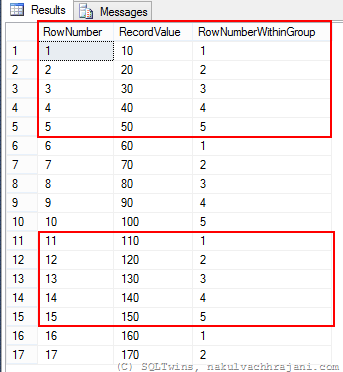
Following is the screenshot of the result obtained from this method.

image

As can be seen from the result, the first 15 records were grouped into 3 groups of 5 each. The last 2 records don’t belong to any group of the size specified in @recordsInAGroup variable and are therefore easily identifiable for further processing.

Do you have any suggestions on how to achieve this requirement in a much more efficient manner? Do drop in a line with your thoughts/suggestions.

Until we meet next time,

Be courteous. Drive responsibly.

#0344 – SQL Server – Missing Configuration Manager on Windows 8


Microsoft SQL Server comes with a very powerful  configuration manager which can be used to manage the SQL Server services and control network visibility and footprint. Working without the SQL Server Configuration Manager is a nightmare for a DBA.

SQL Server Configuration Manager is not available in Windows 8

Many development environments have SQL Server installed on the developer workstations running a Windows 8 operating system. I have been consulted on a couple of instances where the SQL Server Configuration Manager fails to come up in the “Start” menu application list (even using the Search charm does not yield any results).

The workaround

The SQL Server Configuration Manager is in reality a Microsoft Management Console (MMC) application. Hence, the workaround is to do the following:

  1. Launch the Search charm
  2. Search for the SQL Server Configuration Manager MMC snap-in:
    • SQL Server 2012 – search for “SQLServerManager11.msc
    • SQL Server 2008R2 – search for “SQLServerManager10.msc
  3. Press “Enter” to launch (or alternatively, right-click on the result to pin to the Start Menu or create a shortcut on the desktop)

Further Reading on the SQL Server Configuration Manager

  • SQL Server Configuration Manager – Hide your SQL Server Instance [Link]
  • #0151 – SQL Server– Which TCP/IP port is my SQL Server listening on? [Link]
  • Changing SQL Server Service Account or Password – Avoid restarting SQL Server [Link]

[EDIT, 09/08/2014, 10:55AM IST]: Rectified a typo for the MSC file name related to Configuration Manager for SQL Server 2008 R2.

Until we meet next time,

Be courteous. Drive responsibly.