Tag Archives: #SQLServer

All about Microsoft SQL Server

#0227 – SQL Server – SQL Server Build Lists – staying up-to-date with the SQL Server builds


I was recently working on a particular loaned-in SQL Server instance and remarked to a friend that the owning team did not keep their instance up-to-date on the latest and greatest of SQL Server patches and updates. Immediately, the friend enquired as to how I came in possession of this information, to which I explained the following:


Fetching the SQL Server product version


Fetching the SQL Server Product Version is quite easy, and can be done in multiple ways. Two of the most used ones are:


Using @@VERSION


This has to be perhaps the most popular method of knowing the SQL Server product version – simple and easy to use. However for me, the query returns a little too much data in the sense that it also returns the processor architecture information, installation date, OS version, etc – something which I did not set out to do.

SELECT @@VERSION

And the output on one of my test systems is:


Microsoft SQL Server 2012 (SP1) – 11.0.3000.0 (Intel X86)
    Oct 19 2012 13:43:21
    Copyright (c) Microsoft Corporation
    Enterprise Evaluation Edition on Windows NT 6.2 <X86> (Build 8400: ) (VM)


Using SERVERPROPERTY


This one is my favourite because it is precise and provides just the information that has been requested.

SELECT SERVERPROPERTY(‘ProductVersion’) AS ProductVersion
/*
ProductVersion
——————–
11.0.3000.0
*/

Staying up-to-date with the SQL Server builds released to market by Microsoft


Now that I have the Product Version # for the installed instance of SQL Server, I can look it up in the official SQL Server build lists for the builds that are released to market by Microsoft:


  • KB957826 – Where to find information about the latest SQL Server builds

The KB957826 links to various other KB articles listing the builds that have been released since particular build of SQL Server was released. For example, 11.0.3000.0 is SQL 2012 SP1 whereas a CU has already been released (http://support.microsoft.com/kb/2765331).


Alternatively, if the Microsoft KB article becomes too much information to digest, one can also refer the one on SQLServerCentral (http://www.sqlservercentral.com/articles/Build+List/71065/).


Until we meet next time,


Be courteous. Drive responsibly.

#0226-SQL Server-CREATE LOGIN – Hashed passwords require CHECK_POLICY OFF: Msg 15118


Security is a very vast subject – especially when it is about securing data in your SQL Server instance. Recently, I was working on revamping logins for a couple legacy applications and noticed a very interesting behaviour of Microsoft SQL Server.


Creating a Login


If you have created SQL Server logins using T-SQL in the past, i.e. using the CREATE LOGIN statement, you would recollect that using passwords not confirming to the standard complexity requirements required the use of a clause – CHECK_POLICY. Here’s an example:

USE [master]
GO

–Attempt to create a login that does not meet policy requirements
CREATE LOGIN ComplexityTest WITH PASSWORD = ‘ComplexityTest’, DEFAULT_DATABASE = [master];
GO


Executing the above statement generates the following error:


Msg 15118, Level 16, State 1, Line 2
Password validation failed. The password does not meet Windows policy requirements because it is not complex enough.


CHECK_POLICY clause


The above statement attempts to create a login using a low-complexity password which does not comply with the security policies of most organizations. While not advisable to do so, some legacy application may require the use of such passwords. It is therefore required that we use an additional clause – CHECK_POLICY = OFF when creating the login.

USE [master]
GO

–Attempting to create a login that does not meet policy requirements using the CHECK_POLICY statement
CREATE LOGIN ComplexityTest WITH PASSWORD = ‘ComplexityTest’, CHECK_POLICY = OFF, DEFAULT_DATABASE = [master];
GO


Notice that the CREATE LOGIN statement now succeeds.


Getting the password Hash


In the interest of security, most database creation and configuration scripts of these legacy applications do not have the password written on them in plain-text. The passwords are generally represented as a hashed value. To get the hash value of the password, one can use the following script:

USE [master]
GO

–Fetching the password hash value as a VARBINARY
SELECT name,
CAST(password AS VARBINARY(32)) AS PasswordHashValue,
sid,
status,
dbname
FROM sys.syslogins WHERE name = ‘ComplexityTest’;
GO


image


We will be using this hash value to re-create the login, but first let’s drop the existing login first:

–Cleanup
USE master
GO
DROP LOGIN ComplexityTest
GO

Creating Logins using Hashed Passwords


Now, let us re-create the same login as above, but using the hashed password this time:

–Re-create the same login with a hashed password
–NOTE: The CHECK_POLICY clause is not used
CREATE LOGIN ComplexityTest
WITH PASSWORD = 0x02009D7C372DBC2BE69433F4652733D77BCC72B7D2D7DC60C94011A933908AA7 HASHED,
DEFAULT_DATABASE = [master];
GO

Note that we used the HASHED keyword to indicate that the password supplied was not a string value, but a hashed representation of the password. Also, we did not specify the CHECK_POLICY keyword. Based on the above tests, one would expect this query to fail as well. But, it doesn’t.


Instead, the login is successfully created. If we look at the login properties using the Object Explorer in SSMS, we see that according to SQL Server password policy has been enforced (which is clearly not the case because the password used is fairly simple and fails the complexity checks. Attempting to login using this login and the simple password also succeeds.


image


Conclusion – This is not a bug!


The big question at the end of this experiment is whether this behaviour is a bug with SQL Server or not? In my humble opinion, it is not a bug.


Any system should not have the ability to decrypt hashed passwords – even if the hash is generated by itself. When the encrypted hash is used, the system should proceed with the assumption that all has been taken care of as expected and is in-line with the organization’s security policies. In this case, that is exactly what is happening. SQL Server does not decrypt the hash to derive the password in plain-text and validate whether it complies with the defined security standards or not. This is also the reason why when creating passwords using the HASHED keyword, SQL Server requires that one does not define the CHECK_POLICY value explicitly.


The password hash is not reverse engineered by SQL Server because it is a one-way hash. SQL Server cannot reverse the hash to determine whether the hashed password is complex or not.


Reference:


Until we meet next time,


Be courteous. Drive responsibly.

#0225-SQL Server 2012-Deprecated Features-CREATE LOGIN – 16-byte password hash values: Msg 15021


Today’s post is based on a small finding that we made when working with moving a legacy database over to SQL Server 2012. All was going good untill the configuration started. As we were moving the SQL logins from one SQL Server instance to another, creation of the logins failed with a weird error.


The legacy application comes with a script that creates the required logins using hashed password values, similar to the script below:

USE master;
GO
CREATE LOGIN SQL07
WITH PASSWORD = 0x2131214A212F26285628293328374839 HASHED,
DEFAULT_DATABASE = master;
GO

When we ran this script against SQL Server 2012, it raised the following error:


Msg 15021, Level 16, State 2, Line 1
Invalid value given for parameter PASSWORD. Specify a valid parameter value.


Root Cause


The reason behind the error is that SQL Server 2012 no longer supports passwords that use 16-byte hash values. 16-byte hash values were used when passwords were created in SQL Server 7.0 and below (gives you an idea of how old the legacy systems currently in production are!). According to Books-On-Line: “The HASHED option cannot be used with hashes created by SQL Server 7 or earlier.


Resolution


The resolution to this issue can be one of the following:


  1. Option A: Work with the vendor to get an update to the product (recommended), or at least a new password hash


    • “Vendor” here refers to the 3rd party team which owns and maintains the product
    • “New” password hash can be created by recreating the login using the plain-text password in a newer version of SQL Server

  2. Option B: If you are aware of the password, you can create a new login using the plain-text password with the CHECK_POLICY clause set to OFF

Reference:


Other posts on SQL Server 2012 Deprecated & Discontinued features:


Here is a recap of my posts on SQL Server 2012 deprecated and discontinued features:


Until we meet next time,


Be courteous. Drive responsibly.

[EDIT: December 24, 2012; 1650hrs IST: Corrected encryption type for SQL 7 logins from 16-bit to 16-byte, described terms “vendor” and “password hash”]

#0224 – SQL Server – Temporary Table Naming – Maximum Allowed Length and associated naming logic


Recently, I was playing around with temporary tables and recalled a post that I had read earlier this year from Mr. Balmukund Lakhani’s (Blog | Twitter | Site) guest post on Pinal’s blog – SQLAuthority.com.

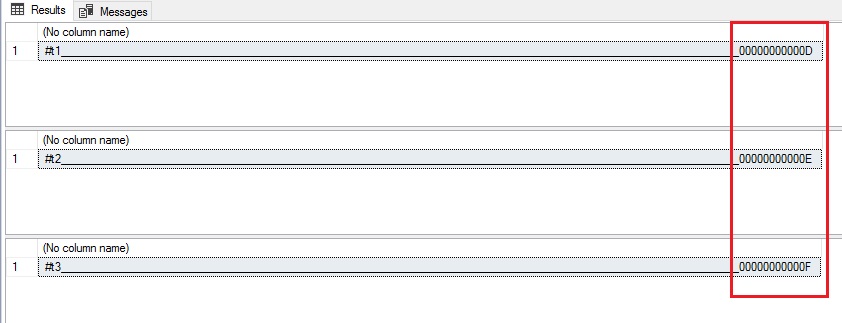
The post talks about the maximum allowable length of characters when naming of temporary tables. While normal table names have a maximum possible length of 128 characters, the temporary tables are restricted to a length of 116 characters. Whenever a temporary table is created, SQL Server pads the supplied table name with underscores (_) and a 12 digit number to make the total come out to 128 characters.

This restriction and logic around naming conventions of temporary tables is necessary because temporary tables with the same name can be created by different sessions. However, what attracted my attention was the 12 digit number after the padding – how did SQL Server generate the 12-digit number?

To get an idea of how the 12-digit number used after padding the temporary table name is generated, I ran a small test wherein I created three temporary tables and use the OBJECT_NAME() function to get the actual object name used in the given session.

USE tempdb
GO

DROP TABLE #t1
DROP TABLE #t2
DROP TABLE #t3

CREATE TABLE #t1 (tId INT)
CREATE TABLE #t2 (tId INT)
CREATE TABLE #t3 (tId INT)

SELECT OBJECT_NAME(OBJECT_ID('#t1'))
SELECT OBJECT_NAME(OBJECT_ID('#t2'))
SELECT OBJECT_NAME(OBJECT_ID('#t3'))

As can be seen, the number being used in the padding is simply an auto-incrementing number – indicating the number of the temporary table that is being created. Whenever the SQL Server service restarts, the counter is reset.

This being said, it is always better to use the OBJECT_ID() function (as shown in the query above) to get the unique object Id value associated to the temporary table within the given user session.

Until we meet next time,

Be courteous. Drive responsibly.

#0223 – Happy 2nd Birthday to my blog on BeyondRelational.com!


Today’s out-of-band post is for a very special reason – it’s been two (2) years since I started blogging on BeyondRelational.com and doing my bit to contribute back into the community as a gesture of thanks for all that the community has given me.

Thank-yous

I would take this opportunity to thank the following for their tremendous contribution and sacrifices in making this journey possible:

  • Jacob Sebastian (blog), Pinal Dave (blog) and Vinod Kumar (blog) for inspiring and introducing me to this wonderful SQL Server community
  • My dear wife, Ami and my respected parents, without whose love, blessings, sacrifices and support I wouldn’t have achieved this
  • My friends and colleagues at work who kept providing me feedback on my posts and encouraged me to write more
  • Finally, it’s you – the kind members of the community who take the time out from your busy schedules to read what I write – you are the most important contributors in this milestone

A quick snapshot of the last two years…

Here’s a quick summary of the splendid two year journey in the world of SQL Server and the community, in general. As I was preparing this list, I was surprised to see how much I did in these two years in addition to shouldering increased responsibilities at work. It just goes to show the satisfaction and drive that one gets by contributing to the community.

Ways to stay in touch with me

Ask Me a Question

You can always ask me a SQL Server Question at: http://beyondrelational.com/ask/nakul/default.aspx.

Please note that this is voluntary assistance, and therefore, I will only provide guidance. I will not do your work or assignments for you.

My Linked-In Profile:

You can take a look at my Linked In Profile here:

View Nakul Vachhrajani's profile on LinkedIn

Social Media Presence

You can follow me on the following:

Twitter: Tweet to @nakulv_sql

Google+: +Nakul

Concluding…

I would like to hear from you, especially what would you like me to do new in 2013! Keep the feedback coming – I really appreciate it!

Until we meet next time,

Be courteous. Drive responsibly.