Tag Archives: Tips

General Microsoft SQL Server tips

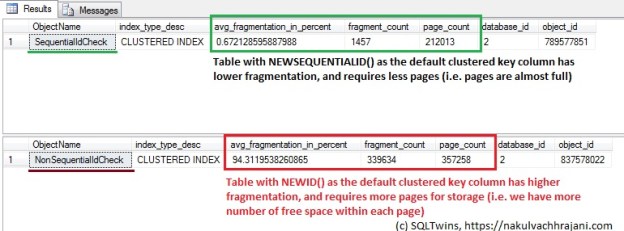
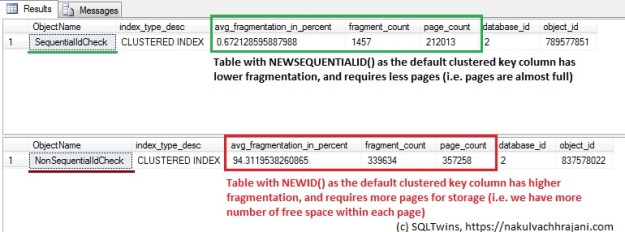
Comparison between the index physical stats when the table uses NEWSEQUENTIALID() v/s NEWID(). We can see that NEWID() results in higher fragmentation and consumes higher number of pages on disk when compared to NEWSEQUENTIALID().

#0381 – SQL Server – Table design – Is it better to use NEWID or NEWSEQUENTIALID when defining the key as a UNIQUEIDENTIFIER?


Database schema design involves defining the clustered keys (generally the primary key) on a table, and one of the main decisions to be taken is whether to use a clustered key based on a UNIQUEIDENTIFIER/ROWGUID or an INTEGER?

Generally, an INTEGER is a default choice for the clustered key column. Compared to an INTEGER, a GUID takes up a lot of space (36 characters!). Hence the decision to use UNIQUEIDENTIFIER/ROWGUID depends a lot upon the desired application:

  • Whether the amount of data to be stored in the table is ever going to exceed the limits of  an integer key value?
  • The code which is going to consume the data (it helps if the underlying storage uses keys in the same format as the code, as in the case of the .NET Enterprise Framework)
  • Nature of integration/DR implemented (e.g. External Id keys used in the integrated system, replication, etc)

If the requirements do require that UNIQUEIDENTIFIER is to be used, the next question is:

What is better to use as the default value for a GUID? NEWID or NEWSEQUENTIALID?

NEWSEQUENTIALID() and NEWID() both generate GUIDs, however NEWSEQUENTIALID() has certain advantages:

  • NEWID() generates a lot of random activity, whereas NEWSEQUENTIALID() does not. Hence, NEWSEQUENTIALID() is faster
  • Because NEWSEQUENTIALID() is sequential, it helps to fill the data pages faster

In order words,

NEWID() generates more fragmentation when compared to NEWSEQUENTIALID()

NEWID() generates more fragments

To test this, I ran the following test:

  1. Create two tables – one with NEWID() as the default value for the key and one with NEWSEQUENTIALID()
  2. Ensure that MAXDOP is set to 0 so that I can insert data into the tables in parallel (to simulate inputs into a table from multiple threads)
  3. Repeat this process multiple times
  4. Once the insert is complete, check the average fragmentation on the tables

Allow me to run through the test step-by-step.

The script below creates two tables:

USE tempdb;
GO
SET NOCOUNT ON;
GO
--Safety Check
IF OBJECT_ID('dbo.SequentialIdCheck','U') IS NOT NULL
BEGIN
   DROP TABLE dbo.SequentialIdCheck;
END
GO

IF OBJECT_ID('dbo.NonSequentialIdCheck','U') IS NOT NULL
BEGIN
   DROP TABLE dbo.NonSequentialIdCheck;
END
GO

--Create the tables (SequentialId Check)
CREATE TABLE dbo.SequentialIdCheck (RowId UNIQUEIDENTIFIER NOT NULL 
                                          CONSTRAINT df_SequentialRowId 
                                          DEFAULT NEWSEQUENTIALID(),
                                    ObjectId INT NOT NULL,
                                    RowValue NVARCHAR(200) NULL,
                                    CONSTRAINT pk_SequentialIdCheck
                                    PRIMARY KEY CLUSTERED (RowId)
                                   );
GO

--Create the tables (Non SequentialId Check)
CREATE TABLE dbo.NonSequentialIdCheck (RowId UNIQUEIDENTIFIER NOT NULL
                                             CONSTRAINT df_NonSequentialRowId 
                                             DEFAULT NEWID(),
                                       ObjectId INT NOT NULL,
                                       RowValue NVARCHAR(200) NULL,
                                       CONSTRAINT pk_NonSequentialIdCheck
                                       PRIMARY KEY CLUSTERED (RowId)
                                      );
GO

Now, I will ensure that max degree of parallelism is turned ON.

sp_configure 'show advanced options',1
RECONFIGURE
GO
sp_configure 'max degree of parallelism',0
RECONFIGURE
GO

Next, I will insert some test data. I will repeat the insert multiple times to simulate an extremely large data-set over multiple inserts.

USE tempdb;
GO
--Insert some test data
--Run the insert 5 times
INSERT INTO dbo.SequentialIdCheck (ObjectId, RowValue)
SELECT sao1.[object_id] AS [ObjectId],
       sao1.[name] AS [RowValue]
FROM sys.all_objects AS sao1
CROSS JOIN sys.all_objects AS sao2;

INSERT INTO dbo.NonSequentialIdCheck (ObjectId, RowValue)
SELECT sao1.[object_id] AS [ObjectId],
       sao1.[name] AS [RowValue]
FROM sys.all_objects AS sao1
CROSS JOIN sys.all_objects AS sao2;
GO 5
Beginning execution loop
Batch execution completed 5 times.

Finally, I check the average fragmentation on the tables by checking the fragmentation of the clustered index.

USE tempdb;
GO
--Check the fragmentation
SELECT OBJECT_NAME(ps.[object_id]) AS ObjectName,
       ps.[index_type_desc],
       ps.[avg_fragmentation_in_percent],
       ps.[fragment_count],
       ps.[page_count],
       ps.[database_id],
       ps.[object_id]
FROM sys.dm_db_index_physical_stats(DB_ID('tempdb'),
                                    OBJECT_ID('dbo.SequentialIdCheck'),
                                    DEFAULT,
                                    DEFAULT,
                                    DEFAULT
                                   ) AS ps;
GO
SELECT OBJECT_NAME(ps.[object_id]) AS ObjectName,
       ps.[index_type_desc],
       ps.[avg_fragmentation_in_percent],
       ps.[fragment_count],
       ps.[page_count],
       ps.[database_id],
       ps.[object_id]
FROM sys.dm_db_index_physical_stats(DB_ID('tempdb'),
                                    OBJECT_ID('dbo.NonSequentialIdCheck'),
                                    DEFAULT,
                                    DEFAULT,
                                    DEFAULT
                                   ) AS ps;
GO
Comparison between the index physical stats when the table uses NEWSEQUENTIALID() v/s NEWID(). We can see that NEWID() results in higher fragmentation and consumes higher number of pages on disk when compared to NEWSEQUENTIALID().

NEWID() results in higher fragmentation and higher pages consumed on disk.

As can be seen clearly from the screenshot above, we see that the table with the NEWID() default key value has a higher fragmentation value when compared to the table with NEWSEQUENTIALID().

We also see that the table with NEWID() default key value has taken a lot of pages – resulting in more space being occupied on disk.

The underlying reason for this is  that NEWSEQUENTIALID() generates GUIDs that are in sequence for the given batch, whereas the GUIDs generated by NEWID() are random. When used as a clustered key, having values in sequence helps fill the pages faster and reduce fragmentation.

Conclusion

In most cases, an INTEGER based key on a table is sufficient. However, when a GUID is required by design, it is important to keep in mind that using NEWID() causes more fragmentation in the underlying data resulting in poor system performance. Because non-sequential GUIDs cause fragmentation, they are (generally) not a good choice for using as a clustered index key unless it is required to do so by the business/application design.

If NEWSEQUENTIALID() is to be used, please do keep in mind that the keys need to be generated by the database engine making it tricky when using with Entity Frameworks where the key value is required by the code in order to instantiate an entity.

Further Reading

Until we meet next time,
Be courteous. Drive responsibly.

When we multiply a Decimal (20.16) with another number (100) using the calculator, the result is as expected (2016)

#0380 – SQL Server – Basics – Specify Scale and Precision when defining Decimal and Numeric datatypes


I had some interesting conversation during a code review that I was asked to conduct for a simple query that a team had written to support their project monitoring. The team was specializing in quality assurance and had minimal development experience. The team had used variables of decimal data types in their script, but they were declared without any precision or scale. When I gave a review comment on the declaration of variables, I was asked the question:

Does it make a difference if we do not specify scale and precision when defining variables of decimal or numeric datatypes?

I often look forward to such encounters for two reasons:

  1. When I answer their questions, the process reinforces my concepts and learnings
  2. It helps me contribute to the overall community by writing a blog about my experience

When the question was asked, I honestly admitted that I did not have a specific answer other than it was the best practice to do so from a long-term maintainability standpoint. Post lunch, I did a small test which I showed the team and will be presenting today.

The Problem

In the script below, I take a decimal variable (declared without a fixed scale or precision) with value (20.16) and multiply it by a constant number (100) and then by another constant decimal (100.0). If one uses a calculator, the expected result is:

  • 20.16 * 100 = 2016
  • 20.16 * 100.0 = 2016
When we multiply a Decimal (20.16) with another number (100) using the calculator, the result is as expected (2016)

Expected results when we multiply a Decimal with another number using the calculator

However, when we perform the same test via SQL Server, we are in for a surprise:

DECLARE @dVal1 DECIMAL = 20.16;

SELECT (@dVal1 * 100)   AS DecimalMultipliedByAnInteger, 
       (@dVal1 * 100.0) AS DecimalMultipliedByADecimal;
GO

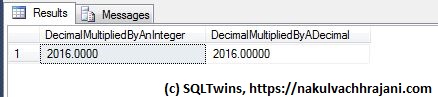
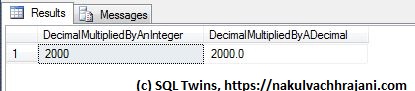
As can be seen from the seen from the results below, we do not get the expected results, but we find that the decimal value was rounded off before the multiplication took place.

Although the test input value is declared as a decimal, the result appears to be based only on the significand, not the mantissa part of the input.

Although the test input value is declared as a decimal, the result appears to be based only on the significand, not the mantissa part of the input.

Root Cause

The reason behind this behaviour is hidden in the following lines of the SQL Server online documentation on MSDN (formerly known as “Books-On-Line”) for decimal and numeric data-types available here: https://msdn.microsoft.com/en-us/library/ms187746.aspx.

…s (scale)
The number of decimal digits that will be stored to the right of the decimal point….Scale can be specified only if precision is specified. The default scale is 0…

The real reason however is a few lines below – rounding.

Converting decimal and numeric Data

…By default, SQL Server uses rounding when converting a number to a decimal or numeric value with a lower precision and scale….

What SQL Server appears to be doing here is that when a variable of DECIMAL datatype is declared without a precision and scale value, the scale is taken to be zero (0). Hence, the test value of 20.16 is rounded to the nearest integer, 20.

To confirm that rounding is indeed taking place, I swapped the digits in the input value from 20.16 to 20.61 and re-ran the same test.

DECLARE @dVal1 DECIMAL = 20.61;

SELECT (@dVal1 * 100)   AS DecimalMultipliedByAnInteger, 
       (@dVal1 * 100.0) AS DecimalMultipliedByADecimal;
GO

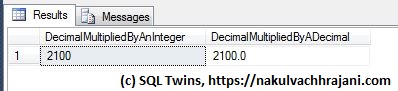
Now, the result was 2100 instead of 2000 because the input test value of 20.61 was rounded to 21 before the multiplication took place.

Because the test input value was declared as a decimal without precision and scale, rounding took place, resulting in a different result.

Because the test input value was declared as a decimal without precision and scale, rounding took place, resulting in a different result.

By this time, my audience was struck in awe as they realized the impact this behaviour would have had on their project monitoring numbers.

The Summary – A Best Practice

We can summarize the learning into a single sentence:

It is a best practice for ensuring data quality to always specify a precision and scale when working with variables of the numeric or decimal data types.

To confirm, here’s a version of the same test as we saw earlier. The only difference is that this time, we have explicitly specified the precision and scale on our input values.

DECLARE @dVal1 DECIMAL(19,4) = 20.16;

SELECT (@dVal1 * 100)   AS DecimalMultipliedByAnInteger, 
       (@dVal1 * 100.0) AS DecimalMultipliedByADecimal;
GO

When we look at the results, we see that the output is exactly what we wanted to see, i.e. 2016.

Because the test input value was declared as a decimal with precision and scale, no rounding took place and we got the expected result, i.e. 2016.

Because the test input value was declared as a decimal with precision and scale, no rounding took place and we got the expected result.

Further Reading

Until we meet next time,
Be courteous. Drive responsibly.

Declaring multiple variables and assigning values to them in a single statement

#0379 – SQL Server – Basics- Declaring multiple variables in a single statement


Making a switch between technologies is sometimes difficult and it always helps to establish parallels between them during the learning phase. Recently, I met someone who had worked on object-oriented programming languages like C# and had to start learning T-SQL in order to work on a new Agile project that was coming his way.

In order to help him get started, the first thing I did was to establish a parallel on how to declare new variables in a module/script. Just as one can declare more than one variable in a single statement in C#, one can do so in T-SQL.

This actually came as a surprise to a few of my team-mates, which is why I decided to write it up as a T-SQL basics post.

So, here’s how to declare multiple variables spanning multiple data-types in a single DECLARE statement:

USE tempdb;
GO
DECLARE @iVar1 INT = 10,
        @iVar2 INT = 05,
        @dVar  DECIMAL(19,4) = 10.05,
        @sVar  VARCHAR(20) = 'Ten';

SELECT @iVar1 AS IntegerValue1, 
       @iVar2 AS IntegerValue2, 
       @dVar  AS DecimalValue,
       @sVar  AS StringValue;
GO
Declaring multiple variables and assigning values to them in a single statement

Declaring multiple variables and assigning values to them in a single statement

Do keep in mind though that starting SQL Server 2008, the DECLARE statement can generate exceptions if you perform declarations and initialization/assignment in the same statement.

Until we meet next time,
Be courteous. Drive responsibly.
#0374 – SQL Server – Removing string terminators (“\0”) using REPLACE during string concatenation


Recently, I was called upon to troubleshoot a strange behaviour demonstrated by a data conditioning script that involved string concatenations. The script ran fine without any errors, but the script did not appear to be concatenating string.

The entire script for this post is shared towards the end of the post. Because the script involves creating specific data which would give away the root cause, I will not be presenting the snippets beforehand.

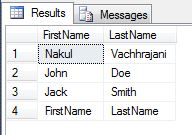
Assume that we have a simple table with two columns, “FirstName” and “LastName”:

Simple table with test data for string concatenation demo

Simple table with test data for string concatenation demo

The data conditioning script involved populating the “FullName” column in the table with a simple combination of the First and the Last names.

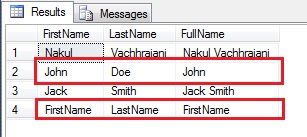
Output of String Concatenation Script demonstrating the problem

Output of String Concatenation Script demonstrating the problem

The Problem: If we look at the output carefully, there is a problem with the FullNames for rows # 2 and 4. Although the LastName is present, only the FirstName is seen in the concatenation result.

The Theory:

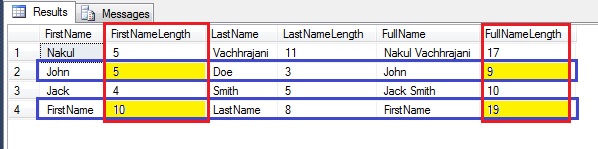
After about an hour of troubleshooting, we decided to check out the length of the strings in the table, and that’s when we hit gold. Although we could “see” only a couple of characters, the length was turning out to be a higher than what we expected.

As can be seen from the screenshot below, although the First Name “John” has a length of 4, we get 5 in the length. Similarly, although the FullName shows up as “John”, we get a length of 9.

Screenshot showing the length of the strings in the table

Screenshot showing the length of the strings in the table

This is the moment when the light bulb went off and we realized what was going on. The strings were inserted by a legacy application based on C/C++ code. In such legacy applications, we need to explicitly handle termination of strings by adding the string termination character. That would very well account for the presence of an additional character in the FirstName.

In order to explain the mystery behind the length of the FullName, let’s walk through the concatenation of a record.

  • FirstName = John, 4 characters
  • LastName = Doe, 3 characters
  • Expected length of FullName = First Name + a space + Last Name = 4 + 1 + 3 = 8 characters
  • Actual length of FullName = 9 characters

The difference can be accurately explained when we believe that the concatenation did actually happen – only thing is that we are unable to see the LastName part of the string because the system encounters the string termination character, causing it to stop displaying more characters from the string.

In order to confirm our theory, we replaced the string termination character with a hyphen (-), using the REPLACE function.

UPDATE pt
SET pt.FullName = REPLACE(pt.FullName COLLATE Latin1_General_BIN, CHAR(0) COLLATE Latin1_General_BIN, '-')
FROM @personTable AS pt;

In order for this to work in all environments, we changed the collation to binary when performing the replace (because ultimately, string terminators are just a set of bits when performing binary manipulation).

Finding and Replacing the String Terminator in a string.

Finding and Replacing the String Terminator in a string.

As can be seen from the screenshot above, the REPLACE was successful, and we were able to see the entire string.

In Conclusion

  • When working with data created by legacy code, it is useful to understand how the code works. In this case, we realized that the string terminator was causing a problem and were able to overcome it – but it could have led to hours of troubleshooting (an option of re-creating data manually was also put on the table)
  • SQL Server, and T-SQL can be trusted when it comes to data manipulation. Almost always it’s the system or the human element that is missing something critical

Until we meet next time,
Be courteous. Drive responsibly.
Script for this post:

USE tempdb;
GO
--Creating the sample table
DECLARE @personTable TABLE (FirstName VARCHAR(50),
                            LastName  VARCHAR(50),
                            FullName  VARCHAR(100)
                           );

--Insert some test data
INSERT INTO @personTable (FirstName, LastName)
VALUES ('Nakul','Vachhrajani'),
       ('John' + CHAR(0),'Doe'),
       ('Jack','Smith'),
       ('FirstName' + CHAR(0),'LastName');

--Check out the data
SELECT pt.FirstName,
       pt.LastName
FROM @personTable AS pt;

--Perform the string concatenation
UPDATE pt
SET pt.FullName = pt.FirstName + ' ' + pt.LastName
FROM @personTable AS pt;


--Check out the data
SELECT pt.FirstName,
       pt.LastName,
       pt.FullName
FROM @personTable AS pt;

--Checking the length of the data
SELECT pt.FirstName,
       LEN(pt.FirstName) AS FirstNameLength,
       pt.LastName,
       LEN(pt.LastName) AS LastNameLength,
       pt.FullName,
       LEN(pt.FullName) AS FullNameLength
FROM @personTable AS pt;

--Confirming presence of string termination characters
SELECT pt.FirstName,
       LEN(pt.FirstName) AS FirstNameLength,
       CHARINDEX(CHAR(0),pt.FirstName,1) AS LocationOfStringTerminator,
       pt.LastName,
       LEN(pt.LastName) AS LastNameLength,
       pt.FullName,
       LEN(pt.FullName) AS FullNameLength,
       CHARINDEX(CHAR(0),pt.FullName,1) AS LocationOfStringTerminatorInFullName
FROM @personTable AS pt;

--Replace the string termination character with a hyphen
UPDATE pt
SET pt.FullName = REPLACE(pt.FullName COLLATE Latin1_General_BIN, CHAR(0) COLLATE Latin1_General_BIN, '-')
FROM @personTable AS pt;

--Confirming that string termination characters are no longer present
SELECT pt.FirstName,
       LEN(pt.FirstName) AS FirstNameLength,
       CHARINDEX(CHAR(0),pt.FirstName,1) AS LocationOfStringTerminator,
       pt.LastName,
       LEN(pt.LastName) AS LastNameLength,
       pt.FullName,
       LEN(pt.FullName) AS FullNameLength,
       CHARINDEX(CHAR(0),pt.FullName,1) AS LocationOfStringTerminatorInFullName
FROM @personTable AS pt;
GO

#0370 – SQL Server – Myths – CREATE DATABASE FOR ATTACH_REBUILD_LOG will not work for read-only databases


In the past, I have written about attaching data files to a SQL Server instance when log files are missing by the use of the FOR ATTACH_REBUILD_LOG clause of the CREATE DATABASE statement. Recently, I was referring the CREATE DATABASE documentation on MSDN. It’s a comprehensive document and and the following line for read-only databases caught my attention.

For a read-only database, the log cannot be rebuilt because the primary file cannot be updated. Therefore, when you attach a read-only database with a log that is unavailable, you must provide the log files, or the files in the FOR ATTACH clause.

This statement was contrary to what I had observed before. Hence, I decided to re-validate the findings via a demo.

The first step, of course is to create a database.

USE [master];
GO
CREATE DATABASE ReadOnlyDBForAttach
ON PRIMARY (NAME = ReadOnlyDBForAttach_Data,
            FILENAME='C:\SQLData\MSSQL12.SQL2014\MSSQL\DATA\ReadOnlyDBForAttach_Data.mdf'),
   FILEGROUP RODefault (NAME = ReadOnlyDBForAttach_RODefault,
              FILENAME='C:\SQLData\MSSQL12.SQL2014\MSSQL\DATA\ReadOnlyDBForAttach_RODefault.mdf')
LOG ON (NAME = ReadOnlyDBForAttach_Log,
        FILENAME='C:\SQLData\MSSQL12.SQL2014\MSSQL\DATA\ReadOnlyDBForAttach_Log.ldf');
GO

As can be seen from the script referenced above, the database we created as 2 data file groups, one is the default PRIMARY filegroup. Because we cannot make the PRIMARY filegroup READ_ONLY, we will be making the other filegroup (RODefault) READ_ONLY. To add complexity, we will also make it the default filegroup, i.e. any new objects created without specifying a filegroup, it will be created in the filegroup marked as default.

Finally, we will also mark the database as READ_ONLY.

USE [master];
GO
ALTER DATABASE ReadOnlyDBForAttach
MODIFY FILEGROUP [RODefault] DEFAULT;
GO

ALTER DATABASE ReadOnlyDBForAttach
MODIFY FILEGROUP [RODefault] READ_ONLY;
GO

ALTER DATABASE ReadOnlyDBForAttach SET READ_ONLY;
GO

Now, let us check out the database and filegroup properties.

USE ReadOnlyDBForAttach;
GO
SELECT 'Database Properties',
       sd.[name],
       sd.is_read_only,
       sd.is_cleanly_shutdown
FROM sys.databases AS sd
WHERE sd.[name] = 'ReadOnlyDBForAttach';

SELECT 'File properties',
       sdf.file_id,
       sdf.type,
       sdf.data_space_id,
       sdf.type_desc,
       sdf.name,
       sdf.is_read_only,
       sdf.is_media_read_only
FROM sys.database_files AS sdf;
GO
Image showing database and database file properties for the read-only database - ReadOnlyDBForAttach

Read Only database and database file properties

Now, let us detach the database, and delete the log file. (NOTE: We are removing the log file for the purposes of this demo only. Please do not do this in your QA or production environments).

USE [master];
GO
EXEC sp_detach_db @dbname = 'ReadOnlyDBForAttach';
GO
Image showing the log file physically removed from the file system

Read Only Database – Log File Removed

Finally, let us attach the database back to the SQL Server instance using the CREATE DATABASE…FOR ATTACH_REBUILD_LOG clause.

USE [master]
GO
CREATE DATABASE [ReadOnlyDBForAttach]
ON  PRIMARY ( NAME = N'ReadOnlyDBForAttach_Data',
                FILENAME = N'C:\SQLData\MSSQL12.SQL2014\MSSQL\DATA\ReadOnlyDBForAttach_Data.mdf')
FOR ATTACH_REBUILD_LOG
GO
File activation failure. The physical file name "C:\SQLData\MSSQL12.SQL2014\MSSQL\DATA\ReadOnlyDBForAttach_Log.ldf" may be incorrect.
New log file 'C:\SQLData\MSSQL12.SQL2014\MSSQL\DATA\ReadOnlyDBForAttach_log.ldf' was created.

As can be seen from the message above, the log file was successfully created and the database was successfully attached to the SQL Server instance.

Let us cross-check the database and file properties again:

USE ReadOnlyDBForAttach;
GO
SELECT 'Database Properties',
       sd.[name],
       sd.is_read_only,
       sd.is_cleanly_shutdown
FROM sys.databases AS sd
WHERE sd.[name] = 'ReadOnlyDBForAttach';

SELECT 'File properties',
       sdf.file_id,
       sdf.type,
       sdf.data_space_id,
       sdf.type_desc,
       sdf.name,
       sdf.is_read_only,
       sdf.is_media_read_only
FROM sys.database_files AS sdf;
GO
Read Only Database and Data File Properties After Attach showing that the database is no longer Read Only

Read Only Database and Data File Properties After Attach

Conclusion

  • Contrary to the MSDN remark, a read-only database can be successfully attached to a SQL Server instance even when the log file does not exist by the use of CREATE DATABASE…FOR ATTACH_REBUILD_LOG
  • A read-only database becomes a read/write database if it has been attached to the SQL Server using FOR ATTACH_REBUILD_LOG and the log file was rebuilt

My findings above do not agree with the MSDN remark. At the moment, I am inclined to believe that this is a bug in the documentation as I have found a couple of years ago as well (see references). Please do share your views on the same in the post comments.

References/Further Reading

  • SQL Server Myth: Log files are removed when a database is made READ_ONLY [Link]
  • Creating a database without the log backup file – Error Msg. 5120 [Link]
  • CREATE DATABASE…ATTACH_REBUILD_LOG resets database recovery mode to SIMPLE [Link]
  • Setting database to READ_ONLY does not change the file-group properties [Link]
  • sp_attach_db v/s CREATE DATABASE FOR ATTACH – Number of files limitation; Msg. 8144 (Procedure has too many arguments specified) [Link]
  • CREATE DATABASE [MSDN Documentation]

Until we meet next time,
Be courteous. Drive responsibly.