Category Archives: #SQLServer

All about Microsoft SQL Server

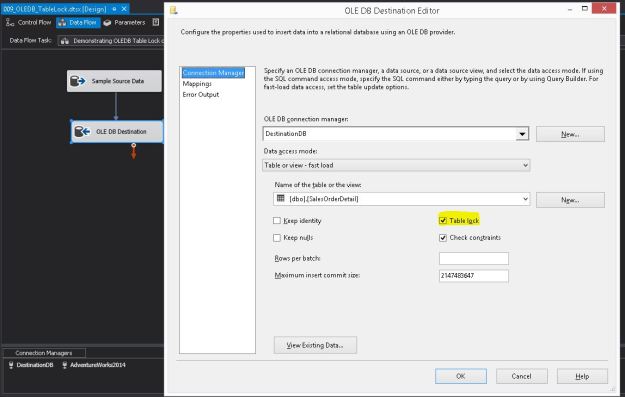
The OLE DB destination in "Fast Load" configuration with "Table Lock" checked (default)

#0391 – SQL Server – SSIS – OLE DB Destination – Table Fast Load – Performance – Table Lock option


Developing SSIS packages is quite easy – it’s mostly drag and drop and some minor configuration, which is a really boon for someone who is new to SSIS. However, when it comes to tuning the package, one needs to understand the finer points of each task on the control flow.

The OLE DB Destination

In one of my previous posts, I started to explore the OLE DB destination. In order to load data as quickly into the destination as possible, the  OLE DB destination allows us to use a “Fast Load” mode. The “Fast Load” option allows the data team to configure various options that affect the speed of the data load:

  1. Keep Identity
  2. Keep NULLs
  3. Table Lock
  4. Check Constraints
  5. Rows per Batch
  6. Maximum Insert Commit Size

I looked at the “Keep NULLs” and the “Keep Identity” options earlier, and today I will go over the “Table Lock” option.

Because the option is part of the OLE DB destination task, the “Table Lock” option indicates whether the database engine should request a more wider lock on the entire table (i.e. use TABLOCK) rather than trying to get granular locks one each row/page and then follow lock escalation to block the table.

Theoretically, when moving extremely large amounts of data compared to the number of records already available in the destination table, the database engine would deem the granular locks (at the row/page level) too cost prohibitive and escalate to the table anyway. In this case, it would be better to specify the wider TABLOCK.

Allow me to present a brief demo.

Creating the package with logging for comparing execution time

As always, I have created a simple package that creates a table and inserts data into it. The table is identical to the [Sales].[SalesOrderDetail] table in the [AdventureWorks2014] sample database. The table creation script used in the Execute SQL task on the package is provided below:

USE [tempdb];
GO

IF OBJECT_ID('[dbo].[SalesOrderDetail]','U') IS NOT NULL
BEGIN
    DROP TABLE [dbo].[SalesOrderDetail];
END
GO

CREATE TABLE [dbo].[SalesOrderDetail]
   (
    [SalesOrderID]           [INT]              NOT NULL,
    [SalesOrderDetailID]     [INT]              NOT NULL,
    [CarrierTrackingNumber]  [NVARCHAR](25)         NULL,
    [OrderQty]               [SMALLINT]         NOT NULL,
    [ProductID]              [INT]              NOT NULL,
    [SpecialOfferID]         [INT]              NOT NULL,
    [UnitPrice]              [MONEY]            NOT NULL,
    [UnitPriceDiscount]      [MONEY]            NOT NULL 
                             CONSTRAINT [DF_sodUnitPriceDiscount]  DEFAULT ((0.0)),
    [LineTotal]              DECIMAL(38, 6),
    [rowguid]                [UNIQUEIDENTIFIER] NOT NULL,
    [ModifiedDate]           [DATETIME]         NOT NULL 
                             CONSTRAINT [DF_sodModifiedDate]  DEFAULT (GETDATE())
   ) ON [PRIMARY]
GO

Once the table is created, the package “flows” to the Data Flow Task. Inside the data flow, essentially I simply select about 4 times the data from the [AdventureWorks2014].[Sales].[SalesOrderDetail] table (approximately 485268 rows) using an OLE DB source and pump it to the newly created target table via an OLE DB destination with the “Table Lock” option checked (default).

I then configure logging on the package to log the package activity for the Data Flow Task for the OnError, OnPreExecute and OnPostExecute events (Configuring package logging is out of scope for this blog post).

The script used in the OLEDB source is presented here:

USE AdventureWorks2014;
GO
SELECT sod.SalesOrderID,
       sod.SalesOrderDetailID,
       sod.CarrierTrackingNumber,
       sod.OrderQty,
       sod.ProductID,
       sod.SpecialOfferID,
       sod.UnitPrice,
       sod.UnitPriceDiscount,
       sod.LineTotal,
       sod.rowguid,
       sod.ModifiedDate
FROM Sales.SalesOrderDetail AS sod
CROSS JOIN (VALUES (1), (2), (3), (4)) AS Combinations (ComboValue)
GO

A set of screenshots showing the package configuration described above are shown below.

An

An “Execute SQL Task” creates the test table
0391-sqltwins-ssis-tablelock-dataflow-oledbdestination

The OLE DB destination in “Fast Load” configuration with “Table Lock” checked (default)

Package Log configuration enabled for the OLEDB destination
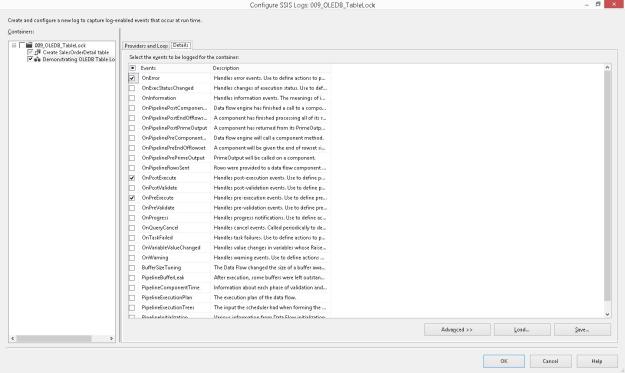
Package Log configuration enabled for the OLEDB destination

Event configuration done to log task activities as part of package logging

Event configuration done to log task activities as part of package logging

Once the package is executed, I will compare the difference between the OnPreExecute and OnPostExecute times for both configurations of the “Table Lock” option to get an idea of the performance difference between them.

NOTE: The packages were executed after it was confirmed that the databases involved (in this case tempdb) had grown sufficiently to accommodate the inserted data.

Confirming that we are indeed taking a Table Lock

While the package is executing in SQL Server Data Tools (SSDT, erstwhile BIDS), I run the following query on the SQL Server to check the locks occupied on our test table.

USE [tempdb]
GO
SELECT tl.resource_associated_entity_id AS ObjectId,
       OBJECT_NAME(tl.resource_associated_entity_id) AS ObjectName,
       tl.request_mode AS LockRequestMode
FROM [sys].[dm_tran_locks] AS tl
WHERE tl.resource_database_id = DB_ID()
  AND tl.resource_associated_entity_id = OBJECT_ID('[dbo].[SalesOrderDetail]','U');
GO

Based on the results, we can confirm that an exclusive Bulk Update (BU) lock has indeed been requested and granted on the table – indicating that the TABLOCK option was used as part of the insert.
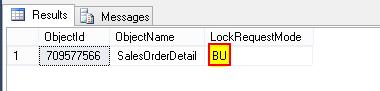
Bulk Update (BU) lock used on the table, indicating use of TABLOCK (Table Lock)

Bulk Update (BU) lock used on the table, indicating use of TABLOCK (Table Lock)

Running the package with “Table Lock” turned Off

If I check the locks on the table while running the package with the “Table Lock” option unchecked, I see that either an “Intent Exclusive” (IX) or an “Exclusive” (X) lock have been used. This indicates that SQL Server is actually using Exclusive locks on lower level allocation units (page/row).

0391-sqltwins-ssis-tablelock-intentexclusivetablelockrequested

When “Table Lock” is unchecked, an Intent Exclusive Lock is acquired on the table, indicating granular exclusive locks in use

Please note that between each run, the data buffers were cleaned and procedure cache was cleared out to get a “cold” state performance of the database engine.

CHECKPOINT;
DBCC DROPCLEANBUFFERS;
DBCC FREEPROCCACHE;
GO

Comparing package execution performance

Because I had turned on logging on the SSIS package, I ran the following query against the [dbo].[sysssislog] table which gives me the time difference (in seconds) between the “OnPreExecute” and “OnPostExecute” events for both the packages. The query and the results are available below:

USE [tempdb];
GO
SELECT [PivotedTbl].,
       DATEDIFF(SECOND, 
                [PivotedTbl].[OnPreExecute], 
                [PivotedTbl].[OnPostExecute]
               ) AS PackageRunTimeInSeconds
FROM (SELECT sl.,
             sl.[event],
             sl.[starttime]
      FROM [dbo].[sysssislog] AS sl
     ) AS [SourceTbl]
PIVOT (MAX([SourceTbl].[starttime]) 
       FOR [SourceTbl].[event] IN ([OnPreExecute],[OnPostExecute])
      ) AS [PivotedTbl];
GO
0391-sqltwins-ssis-tablelock-executiontimes

Execution time summary showing data flow with OLE DB destination using Table locks completes faster than one using granular locks

We can clearly see that the table load with “Table lock” checkbox turned on is comparatively faster.

Summary

The OLE DB destination task is a very powerful way to load data into SQL Server table. It also provides the flexibility to boost the rate of data insertion when used wisely.

  • When loading data into an empty table or when system is under an outage window, evaluate keeping the “Table Lock” checkbox checked
  • When it is important to keep the tables accessible during the data load, evaluate keeping the “Table Lock” checkbox unchecked
    • This will ensure that if possible, the SELECT queries are not blocked from being executed as long as they do not refer to the same page(s) being inserted/updated
  • Using a higher-level lock (in case of requesting a Table Lock/TABLOCK) does provide a reduced data “load” time due to reduced overhead of maintaining granular locks and can be used as a means to speed up the data inserts for large data sets

References:

  • Lock Modes in SQL Server [MSDN Link]
  • Lock Compatibility [MSDN Link]
  • Performance – Best Practice – Create Index Before or After a data insert? [Blog Link]
  • Performance – Best Practice – Create Index Before or After a data insert – I/O, Fragmentation, CPU and Elapsed Time [Blog Link]

Until we meet next time,

Be courteous. Drive responsibly.

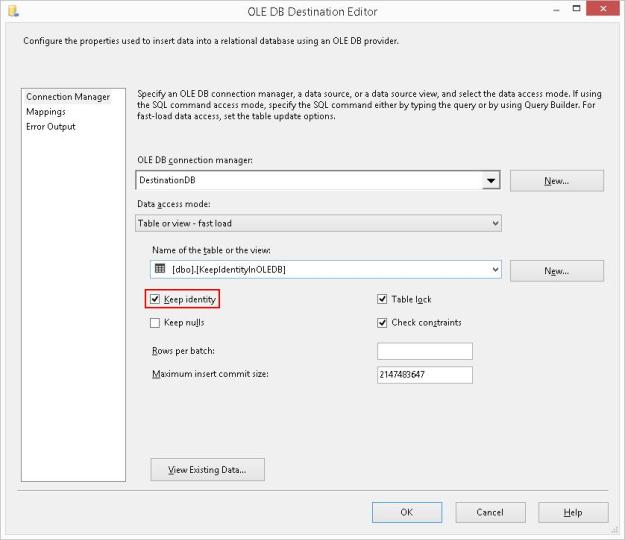
Checking the "Keep Identity" checkbox

#0390 – SQL Server – SSIS – OLE DB Destination – Table Fast Load – Keep Identity option


Recently, I started writing about the nuances of SSIS which most accidental SSIS developers may frequently get stumped by due to the differences in behaviour over conventional T-SQL.

The OLE DB Destination

In my previous post, I started to explore the OLE DB destination. In order to load data as quickly into the destination as possible, the  OLE DB destination allows us to use a “Fast Load” mode. The “Fast Load” option allows the data team to configure various options that affect the speed of the data load:

  1. Keep Identity
  2. Keep NULLs
  3. Table Lock
  4. Check Constraints
  5. Rows per Batch
  6. Maximum Insert Commit Size

I looked at the “Keep NULLs” option earlier, and today I will go over the “Keep Identity” option.

The “Keep Identity” option, as the name suggests controls the ability of the OLE DB destination task to insert data into an IDENTITY column. IDENTITY columns are quite a commonly used functionality to provide an auto increment value in a table. When migrating data from one system to another, it may be required to preserve the identity values during the migration.

Allow me to demonstrate the switch in action. In order to setup the demo, I created a table in the [tempdb] database on my SQL Server instance with an IDENTITY column, and inserted some test data into it.

USE tempdb;
GO
--Safety Check
IF OBJECT_ID('dbo.KeepIdentityInOLEDB','U') IS NOT NULL
BEGIN
    DROP TABLE dbo.KeepIdentityInOLEDB;
END
GO

--Create table
CREATE TABLE dbo.KeepIdentityInOLEDB 
    ([IdentityId]       INT          NOT NULL IDENTITY(1,1),
     [ProductName]      VARCHAR(255)     NULL,
     [ManufacturerName] VARCHAR(255)     NULL
    );
GO

--Initial sample test Data
INSERT INTO dbo.[KeepIdentityInOLEDB] ([ProductName], [ManufacturerName])
SELECT [ProductList].[ProductName],
       [ProductList].[ManufacturerName] 
FROM (VALUES ('Windows'     , 'Microsoft'),
             ('SQL Server'  , NULL       ),
             ('VisualStudio','Microsoft'),
             ('MySQL'       , 'Oracle'   ),
             ('PeopleSoft'  , 'Oracle'   )
     ) AS [ProductList] ([ProductName], [ManufacturerName]);
GO

Default behaviour (Keep Identity unchecked)

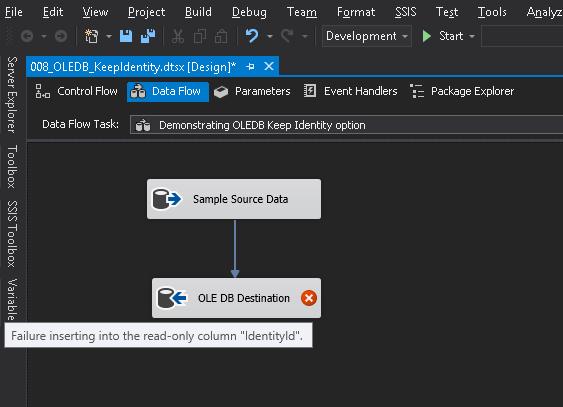
When an OLE DB destination is configured to load a table with identity columns, the OLE DB destination fails validation if the identity column is mapped to the input.

Mapping identity column in the target table with a source value

Mapping identity column in the target table with a source value

Validation errors if identity columns are mapped and “Keep Identity” is unchecked (default)

Even if I forcibly try to run the package, the package fails.

0390-execution-failure-with-keep-identity-unchecked

Execution Failure when trying to execute the package with “Keep Identity” unchecked

Inserting data into Identity tables (Keep Identity checked)

If I check the “Keep Identity” checkbox, the validation error disappears and the package runs successfully.

Checking the “Keep Identity” checkbox

Successful package execution with “Keep Identity” checked

When moving data from one system into another where the identity values can uniquely refer to the records being inserted, this option works perfectly.

However, keep in mind a side-effect of this checkbox. Let me take a look at the data that was inserted into the test table.

Inserting data with “Keep Identity” checked may cause duplicates in the identity column

The “Keep Identity” checkbox checked is like setting the IDENTITY_INSERT option to ON when inserting data into a table using T-SQL. Only difference is that the option is set to OFF once the package execution completes, and hence no explicit handling is required.

Further Reading

I have written a series of posts on T-SQL behaviour around identity values, and I trust you would find them interesting.

  • An introduction to IDENTITY columns [Link]
  • What are @@IDENTITY, SCOPE_IDENTITY, IDENT_CURRENT and $IDENTITY? [Link]
  • Myths – IDENTITY columns cannot have holes or “gaps” [Link]
  • Myths – Values cannot explicitly inserted into IDENTITY columns [Link]
  • Myths – Duplicate Values cannot exist IDENTITY columns [Link]
  • Myths – The value for SEED and INCREMENT must be 1 [Link]
  • Myths – IDENTITY values (including SEED & INCREMENT) cannot be negative [Link]
  • Myths – IDENTITY columns cannot be added to existing tables – Part 01 [Link]
  • Myths – IDENTITY columns cannot be added to existing tables – Part 02 [Link]
  • Myths – IDENTITY columns cannot have constraints defined on them [Link]
  • Myths – IDENTITY columns do not propagate via SELECT…INTO statements [Link]
  • Use IDENTITY() Function to change the Identity specification in a SELECT…INTO statement [Link]

Until we meet next time,

Be courteous. Drive responsibly.

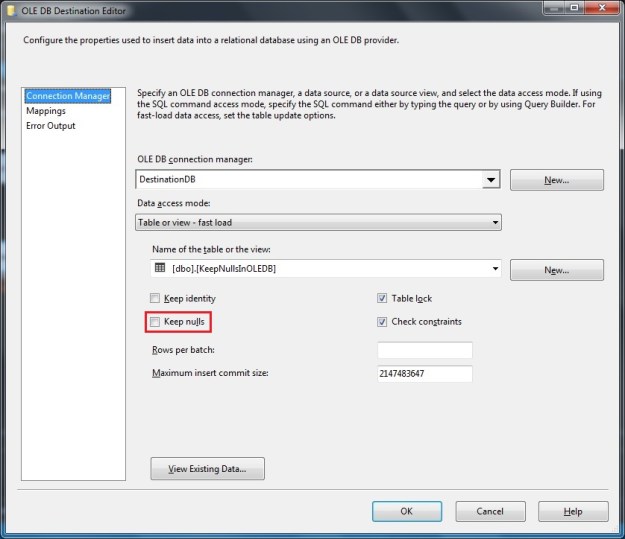
OLE DB Destination Configuration. Notice the "Keep nulls" switch is unchecked.

#0389 – SQL Server – SSIS – OLE DB Destination – Table Fast Load – Keep NULLs option


SQL Server Integration Services (SSIS) are typically called upon when integrating systems exchange data from one source to a given destination. The reason I use the term “source” and “destination” instead of a “database” because either of the two can be something other than a database (a flat file, some web-service, a script task, etc). This is possible because SSIS is more like any other .net framework based programming language (C# or VB.net).

OLE DB destination

Because one would commonly have either a Microsoft Access or a Microsoft SQL Server on at least one side of the integration, the most common source & destinations used in a SSIS-based data solution are the OLE DB Source and the OLE DB Destination. The OLE DB destination allows you to load data to a table, a view or even a SQL command (e.g. the results of a statement execution).

In order to load data as quickly into the destination as possible, the  OLE DB destination allows us to use a “Fast Load” mode. The “Fast Load” option allows the data team to configure various options that affect the speed of the data load:

  1. Keep Identity
  2. Keep NULLs
  3. Table Lock
  4. Check Constraints
  5. Rows per Batch
  6. Maximum Insert Commit Size

We will look at each option in detail over the next couple of weeks.

Keep NULLs option

The Keep NULLs option is normally something that most accidental SSIS developers do not pay much attention to. It comes unchecked by default and it left unchecked. However, the state of this checkbox can have a significant impact on the completeness and quality of data being inserted into the destination database.

To clarify, allow me to explain the functionality of this checkbox:

  1. Checked – If a column in the source data has NULL values, keep them as-is
  2. Unchecked – If a column in the source data has NULL values, try to replace them with the default values as defined by the destination DB

The state of this checkbox typically does not make much of a difference because in most cases, the domain and business rules in both the systems involved would be similar. Thus, the if a column in one system allows a NULL value, other systems in the same domain would also allow a NULL (e.g. in most enrollment forms, the last name would generally be mandatory but the first name is not). However, legacy systems (which have been around since decades) would have accumulated a lot data that does not conform to newer domain practices, causing issues during migration. This is when the “Keep Nulls” checkbox comes into action.

In the case I am going to present today, I have a set of Product Names and their corresponding Manufacturers. In a few of these cases, I don’t know the manufacturer and have therefore kept it blank.

USE tempdb;
GO
--Test Data
SELECT [ProductList].[ProductName],
       [ProductList].[ManufacturerName] 
FROM (VALUES ('Windows'     , 'Microsoft'),
             ('SQL Server'  , NULL       ),
             ('VisualStudio','Microsoft'),
             ('MySQL'       , 'Oracle'   ),
             ('PeopleSoft'  , 'Oracle'   )
     ) AS [ProductList] ([ProductName], [ManufacturerName]);
GO
Sample data with some NULL values

Sample data with some NULL values

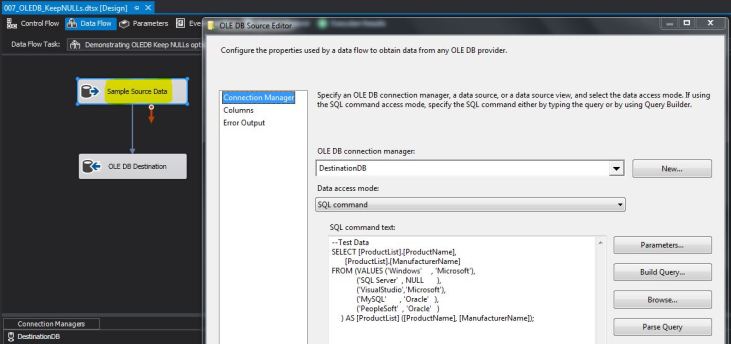
For the sake of this demo, I have used this query as my source in the test SSIS package. Below is a screenshot of my data flow task.

Using a test data query in the OLE DB source command

Using a test data query in the OLE DB source command

I directly take this dataset as input to the OLE DB destination. The OLE DB destination is configured to a test table ([dbo].[KeepNullsInOLEDB]) with the following table definition.

USE [tempdb];
GO
--Safety Check
IF OBJECT_ID('dbo.KeepNullsInOLEDB','U') IS NOT NULL
BEGIN
    DROP TABLE dbo.KeepNullsInOLEDB;
END
GO

--Create table
CREATE TABLE dbo.KeepNullsInOLEDB 
        ([ProductName]      VARCHAR(255) NULL,
         [ManufacturerName] VARCHAR(255) NULL     
                            CONSTRAINT df_KeepNullsInOLEDB_ManufacturerName 
                            DEFAULT ('Microsoft')
        );
GO

OLE DB Destination Configuration. Notice the “Keep nulls” switch is unchecked.

After executing the package, I query the [dbo].[KeepNullsInOLEDB] table in the destination database, and compare with the source data.

Values inserted into the destination table. Notice the default value from table definition is used.

Values inserted into the destination table. Notice the default value from table definition is used.

As can be seen from the screenshot, the [ManufacturerName] for “SQL Server” is not NULL. It is instead set to “Microsoft” which is the default value as set in the default constraint on the destination table.

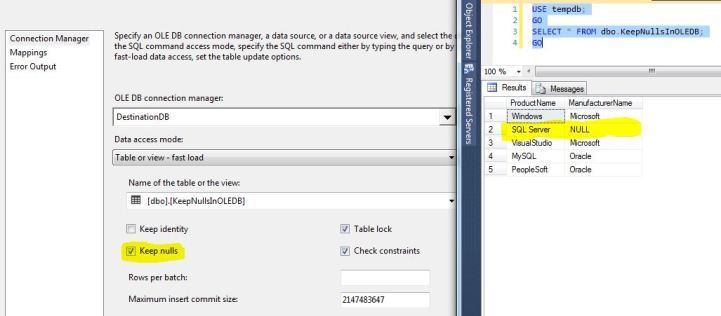
The data inserted in the destination table changes if the switch is kept checked in the OLE DB destination.

Notice how the value from the default constraint is not used when “Keep Nulls” is checked.

If the “Keep nulls” checkbox is checked, the default constraint on the target table is not used – thereby maintaining the same data as the source.

Summary

Depending upon the business requirements, it may be critical to migrate data from a source to a destination “as-is”, without the application of default constraints. In such situations, the “Keep nulls” switch on the OLE DB destination (“Fast Load” mode) needs to be checked.

If the “Keep nulls” switch is unchecked, the default constraints from the target table definition come into effect.

In my future posts, I will take a look at the other switches on the OLE DB Fast Load mode.

Until we meet next time,

Be courteous. Drive responsibly.
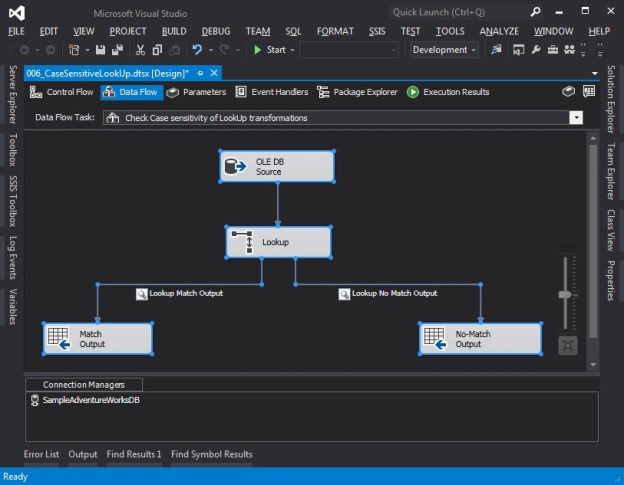
Data Flow Task used to demonstrate case-sensitivity of Lookup transformation

#0388 – SQL Server – SSIS – Lookup transformations are case-sensitive


I have been working with SQL Server Integration Services (SSIS) recently. In many ways, SSIS is counter-intuitive if you have been working with the database engine for long (more than a decade in my case). Working with SSIS is more like working with any other .net framework based programming language (C# or VB.net). Over the next couple of days, I will be writing about some of the salient aspects of SSIS which should be kept in mind in case you are working on multiple SQL Server technologies.

Lookup Transformations – A key to successful system integrations

Cross-referencing of Enumerations

One of the key challenges for any system integration is to ensure that the enumerations  and “default” values used in the source system (e.g. sales statuses, product categories, etc) align between the “source” & “target” systems.

Once the values aligned during business, high-level and low-level designs, implementation of this cross-referencing in SQL Server Integration Services (SSIS) is done by a data flow component called the “Lookup Transformation“. The Lookup transformation effectively performs a join between the input data with a reference data set. If values match, they are available in what is called the “Match Output” whereas values that do not match can be made available as a “No Match Output”. However, this comes with a tiny counter-intuitive behaviour that I learnt about the hard way.

The lookup performed by the lookup transformation is case-sensitive.

Demo

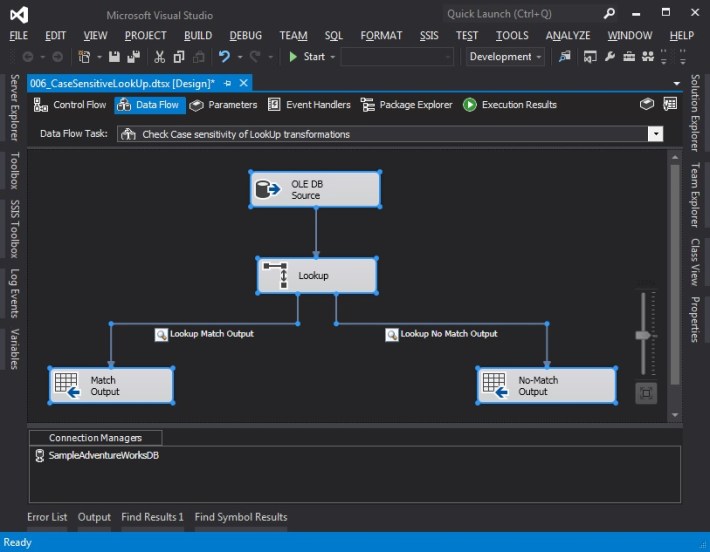
In order to demonstrate the case-sensitivity of lookup transformations, I have developed a SSIS package that does the following in a simple data-flow task:

  1. Get some static data from an OLEDB data source, basically some rows with text representation of numbers (One, Two, Three, and so on)
  2. The Lookup transform has a static mapping between the numeric and text values of various numbers – 1 through 10
  3. As the input data passes through the lookup transformation, we try to map the text values in the source data with the values available in the lookup transformation so that we can get the appropriate numeric representation
    • In my demo, records that find a valid lookup are written to a recordset destination (it could be any valid destination), whereas records that do not match are written to another destination
    • I have placed data viewers on the output pipelines to visually see the data being moved, which is what I will show below

The query used to generate the static data in the OLE DB source is provided below.

SELECT srcValues.RowName,
       srcValues.RowValue
FROM (VALUES ('Row1','One'),
             ('Row2','Two'),
             ('Row3','three'),
             ('Row4','Four'),
             ('Row5','Five'),
             ('Row6','Six'),
             ('Row7','seven'),
             ('Row8','eight'),
             ('Row9','Nine'),
             ('Row10','Ten')
     ) AS srcValues (RowName, RowValue);

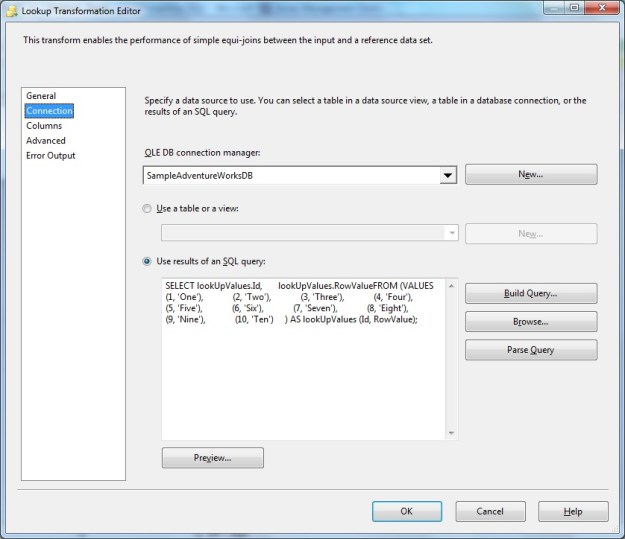
The query used to generate the lookup values for the lookup transform is provided below:

SELECT lookUpValues.Id,
       lookUpValues.RowValue
FROM (VALUES (1, 'One'),
             (2, 'Two'),
             (3, 'Three'),
             (4, 'Four'),
             (5, 'Five'),
             (6, 'Six'),
             (7, 'Seven'),
             (8, 'Eight'),
             (9, 'Nine'),
             (10, 'Ten')
     ) AS lookUpValues (Id, RowValue);

Observe that in the static source data, not all values have a consistent case – some are in sentence case, whereas some are in small case.

The screenshots below show the overall setup of the SSIS package.

Data Flow Task used to demonstrate case-sensitivity of Lookup transformation

Data Flow Task used to demonstrate case-sensitivity of Lookup transformation

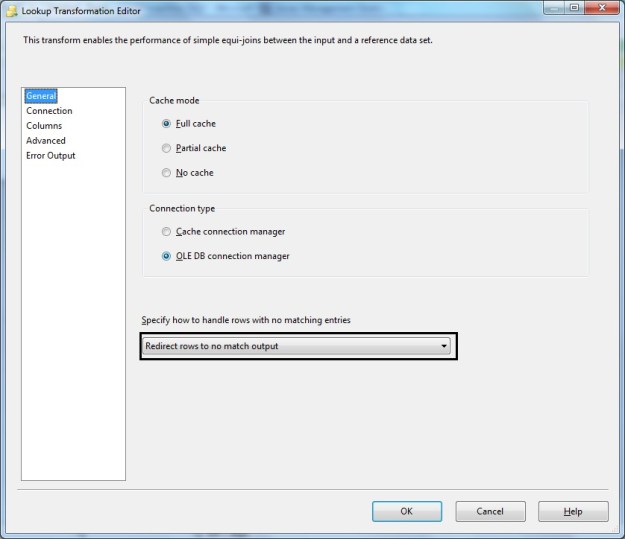
LookUp Transformation - General configuration (Notice redirection to no match output)

LookUp Transformation – General configuration (Notice redirection to no match output)

Lookup Transformation - Connection tab showing reference values

Lookup Transformation – Connection tab showing reference values

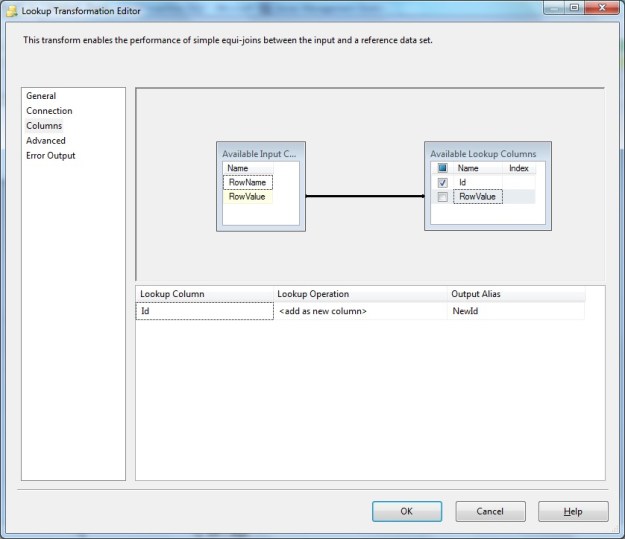
Lookup Transformation - Columns configuration showing "RowValue" used for matching whereas the reference Id is fetched to include in output

Lookup Transformation – Columns configuration

Notice here that we have used the text value from the source data (“RowValue” column) for matching/lookup to the reference data set. The reference Id is fetched to include in output.

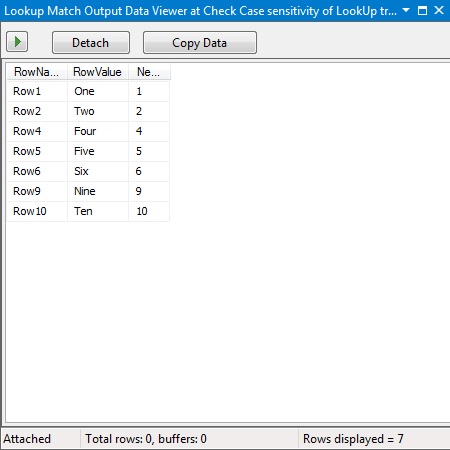
If a match is found the “Match Output” should contain the matching row from the source combined with the Id from the reference/lookup data. This is seen in the data viewer output below.

Lookup Transformation - Match Output (source rows with the Id from the reference data)

Lookup Transformation – Match Output (source rows with the Id from the reference data)

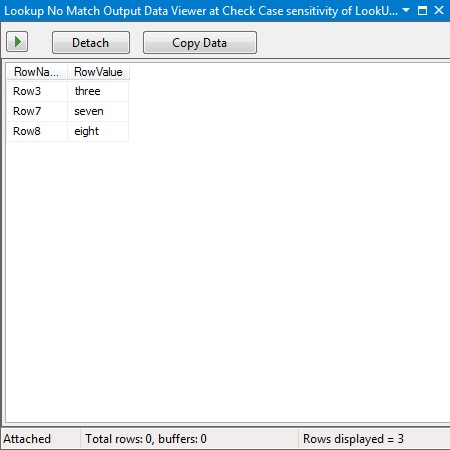
If a match is not found (which would be the case for the values with lower case in the source data), the “No Match Output” will contain the row from the source data that failed the lookup (since failures were redirected to the “No Match” output in the general configuration). Notice we do not get the Id from the reference because no match to the reference was found.

Lookup Transformation - No Match Output

Lookup Transformation – No Match Output

Summary

When working with a case insensitive database, we often tend to take data quality with respect to case of the data for granted. Having data with inconsistent case has multiple repercussions (especially with data grouping in front end applications), but the biggest negative impact due to inconsistent case of text data is the inaccurate cross-referencing during a master data cleanup, system integration or data migration exercise.

Call to action

Do take a few cycles in your development to take a look at your data quality, and if necessary, implement required data cleansing to ensure that your lookup data, enumerations and master data are using a case that is correct and consistent with the domain and business requirements.

Until we meet next time,

Be courteous. Drive responsibly.

#0387 – SQL Server – Script to find source backups used in a database restore


In our development environment, we frequently refresh our databases from various baseline backup sets for each sprint of the product development cycle. During one such sprint, we had a confusion as  to which backup was used to refresh the database.

Microsoft SQL Server tracks every possible detail about each backup and restore operation in the [msdb] system database, and unless explicitly cleared, this history is available effectively forever.

I therefore developed a quick query on the [msdb].[dbo].[restorehistory] and  [msdb].[dbo].[backupset] tables of the msdb database to fetch the following information:

  1. Name of the restored database
  2. Date of the restore
  3. User who restored the DB
  4. Type of the restore (full/differential/transaction log)
  5. Was the restore done over an existing database (i.e. “replace” operation)
  6. Name of the backup set
  7. User who performed the backup
  8. Database creation date as logged  during the backup
  9. Backup Start & End times
  10. Type of the backup (full/differential/transaction log)
  11. Machine where the backup was taken

We were able to confirm that the restored backup was indeed a correct one and a documentation discrepancy was the root cause of the confusion. I thought the script would be useful for the entire community in fulfilling such adhoc verification tasks. I trust you will find it useful.

(FYI – In the script, I have kept additional joins to the [msdb].[dbo].[backupfile] and [msdb].[dbo].[restorefile] to get the information of the individual  database files as well. You can uncomment them as necessary.)

Here is the script below fetching information for the [AdventureWorks2012] database:

USE msdb;
GO
SELECT BackupRestoreHistory.[destination_database_name] AS RestoredDatabaseName,
       BackupRestoreHistory.[restore_date] AS BackupRestoreDate,
       BackupRestoreHistory.[user_name] AS BackupRestoredByUser,
       CASE BackupRestoreHistory.[restore_type] WHEN 'D' THEN 'Database'
                                                WHEN 'F' THEN 'File'
                                                WHEN 'G' THEN 'Filegroup'
                                                WHEN 'I' THEN 'Differential'
                                                WHEN 'L' THEN 'Transaction Log'
                                                WHEN 'V' THEN 'Verify Only'
                                                ELSE 'Information Not Available'
       END AS RestoreType,
       BackupRestoreHistory.[replace] AS IsDatabaseReplacedDuringRestore,
       --RestoreFileInformation.[destination_phys_name] AS RestoredFileName,
       --BackupFileInformation.[physical_name] AS SourceBackupFileName,
       BackupSetInformation.[name] AS BackupSetName,
       BackupSetInformation.[user_name] AS BackupDoneByUser,
       BackupSetInformation.[database_name] AS DatabaseNameWhenBackupWasTaken,
       BackupSetInformation.[database_creation_date] AS DatabaseCreationDateRecordedAtBackup,
       BackupSetInformation.[backup_start_date] AS BackupStartDateTime,
       BackupSetInformation.[backup_finish_date] AS BackupEndDateTime,
       CASE BackupSetInformation.[type] WHEN 'D' THEN 'Database'
                                        WHEN 'I' THEN 'Differential database'
                                        WHEN 'L' THEN 'Log'
                                        WHEN 'F' THEN 'File or filegroup'
                                        WHEN 'G' THEN 'Differential file'
                                        WHEN 'P' THEN 'Partial'
                                        WHEN 'Q' THEN 'Differential partial'
                                        ELSE 'Information Not Available'
        END AS BackupType,
        BackupSetInformation.[server_name] AS ServerWhereBackupWasTaken
FROM msdb.dbo.restorehistory AS BackupRestoreHistory
LEFT OUTER JOIN msdb.dbo.backupset AS BackupSetInformation ON BackupRestoreHistory.backup_set_id = BackupSetInformation.backup_set_id 
--LEFT OUTER JOIN msdb.dbo.restorefile AS RestoreFileInformation ON BackupRestoreHistory.[restore_history_id] = RestoreFileInformation.[restore_history_id]
--LEFT OUTER JOIN msdb.dbo.backupfile AS BackupFileInformation ON BackupSetInformation.[backup_set_id] = BackupFileInformation.[backup_set_id]
WHERE BackupRestoreHistory.[destination_database_name] = 'AdventureWorks2012';
GO
0387-backupandrestoreinformation

Backup information corresponding to a restored version of the AdventureWorks2012 database

Until we meet next time,

Be courteous. Drive responsibly.