As we have been discussing over the last couple of weeks, moving data from a “source” to a “destination” is the crux of SSIS. The data source can be literally anything – a SQL Server database, a web-service, a script, an XML or even a conventional delimited file.
Picking up files from a folder and processing them is one of the most common use-case that I have seen. In order to avoid processing the same file over and over again, the most common requirement is to append the file name with a date-time value. In this post, I will provide an expression I use to achieve this goal.
Appending a Date/Time and renaming a file in SSIS
The easiest way to append a date/time value to a file name and renaming the file in SSIS is via SSIS expressions.
Put every simply – an expression is a formula, a combination of variables, literals and operators that work together and evaluate to a single value.
We can use the following expression to yield a date value:
SUBSTRING(@[User::FileName], 1, FINDSTRING(@[User::FileName],".",1) -1 ) + (DT_WSTR,4)YEAR(GETDATE()) + (DT_WSTR,2)MONTH(GETDATE()) + (DT_WSTR,2)DAY(GETDATE())
This can then be appended to the file name and a simple File System Task can rename the file for us on the file system. Let’s see this in action with an example.
Demo
Assume a scenario where I have a set of files in a folder, and I need to do some processing on them. After processing, I need to update the file names with the date. For the sake of brevity of this example, I will not be performing any other operation on the files other than renaming them.
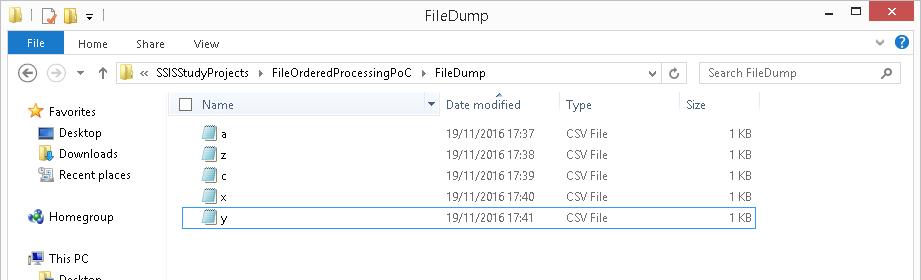
My folder containing the input files looks like this:

Folder with input files which need to be renamed once processing is complete
Now, I create an SSIS package that contains a simple For Each file iterator and a File System task.
For Each Loop configuration
The For Each Loop (configured as a file iterator) uses an expression populated by a variable to get the source directory information.
The file name and extension is fetched into a variable which will be used during the processing and subsequent renaming.

Overall package configuration showing the For Each File Iterator

For Each Iterator – Collection configuration using a variabel for the source directory

Fetching the individual file name & extension into a variable
Now, I create a new user variable “OutputFileName” and use the expression below to generate the output file name. The expression has essentially 3 distinct parts:
- Fetch the file name (without the extension)
- Append the date to this string
- Fetch the file extension and append to the modified/new file name
@[User::SourceFolder] +
SUBSTRING(@[User::FileName], 1, FINDSTRING(@[User::FileName],".",1) -1 ) + (DT_WSTR,4)YEAR(GETDATE()) + (DT_WSTR,2)MONTH(GETDATE()) + (DT_WSTR,2)DAY(GETDATE()) +
SUBSTRING(@[User::FileName], FINDSTRING(@[User::FileName],".",1), LEN(@[User::FileName]))

Output File Path expression
This variable is now used in the configuration of the file system task which is responsible for renaming the file.
File System Task configuration
The file system task is an extremely flexible task component in SSIS. It can operate on the file system not only by using file connections but also on the basis of variables! For our problem, we will leverage this flexibility of the File System task.
As can be seen from the screenshot below, my File System task has been configured as follows:
- Source File Path is a variable
- Destination File Path is a variable
- File Operation type = “Rename File”
The “Rename File” operation renames the file specified by the old file path and renames it to the name specified by the new file path.

File System Task configuration using “Rename File” mode where input & output file names are supplied via variables
Once the package is executed, we can see that the files in the source folder are now updated as expected.

Source Folder with the File Names updated as expected
Further Reading
Until we meet next time,
Be courteous. Drive responsibly.





 SQLTwins by Nakul Vachhrajani