Tag Archives: Tips

General Microsoft SQL Server tips

#0405 – SQL Server – Msg 5133 – Backup/Restore Errors – Directory lookup for file failed – Operating System Error 5(Access is denied.).


We got a new server recently and one of my colleagues ran into an error when restoring a database. The error was a quite generic (reformatted below for readability):

Msg 5133, Level 16, State 1, Line 1
Directory lookup for the file 
"C:\Users\SQLTwins\Documents\AdventureWorks2014\AdventureWorks2014_Data.mdf" 
failed with the operating system error 5(Access is denied.).

Msg 3156, Level 16, State 3, Line 1
File 'AdventureWorks2014_Data' cannot be restored to 
'C:\Users\SQLTwins\Documents\AdventureWorks2014\AdventureWorks2014_Data.mdf'. 
Use WITH MOVE to identify a valid location for the file.

My immediate reaction was to  review the restore script.

USE [master];
GO
RESTORE DATABASE [AdventureWorks2014]
FROM DISK = 'C:\Program Files\Microsoft SQL Server\MSSQL13.MSSQLSERVER\MSSQL\Backup\AdventureWorks2014.bak'
WITH
MOVE 'AdventureWorks2014_Data' TO 'C:\Users\SQLTwins\Documents\AdventureWorks2014\AdventureWorks2014_Data.mdf',
MOVE 'AdventureWorks2014_Log' TO 'C:\Users\SQLTwins\Documents\AdventureWorks2014\AdventureWorks2014_Log.ldf';
GO

All looked well, I subsequently moved to the environmental aspect of troubleshooting. It was a new server and we had just created the target folders to which the database was to be restored.

We attempted to restore to the default database locations configured during SQL Server installation and the restore worked. So, one thing that became clear: the SQL Server service did not have appropriate security rights on the destination folder.

The Solution

Once we determined that it was the security rights on the destination folder, the only thing remaining was to grant the rights. Here’s how we do it.

  1. Cross-check the user set as the service user for Microsoft SQL Server database engine (use the SQL Server Configuration Manager for interacting with the SQL Server service – here’s why).
  2. Under Folder properties, ensure that this user has full security rights (or at least equivalent to the rights assigned on the default database folders specified at the time of installation)

Here’s are detailed screenshots showing the above process.

01_SQLServerConfigurationManager

Identifying the user running the SQL Server Database Engine service

02_GrantingPermissions_01

Navigating into file system folder security options to grant access to the SQL Server service

02_GrantingPermissions_02

Choosing the appropriate account running the SQL Server service

02_GrantingPermissions_03

Applying appropriate rights to folder

By the way: If you encounter similar issues in accessing your backup files, the root cause and solution are the same. Check the permissions on the folders housing your backups and you should  see that the database engine does not have the necessary security rights.

Further Reading

Maintaining permissions on data folders and appropriate registry entries is something that is handled by the SQL Server Configuration Manager when you change the service account under which  the database engine is running. If you use services.msc (the old way), this is not done and your SQL Server may stop working.

  • Changing SQL Server Service Account or Password – Avoid restarting SQL Server [Blog Link]
  • Blog Post #0344 – SQL Server – Missing Configuration Manager on Windows 8 [Blog Link]

Until we meet next time,

Be courteous. Drive responsibly.

#0403 – SQL Server – CAST/CONVERT to string – Pad zeroes or spaces to an integer


Helping the community via forums often leads to some very interesting moments. Recently, I came across quite a common question – as part of a data migration, someone wanted to pad integers with zeroes. There are various variations to this question, namely:

How do I pad zeroes to  convert an integer to a fixed length string?

How do I pad zeroes before an integer?

How to I pad blank spaces before an integer?

All of these questions have quite a simple solution, which I am going to present before you today.

The script demonstrates the process of padding the required values to a set of integers in a test table. The script:

  1. Converts the Integer to a string
  2. Appends this string representation of the integer to the padding string
  3. Finally, returns the required number of characters from the right of the string

For the purposes of this demo, I have shown the result with two padding characters – a zero (0) and an asterisk (*).

Have you ever faced such a requirement as part of a data migration or an integration? Do you use a similar approach? Do share your thoughts and suggestions in the space below.

--Pad zeroes in string representation of a number
USE tempdb;
GO
--Safety Check
IF OBJECT_ID('dbo.TestTable','U') IS NOT NULL
BEGIN
   DROP TABLE dbo.TestTable;
END
GO

--Create the test tables
CREATE TABLE dbo.TestTable
            (RecordId    INT NOT NULL IDENTITY(1,1),
             RecordValue INT     NULL
            );
GO

--Populate some test data
INSERT INTO dbo.TestTable (RecordValue)
VALUES (123),
       (1023),
       (NULL);
GO

/**************** PADDING CHARACTER: ZERO (0) ****************************/

--Change the padding character and the number of strings as required
DECLARE @requiredStringLength INT = 10;
DECLARE @paddingCharacter CHAR(1) = '0'

--The script:
--1. Converts the Integer to a string
--2. Appends this string representation of the integer to the padding string
--3. Finally, returns the required number of characters from the right of the string
SELECT RecordId,
       RecordValue AS OriginalValue,
       RIGHT( (REPLICATE( @paddingCharacter, @requiredStringLength )
              + CAST(RecordValue AS VARCHAR(20))
              ),
              @requiredStringLength
            ) AS PaddedValue
FROM dbo.TestTable AS tt;
GO

/* RESULTS
RecordId    OriginalValue PaddedValue
----------- ------------- ------------
1           123           0000000123
2           1023          0000001023
3           NULL          NULL

*/

/**************** PADDING CHARACTER: ASTERISK (*) ****************************/

--Change the padding character and the number of strings as required
DECLARE @requiredStringLength INT = 10;
DECLARE @paddingCharacter CHAR(1) = '*'

--The script:
--1. Converts the Integer to a string
--2. Appends this string representation of the integer to the padding string
--3. Finally, returns the required number of characters from the right of the string
SELECT RecordId,
       RecordValue AS OriginalValue,
       RIGHT( (REPLICATE( @paddingCharacter, @requiredStringLength )
               + CAST(RecordValue AS VARCHAR(20))
              ),
              @requiredStringLength
            ) AS PaddedValue
FROM dbo.TestTable AS tt;
GO

/* RESULTS
RecordId    OriginalValue PaddedValue
----------- ------------- ------------
1           123           *******123
2           1023          ******1023
3           NULL          NULL
*/

Until we meet next time,

Be courteous. Drive responsibly.
#0402–SQL Server 2016 – KB3207512 fails–Msg 17054 – Unable to shutdown the instance; Operating System Error 21 (The device is not ready)


I recently updated my personal sandbox to use SQL Server 2016. While the installation succeeded, one of the first few problems that I ran into were:

  • The SQL Server 2016 instance failed to shutdown
  • Error 17054 was logged every time a shutdown is attempted with the error: “The current event was not reported to the Windows Events log. Operating system error = (null). You may need to clear the Windows Events log if it is full.
  • Installation of KB3207512 (update for SQL Server 2016 SP1 Reporting Services) and latest CUs kept failing
  • User databases would not be accessible with an error: “The operating system returned error 21(The device is not ready.)

While I was trying to figure out what was wrong, I ran into the same problem with a few other instances.

The Solutions

After a lot of rounds of trial and error, the following changes finally did the trick. The items below collectively make up the solution and all items need to be performed in order to get the SQL server instance up-to speed again.

  • Launch the SQL Server Configuration Manager
  • Under “SQL Server Network Configuration” ensure that the TCP/IP protocol is enabled
  • Under “SQL Server Services”, ensure that the following services are started:
    • SQL Server PolyBase Engine
    • SQL Server PolyBase Data Movement

Once the steps provided above are done, all the problems listed above should cease to exist.

Until we meet next time,

Be courteous. Drive responsibly.
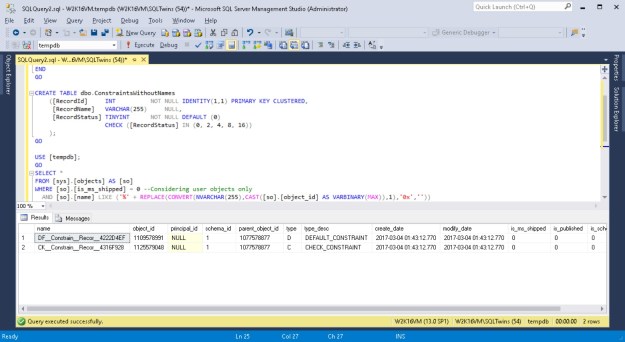
Screenshots showing that objects have been given default constraint names by SQL Server in case a name was not supplied by the user

#0401 – SQL Server – Script to validate object naming convention


A few weeks ago, I ran into a question on one of the forums asking for a script that can help the team validate object naming conventions. Immediately, I was able to sympathize with the team.

What happens is that when developers use the graphical (GUI) tools in the SQL Server Management Studio (SSMS) or via a simple script, they often fail to specify a name to each individual constraint. These slips are not intentional – developers don’t often realize that each constraint is an independent object because they are ultimately related to  another user defined object (a table).

However, when a name is not explicitly specified for a particular constraint, what Microsoft SQL Server does is provide a name by combining the following:

  1. A standard prefix indicating the object (e.g. “DF” for default constraints)
  2. 9 characters of the object name
  3. 5 characters of the field name
  4. Finally, the unique Id of the object, represented in hexa-decimal format

While this format will always generate a unique value, it would generate names that may not be intuitive. It is therefore a common  practice to review the database code and review for compliance with naming conventions  that have been defined in the product/project.

This logic can be leveraged during code reviews/audits to identify objects where standard project naming conventions are not met.

To demonstrate the functionality of the script, I create one table with a wide range of constraints – none of which have a name specified.

USE [tempdb];
GO
IF OBJECT_ID('dbo.ConstraintsWithoutNames','U') IS NOT NULL
BEGIN
    DROP TABLE dbo.ConstraintsWithoutNames;
END
GO

CREATE TABLE dbo.ConstraintsWithoutNames 
    ([RecordId]     INT          NOT NULL IDENTITY(1,1) 
                                 PRIMARY KEY CLUSTERED,
     [RecordName]   VARCHAR(255)     NULL,
     [RecordStatus] TINYINT      NOT NULL DEFAULT (0) 
                    CHECK ([RecordStatus] IN (0, 2, 4, 8))
    );
GO

Now, the following script is a simple string search that looks for strings ending with the hexa-decimal representation of the parent object.

USE [tempdb];
GO
SELECT * 
FROM [sys].[objects] AS [so]
WHERE [so].[is_ms_shipped] = 0 --Considering user objects only
  AND [so].[name] LIKE ('%' + REPLACE(CONVERT(NVARCHAR(255),CAST([so].[object_id] AS VARBINARY(MAX)),1),'0x',''))
                        --Only those objects whose names end with the hexadecimal
                        --representation of their object Id
Screenshots showing that objects have been given default constraint names by SQL Server in case a name was not supplied by the user

Objects given default constraint names

I  hope you found this script useful. Please do  share your ideas/scripts that you may be using in your day-to-day activities.

Until we meet next time,

Be courteous. Drive responsibly.
#0399 – SQL Server – SSIS – Debugging – Exploring the Data Viewer


I often get questions regarding debugging of SSIS packages with the most common scenario being a need to “see” the data flowing  down the data pipeline. SQL Server Integration Services (SSIS) packages are explored and edited visually within the SQL Server Data Tools (SSDT) and hence, the mechanism to troubleshoot an SSIS package when developing it also has to be visual.

The Data Viewer allows a developer to pause the data flow in a data flow task and look at the data as it is on that point in the pipeline. Today, I will introduce you to the Data Viewer.

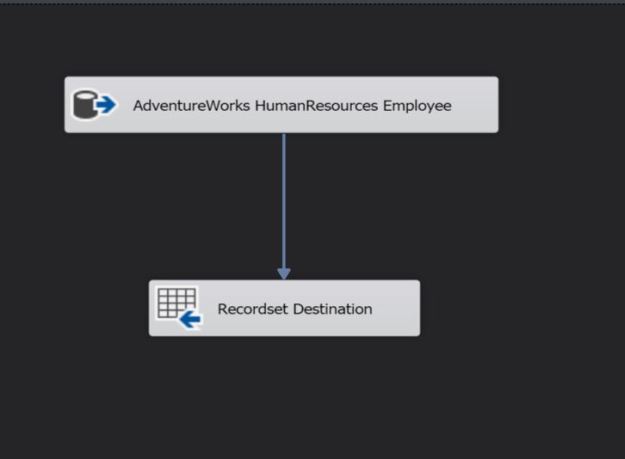
Sample SSIS package to demonstrate Data Viewer on the Data Flow Pipeline

Sample SSIS package to demonstrate Data Viewer on the Data Flow Pipeline

The data flow is quite simply taking all the records from the [HumanResources].[Employee] table of the sample [AdventureWorks2014] database and putting into an object variable via the Recordset destination (I am using the Recordset destination for the demo here for the sake of simplicity).

Using the Data Viewer

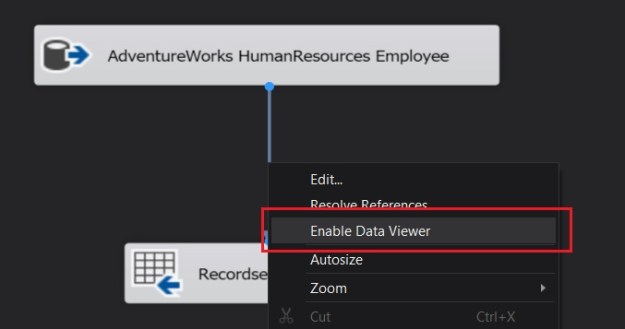
If I want to study the data flowing through the data pipeline, all I need to do is right-click on the data flow path and choose “Enable Data Viewer” (a data flow path being the connection between a source and a transformation, between two transformations or a transformation and a destination).

0399_image2

Enabling the Data Viewer on a Data Flow Pipeline

0399_image3

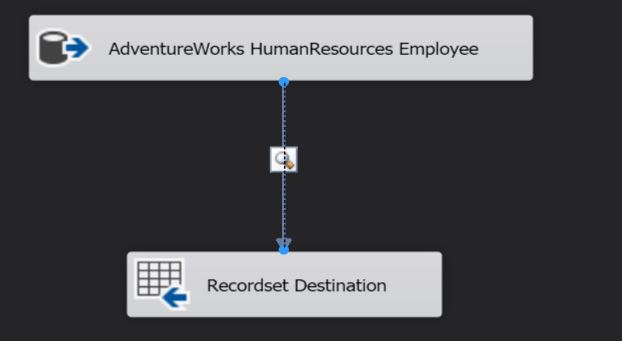
Magnifying glass indicates Data Viewer is enabled

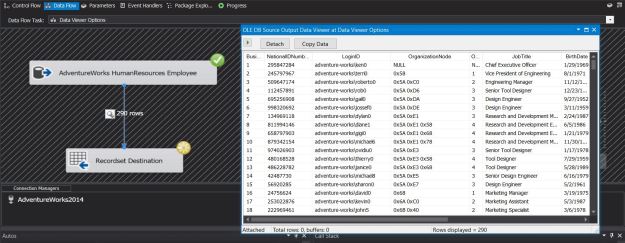
As can be seen from the screen grab above, a magnifying glass icon on the data flow now appears indicating that the data flow is configured for viewing.

If I execute the SSIS package at this point, I see that the data flow pauses just before it starts writing to the destination and opens a new grid window. The window resembles a normal dataset viewer (if you are familiar with developing C# or ASP.NET applications in Visual Studio, you would feel right at home!) which contains the data flowing through the data pipeline. You can even copy this grid to Excel or any other file for further research (Tip!).

Data Viewer showing data flowing through the data path

Data Viewer showing data flowing through the data path

Once you have studied the data flowing through, you can choose to either stop the transaction (by stopping execution of the package) or allowing the package to execute through by clicking on the “green” arrow on the data viewer.

Allowing the data flow to continue down the pipeline by allowing the package to resume execution

Allowing the data flow to continue down the pipeline by allowing the package to resume execution

Filtering columns displayed on the Data Viewer

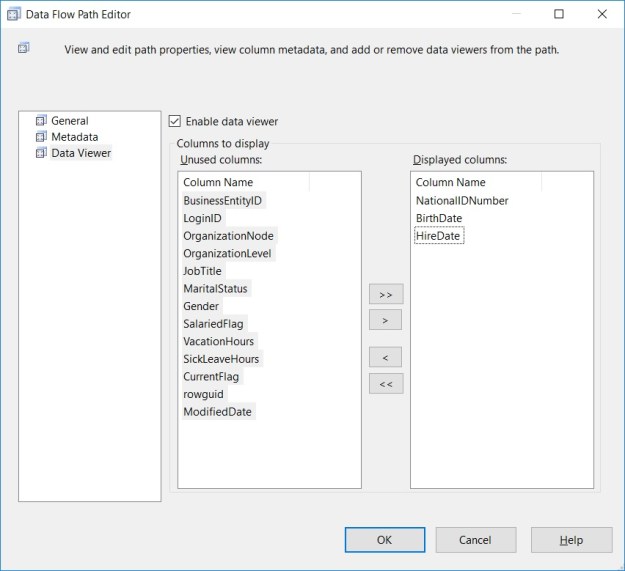
Sometimes, we may not want to sift through all the columns in the data pipeline. If we know that a particular column is causing some problems, we may just want to monitor that column. One can explicitly choose which columns should be displayed on the data viewer by going into the data flow properties.

  1. Right-click on the data flow path and choose “Edit”
  2. Go to “Data Viewer”
  3. Use the arrow buttons to selectively choose which columns to display in the data viewer
Selectively choosing columns visible on the Data Viewer

Selectively choosing columns visible on the Data Viewer

Summary

The Data Viewer can be used for design time troubleshooting of an SSIS package, allowing developers to pause the data flow and monitor the data flowing down the data pipeline.

  • You can have multiple data viewers in your data flow task so that you can monitor each part of the data flow
  • You can control the columns seen in the data viewer so that you can focus on the fields of interest
  • You can copy this data for further research/maintaining a record
  • If you have transformation components that use 64-bit components, you may need to turn off the “Run64BitRuntime” under the Debug options (Debug -> Solution Properties -> Configuration Properties -> Debugging)

Further Reading

Until we meet next time,

Be courteous. Drive responsibly.