#0399 – SQL Server – SSIS – Debugging – Exploring the Data Viewer


I often get questions regarding debugging of SSIS packages with the most common scenario being a need to “see” the data flowing  down the data pipeline. SQL Server Integration Services (SSIS) packages are explored and edited visually within the SQL Server Data Tools (SSDT) and hence, the mechanism to troubleshoot an SSIS package when developing it also has to be visual.

The Data Viewer allows a developer to pause the data flow in a data flow task and look at the data as it is on that point in the pipeline. Today, I will introduce you to the Data Viewer.

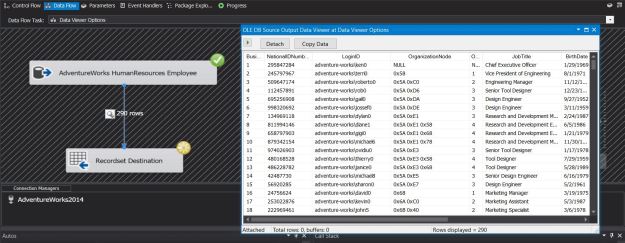
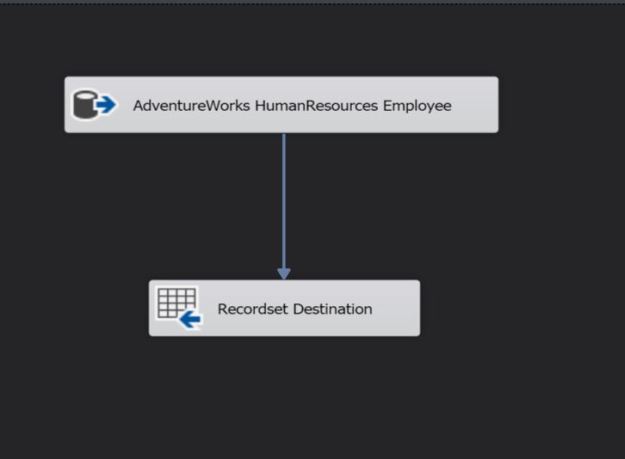
Sample SSIS package to demonstrate Data Viewer on the Data Flow Pipeline

Sample SSIS package to demonstrate Data Viewer on the Data Flow Pipeline

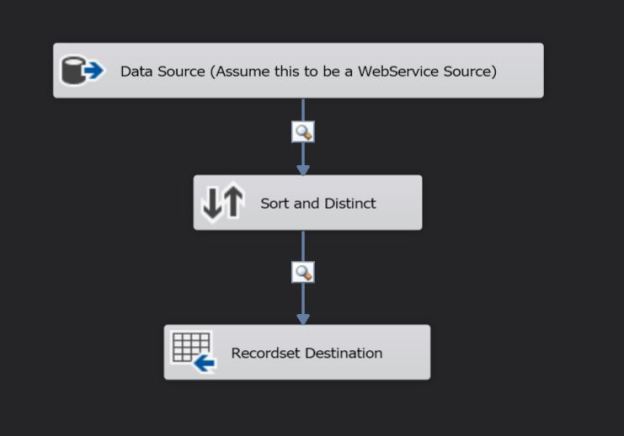
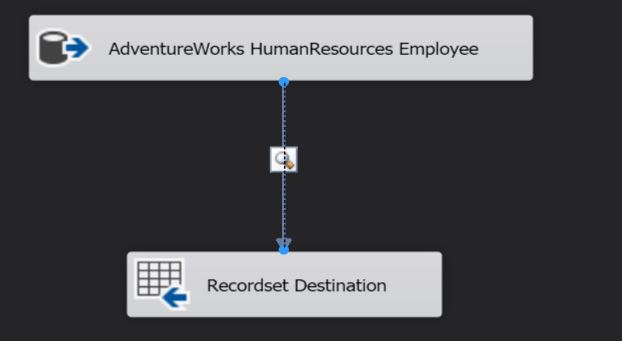
The data flow is quite simply taking all the records from the [HumanResources].[Employee] table of the sample [AdventureWorks2014] database and putting into an object variable via the Recordset destination (I am using the Recordset destination for the demo here for the sake of simplicity).

Using the Data Viewer

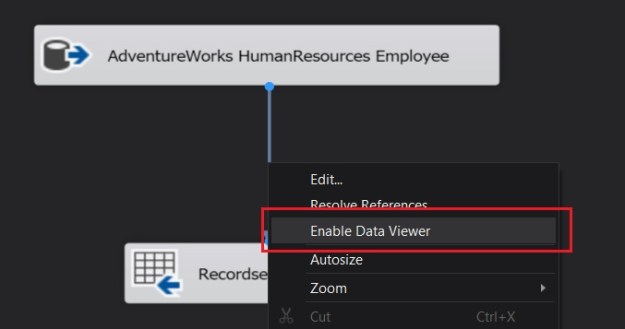
If I want to study the data flowing through the data pipeline, all I need to do is right-click on the data flow path and choose “Enable Data Viewer” (a data flow path being the connection between a source and a transformation, between two transformations or a transformation and a destination).

0399_image2

Enabling the Data Viewer on a Data Flow Pipeline

0399_image3

Magnifying glass indicates Data Viewer is enabled

As can be seen from the screen grab above, a magnifying glass icon on the data flow now appears indicating that the data flow is configured for viewing.

If I execute the SSIS package at this point, I see that the data flow pauses just before it starts writing to the destination and opens a new grid window. The window resembles a normal dataset viewer (if you are familiar with developing C# or ASP.NET applications in Visual Studio, you would feel right at home!) which contains the data flowing through the data pipeline. You can even copy this grid to Excel or any other file for further research (Tip!).

Data Viewer showing data flowing through the data path

Data Viewer showing data flowing through the data path

Once you have studied the data flowing through, you can choose to either stop the transaction (by stopping execution of the package) or allowing the package to execute through by clicking on the “green” arrow on the data viewer.

Allowing the data flow to continue down the pipeline by allowing the package to resume execution

Allowing the data flow to continue down the pipeline by allowing the package to resume execution

Filtering columns displayed on the Data Viewer

Sometimes, we may not want to sift through all the columns in the data pipeline. If we know that a particular column is causing some problems, we may just want to monitor that column. One can explicitly choose which columns should be displayed on the data viewer by going into the data flow properties.

  1. Right-click on the data flow path and choose “Edit”
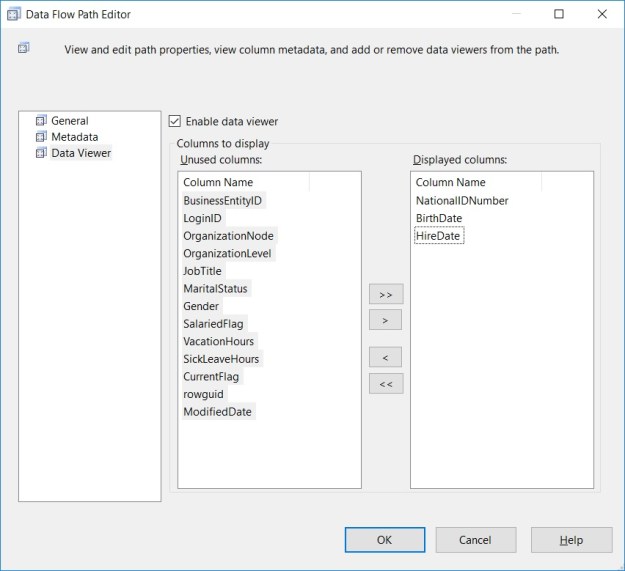
  2. Go to “Data Viewer”
  3. Use the arrow buttons to selectively choose which columns to display in the data viewer
Selectively choosing columns visible on the Data Viewer

Selectively choosing columns visible on the Data Viewer

Summary

The Data Viewer can be used for design time troubleshooting of an SSIS package, allowing developers to pause the data flow and monitor the data flowing down the data pipeline.

  • You can have multiple data viewers in your data flow task so that you can monitor each part of the data flow
  • You can control the columns seen in the data viewer so that you can focus on the fields of interest
  • You can copy this data for further research/maintaining a record
  • If you have transformation components that use 64-bit components, you may need to turn off the “Run64BitRuntime” under the Debug options (Debug -> Solution Properties -> Configuration Properties -> Debugging)

Further Reading

Until we meet next time,

Be courteous. Drive responsibly.
Overview of the sample SSIS package using the SORT operator

#0398 – SQL Server – SSIS – Performing a DISTINCT using the SORT transformation


Developing SSIS packages is quite easy – it’s mostly drag and drop and some minor configuration. Choosing the right transformations and components and making them work optimally is a task that is heavily dependent upon the use case at hand.

Normally, when working with relational data sources, I am averse to using the SORT transformation within a data flow, because it is a blocking transformation. Blocking transformations not only consume client memory, they also act as roadblocks in what should be an uninterrupted data pipeline. The performance tip (!) therefore is to prefer that sorting, if required, is done as part of the data source query itself so that the data pipeline gets presorted data.

However, presorting of data may not be possible in all cases. For example, if you are receiving data from a web-service, XML data source or any other 3rd party custom component. A SORT transformation becomes essential in such scenarios, but one of the areas where I have seen most people stumble upon is that a custom query is later used to remove unnecessary records from the set. The custom query is not required in most cases, and I will be demonstrating how to use configure the SORT transformation to also perform a DISTINCT.

Demo

Assume that:

  • You just need a list of unique patrons who visited a local library this year in order of their registration Id for sending out some promotional mails
  • The promotions need to be sent irrespective of the visit date and number of visits within the year
  • The input (log of library visits) is coming from a web-service of some sort over which you as an integration team member have no control over
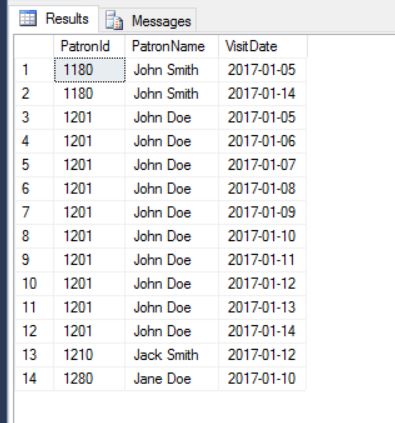
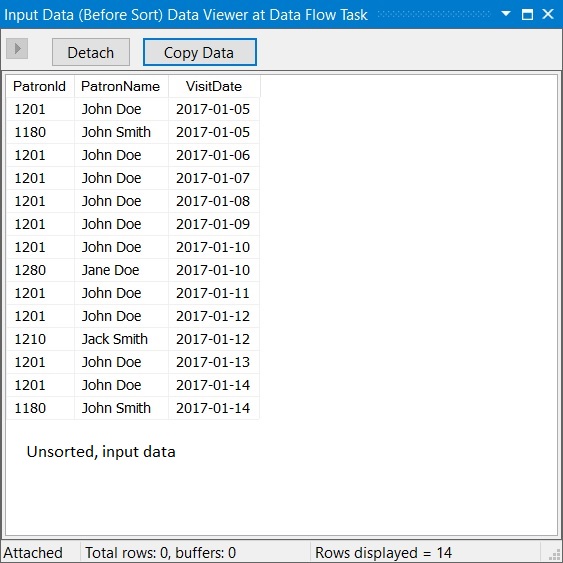
  • Following is a sample of the test data that comes over from the web-service

NOTE: For the purposes of this demo, I will use a T-SQL SELECT to generate my test data, but I would request the reader to assume that the data is coming from a non-relational source.

SELECT LibraryVisitLog.PatronId,
       LibraryVisitLog.PatronName,
       LibraryVisitLog.VisitDate
FROM (VALUES (1201,'John Doe',  '2017-01-05'),
             (1180,'John Smith','2017-01-05'),
             (1201,'John Doe',  '2017-01-06'),
             (1201,'John Doe',  '2017-01-07'),
             (1201,'John Doe',  '2017-01-08'),
             (1201,'John Doe',  '2017-01-09'),
             (1201,'John Doe',  '2017-01-10'),
             (1280,'Jane Doe',  '2017-01-10'),
             (1201,'John Doe',  '2017-01-11'),
             (1201,'John Doe',  '2017-01-12'),
             (1210,'Jack Smith','2017-01-12'),
             (1201,'John Doe',  '2017-01-13'),
             (1201,'John Doe',  '2017-01-14'),
             (1180,'John Smith','2017-01-14')
     ) AS LibraryVisitLog (PatronId, PatronName, VisitDate)
Sample Test Data to be used for the demo

Sample Test Data

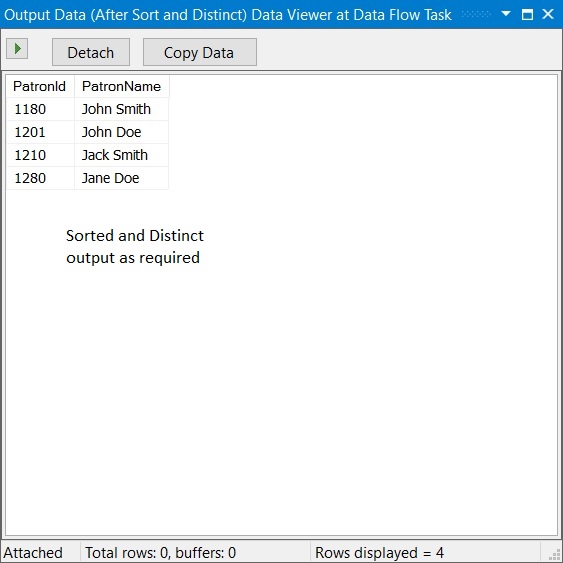
We only want the information about the following 4 (four) unique patrons ordered by their Id down the pipeline.

Patron Id Patron Name
1180 John Smith
1201 John Doe
1210 Jack Smith
1280 Jane Doe

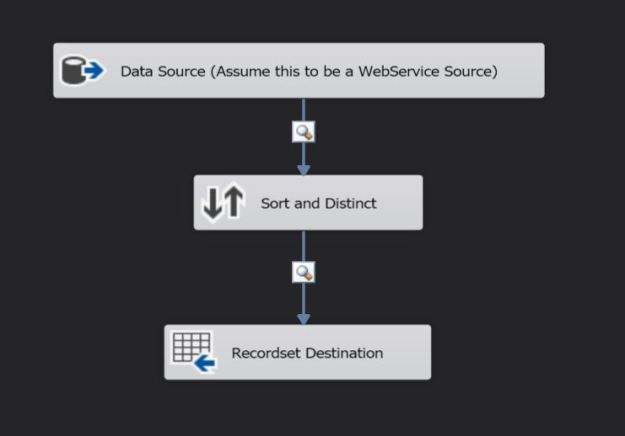
Configuring the SSIS package to achieve this is quite simple. As shown in the image below, I have a SORT transformation between my data source and target.

Overview of the sample SSIS package using the SORT operator

Overview of the demo SSIS package

The SORT transformation is configured to:

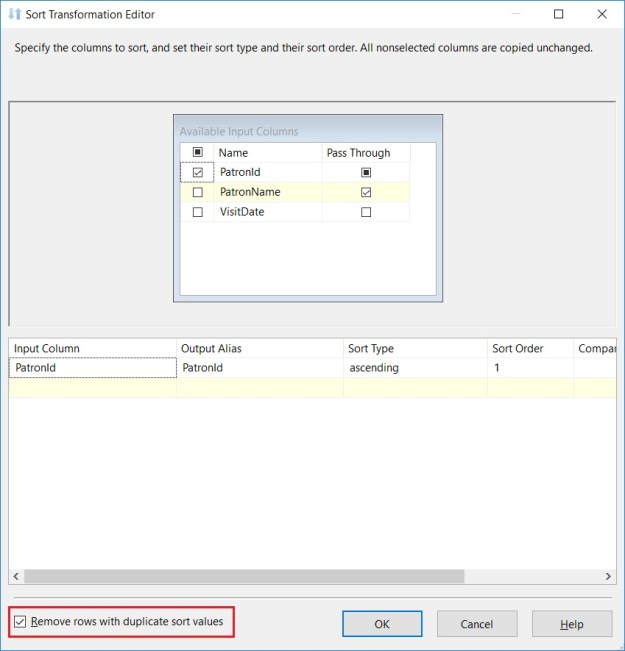
  • Ignore the VisitDate (as established in the requirements above)
  • SORT based on the PatronId
  • Pass the PatronName through the pipleline
Configuring the SORT operator to perform a DISTINCT on the output rows

Configuring the SORT operator to perform a DISTINCT on the output rows

In addition, notice that I have checked the checkbox “Remove rows with duplicate sort values” in the bottom left corner. This switch controls whether the transformation copies duplicate rows on the transformation output or creates a single, unique entry for all duplicates.

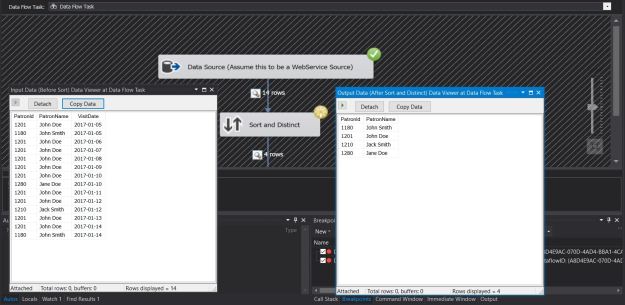
To actually see the data flowing through the pipeline, I have enabled DataViewers on each stage of the data flow. You can see the actual data flowing through the pipeline in the screenshots provided below:

Demonstrating the ability of a SORT transformation to perform a DISTINCT on the data

Demonstrating the ability of a SORT transformation to perform a DISTINCT on the data

0398-image05

Data Viewer showing input data

0398-image06

Data Viewer showing sorted and Distinct data

Summary

With respect to the SORT operator and achieving a balance between the performance and limitations of the data sources used by an SSIS package:

  • It is a best practice to pre-sort the data at the data source before sending it across a data flow pipeline
  • In case pre-sorting is not possible, but sorting is required, one can use the SORT transformation
  • Leverage the SORT transform to filter out unique records from the sorted output – custom logic is not required to do so

Further Reading

Until we meet next time,

Be courteous. Drive responsibly.
Showing the use of OLE DB fast load options when loading data

#0397 – SQL Server – SSIS – OLE DB Destination – SEQUENCE can be used only with fast load options


Traditionally, sequential numbers in a database system were managed by the use of IDENTITY columns. SQL Server 2012 saw the advent of the SEQUENCE object, which can be used to generate a sequence of numeric values according to a user-defined specification. Recently, I was working on an SSIS package which used the OLE DB transformation to load data into a table where one of the columns was populated by the SEQUENCE object. During the development of this  package, I ran into an interesting issue.

Standard load options of the SSIS OLE DB destination throw an error when inserting data into a table where SEQUENCE is used.

The workaround is quite simple – the OLE DB fast load options. Allow me to walk through a sample demonstrating this issue and the workaround.

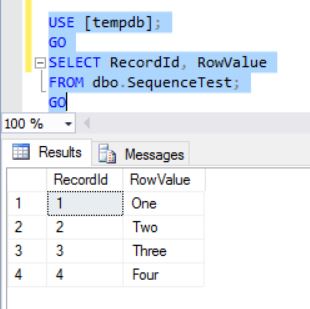
Assume that we have an extremely basic sample SEQUENCE object which  starts at 1 and increments by 1. This SEQUENCE is then used as a default value for one of the columns in our test table.

USE [tempdb];
GO
--Safety  Check
IF OBJECT_ID('df_RecordId','D') IS NOT NULL
BEGIN
    ALTER TABLE dbo.SequenceTest 
        DROP CONSTRAINT df_RecordId;
END
GO

IF OBJECT_ID('dbo.RecordIdSequence','SO')  IS NOT NULL
BEGIN
    DROP SEQUENCE dbo.RecordIdSequence;
END
GO

IF OBJECT_ID('dbo.SequenceTest','U') IS NOT NULL
BEGIN
    DROP TABLE dbo.SequenceTest;
END
GO

--Create the sequence first
CREATE SEQUENCE dbo.RecordIdSequence
    START WITH  1
    INCREMENT BY 1;
GO

--Use this SEQUENCE on a default constraint
--associated with one of the columns in the table
CREATE TABLE dbo.SequenceTest 
    (RecordId INT NOT NULL 
              CONSTRAINT df_RecordId DEFAULT
              NEXT VALUE FOR dbo.RecordIdSequence,
     RowValue VARCHAR(50)
    );
GO

My SSIS package has nothing else other than a simple Data-Flow Transformation with 1 (one) OLE DB source and 1 (one) OLE DB destination.

The OLE DB source uses the following query to generate the test data.

SELECT t.RowValue
FROM (VALUES ('One'),
             ('Two'),
             ('Three'),
             ('Four')
     ) AS t (RowValue)

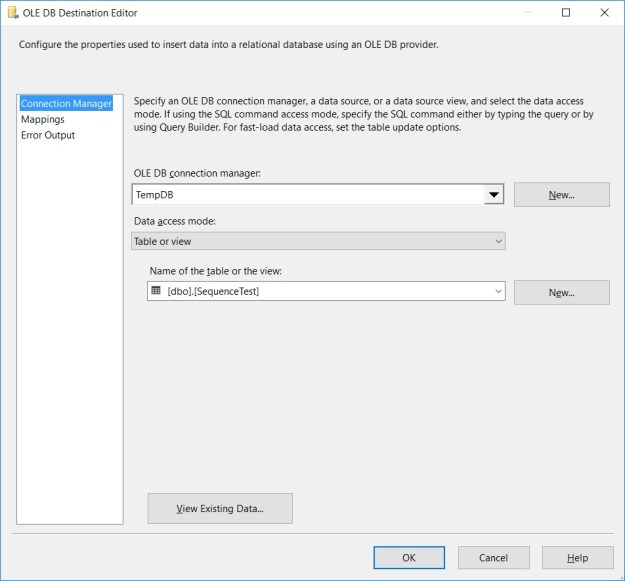
The OLE DB destination uses the standard (non fast-load) configuration as shown in the screenshot below.

Showing use of the SSIS OLE DB destination standard table load configuration

OLE DB standard table load configuration

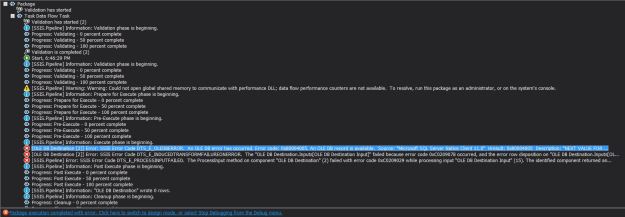
Running this SSIS package results in an error. The error text is provided below.

[OLE DB Destination [2]] Error: SSIS Error Code DTS_E_OLEDBERROR. 
An OLE DB error has occurred. Error code: 0x80004005.
An OLE DB record is available. 
Source: "Microsoft SQL Server Native Client 11.0" 
Hresult: 0x80004005 
Description: 
"NEXT VALUE FOR function cannot be used if ROWCOUNT option has been set, 
or the query contains TOP or OFFSET. ".
SSIS table load error when using OLE DB standard load into a table with the SEQUENCE object

SSIS table load error when using OLE DB standard load into a table with the SEQUENCE object

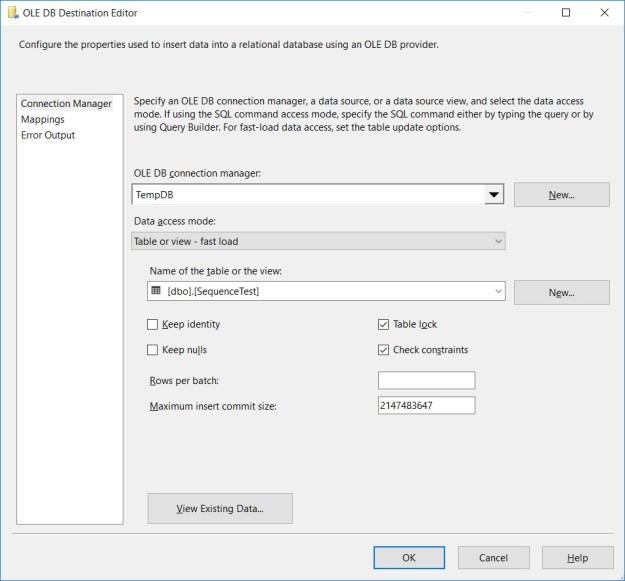
To resolve the error, all we need to do is to  change the OLE DB destination to use fast load options, by choosing “Table or View – fast load” as the “Data access mode“.

Showing the use of OLE DB fast load options when loading data

OLE DB Fast load options

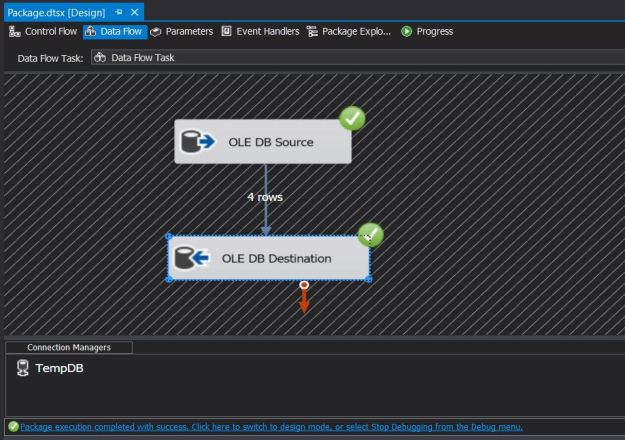
By making this small change, the SSIS package runs successfully, and data is also successfully inserted into the table.

0397-oledb_fastloadconfigurationsuccess0397-oledb_fastloadconfigurationsuccess2

Further Reading

Until we meet next time,

Be courteous. Drive responsibly.
#0396 – SQL Server – SSIS – Move and rename a file – “Could not find part of the path.” File System Task error


When working with disconnected sources or remote systems in SSIS, source data is often received in the form of files. A common requirement is to rename the file once the data import/processing is completed.

I looked at the File System task in my previous post. The file system task appears to be the best way to implement this requirement. However, we run into something that is unexpected:

The “Move File” operation moves a file from one folder to another. It does not rename the file.

Basic Scenario

Let me leverage the same example as I had in my previous post. I have a set of files in a folder and an SSIS package that is configured to rename the files.

Folder with input files which need to be renamed once processing is complete

Folder with input files which need to be renamed once processing is complete

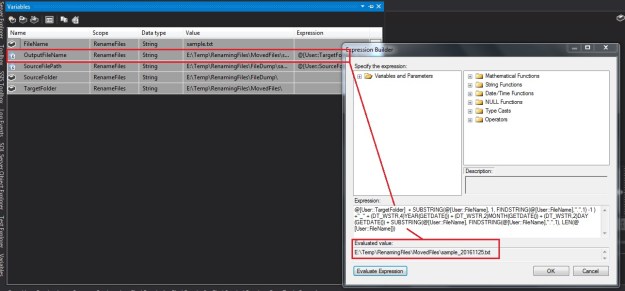
The destination file name comes from an expression that uses basic string concatenation to achieve the required target file name. The expression used in the destination file name variable is provided below.

@[User::SourceFolder] + 
SUBSTRING(@[User::FileName], 1, FINDSTRING(@[User::FileName],".",1) -1 ) + (DT_WSTR,4)YEAR(GETDATE()) + (DT_WSTR,2)MONTH(GETDATE()) + (DT_WSTR,2)DAY(GETDATE()) + 
SUBSTRING(@[User::FileName], FINDSTRING(@[User::FileName],".",1), LEN(@[User::FileName]))
Variable to populate the new name for the output file using an Expression

Variable to populate the new name for the output file using an Expression

Move File Operation

The File System Task in this package has been designed to use variables as the source and destination file names. The File System task is configured to perform a “Move File” operation.

0396-sqltwins-filesystemtask-configured-for-move-file-operation

File System Task in the “Move File” configuration

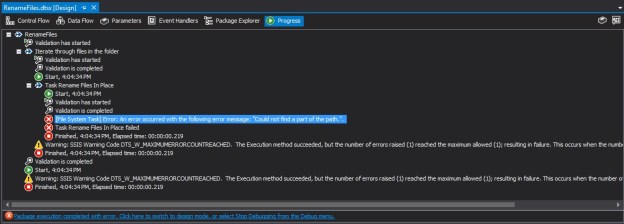
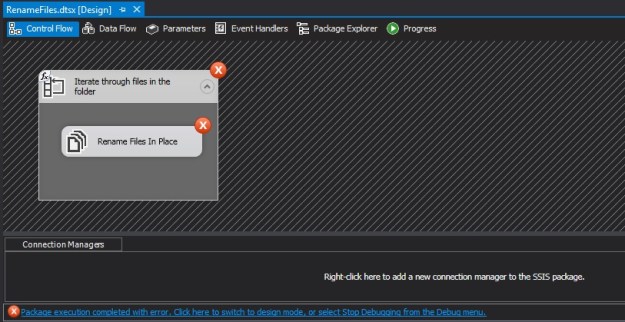
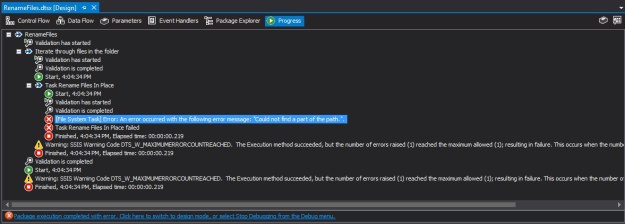
Upon running the SSIS package, no files are processed and we run into an error.

0396-sqltwins-filesystemtask-move-file-configuration-error

Execution Error when running the File System Task

0396-sqltwins-filesystemtask-move-file-configuration-error-details

“Could not find a part of the path.” error in the File System task “Move File” configuration

Looking at the error in detail, we see that the error is:

Could not find a part of the path.

Using the Rename File configuration

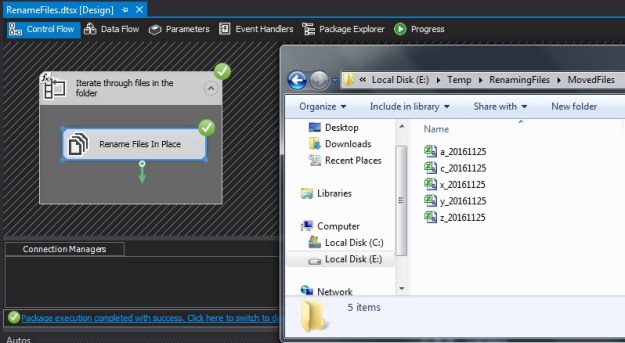
If we change the operation type to the “Rename File” configuration, we can see that the movement is successful.

File System Task configuration using

File System Task configuration using “Rename File” mode where input & output file names are supplied via variables

0396-sqltwins-result-of-renamefile-configuration

Moving files using File System task with “Rename File” operation

Behind the scenes

So, why is the File System task not behaving as expected? If the File System configuration is set to “Move File”, why did the files not move to the target folder?

The reason is quite simple: “Move File” only moves a file – it cannot rename a file during the movement of the file.

In  short, one has to configure the File System task in a “Rename File” configuration if a file has to be renamed – irrespective of whether the rename is in-place or in a different folder.

Until we meet next time,

Be courteous. Drive responsibly.
#0395 – SQL Server – SSIS – Adding date and time to a file name after processing


As we have been discussing over the last couple of weeks, moving data from a “source” to a “destination” is the crux of SSIS. The data source can be literally anything – a SQL Server  database, a web-service, a script, an XML or even a conventional delimited file.

Picking up files from a folder and processing them is one of the most common use-case that I have seen. In order to avoid processing the same file over and over again, the most common requirement is to append the file name with a date-time value. In this post, I will provide an expression I use to achieve this goal.

Appending a Date/Time and renaming a file in SSIS

The easiest way to append a date/time value to a file name and renaming the file in SSIS is via SSIS expressions.

Put every simply – an expression is a formula, a combination of variables, literals and operators that work together and evaluate to a single value.

We can use the following expression to yield a date value:

SUBSTRING(@[User::FileName], 1, FINDSTRING(@[User::FileName],".",1) -1 ) + (DT_WSTR,4)YEAR(GETDATE()) + (DT_WSTR,2)MONTH(GETDATE()) + (DT_WSTR,2)DAY(GETDATE())

This can then be appended to the file name and a simple File System Task can rename the file for us on the file system. Let’s see this in action with an example.

Demo

Assume a scenario where I have a set of files in a folder, and I need to do some processing on them. After processing, I need to update the file names with the date. For the sake of brevity of this example, I will not be performing any other operation on the files other than renaming them.

My folder containing the input files looks like this:

Folder with input files which need to be renamed once processing is complete

Folder with input files which need to be renamed once processing is complete

Now, I create an SSIS package that contains a simple For Each file iterator and a File System task.

For Each Loop configuration

The For Each Loop (configured as a file iterator) uses an expression populated by a variable to get the source directory information.

The file name and extension is fetched into a variable which will be used during the processing and subsequent renaming.

0395-sqltwins-overall-package

Overall package configuration showing the For Each File Iterator

0395-sqltwins-foreachloop-collection-configuration

For Each Iterator – Collection configuration using a variabel for the source directory

0395-sqltwins-foreachloop-fetching-file-name

Fetching the individual file name & extension into a variable

Now, I create a new user variable “OutputFileName” and use the expression below to generate the output file name. The expression has essentially 3 distinct parts:

  1. Fetch the file name (without the extension)
  2. Append the date to this string
  3. Fetch the file extension and append to the modified/new file name
@[User::SourceFolder] + 
SUBSTRING(@[User::FileName], 1, FINDSTRING(@[User::FileName],".",1) -1 ) + (DT_WSTR,4)YEAR(GETDATE()) + (DT_WSTR,2)MONTH(GETDATE()) + (DT_WSTR,2)DAY(GETDATE()) + 
SUBSTRING(@[User::FileName], FINDSTRING(@[User::FileName],".",1), LEN(@[User::FileName]))
Output File Path expression

Output File Path expression

This variable is now used in the configuration of the file system task which is responsible for renaming the file.

File System Task configuration

The file system task is an extremely flexible task component in SSIS. It can operate on the file system not only by using file connections but also on the basis of variables! For our problem, we will leverage this flexibility of the File System task.

As can be seen from the screenshot below, my File System task has been configured as follows:

  • Source File Path is a variable
  • Destination File Path is a variable
  • File Operation type = “Rename File”

The “Rename File” operation renames the file specified by the old file path and renames it to the name specified by the new file path.

File System Task configuration using “Rename File” mode where input & output file names are supplied via variables

Once the package is executed, we can see that the files in the source folder are now updated as expected.

Source Folder with the File Names updated as expected

Source Folder with the File Names updated as expected

Further Reading

Until we meet next time,

Be courteous. Drive responsibly.