Tag Archives: Development

Articles on Microsoft SQL Server development

High-level usage of the File Ordering script task

#0394 – SQL Server – SSIS – ForEach Loop – Controlling processing order


One of the SSIS related questions that I see often in the forums is around the ability to control the sequence in which a For Each Loop processes the files from a directory. When performing data movement as part of an ETL or an integration, it may be required to work asynchronously. The “sender” of the data may place the files in a folder for the data processing to pickup. These files generally contain ordered data that needs to be loaded in a specific sequence.

The problem is that the SSIS For Each Loop container does not have the provision that allows a user to specify the order in which the files are to be processed. Today, I present one of the workarounds that I came up with (there may be others, and I would be very interested to know what do you prefer in these scenarios).

Environment Prep

To demonstrate the ordered loading of files, I created a set of simple files  and a table to which I will be adding the data read from these files.

USE [tempdb];
GO

IF OBJECT_ID('dbo.ImportedData','U') IS NOT NULL
BEGIN
    DROP TABLE dbo.ImportedData;
END
GO


CREATE TABLE dbo.ImportedData 
   (RecordId           INT          NOT NULL IDENTITY(1,1),
    ProcessedFileName  NVARCHAR(255) NOT NULL,
    RecordValue        NVARCHAR(100)     NULL,
    ProcessedDate      DATETIME     NOT NULL,
    CONSTRAINT pk_ImportedData PRIMARY KEY CLUSTERED (RecordId, ProcessedDate)
   );
GO

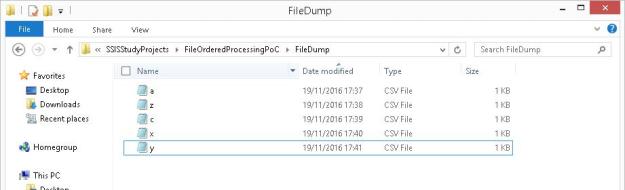
To demonstrate the fix, I will not be processing the files in order of their file names, but I will instead be processing them in order of  the date on which they were last saved. The screenshot below shows the order in which files will be processed.

Folder showing files to process in the required non-alphabetical order

Folder showing files to process in the required non-alphabetical order

Core Logic – Identify the Order of the Files to Process

The For Each container is just a mechanism to loop through a set (of objects/files/records). It does not have the provision to control the order in which the set is to be iterated through.

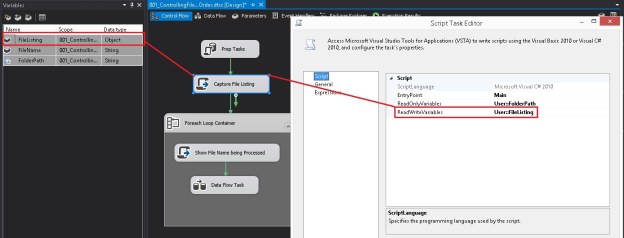
Hence, the workaround that I came up with was to supply a pre-ordered set to the For Each container. I therefore used a script task to order the filenames in a recordset object which I will pass to the For Each container.

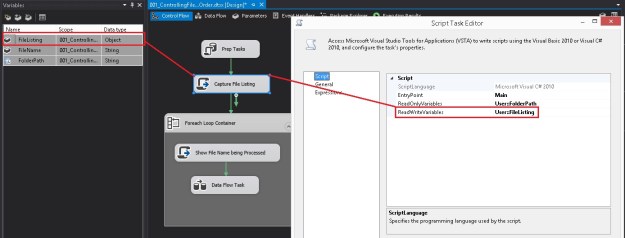
As shown below, I pass the path to the folder where the files are located, and accept the sorted list into an object.

High-level usage of the File Ordering script task

High-level usage of the File Ordering script task

The script used within the script task which is also the heart of this solution is provided below.

public void Main()
{
    // TODO: Add your code here
    DirectoryInfo di = new DirectoryInfo((string)Dts.Variables["User::FolderPath"].Value);
    List<string> files = new List<string>();

    foreach (var fi in di.EnumerateFiles().OrderBy(t=>t.LastWriteTime))
    {
        files.Add(fi.FullName);
    }

    Dts.Variables["User::FileListing"].Value = files;

    Dts.TaskResult = (int)ScriptResults.Success;
}

Process the File

The  next stage is simply to process the file.

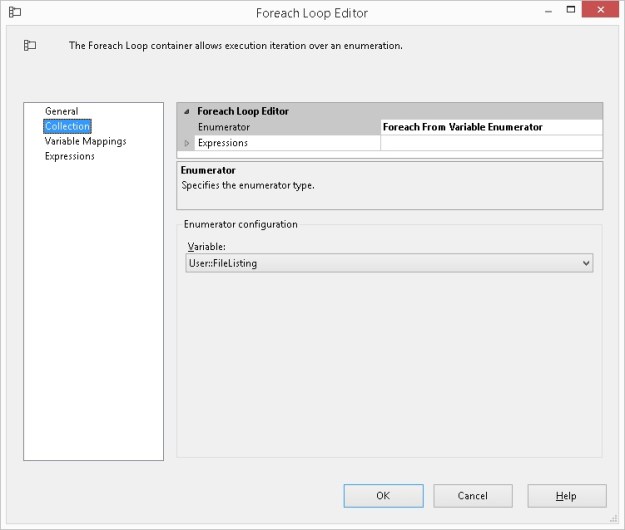
  • The sorted set of files is iterated upon by the For Each container
  • I have a script task that simply prints out a message box with the file being processed currently
  • The data flow task simply reads from the file and writes to a conventional OLE DB destination

Screenshots showing these bits of the configuration are provided below.

0394-sqltwins-ssis-foreachcontainer

For Each Loop Iteration Configuration

0394-sqltwins-ssis-foreachcontainer2

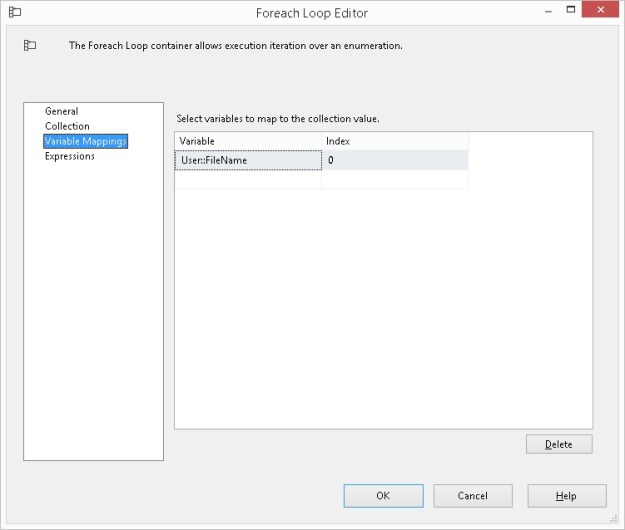
For Each Loop File Name configuration

0394-sqltwins-ssis-dfd_fileconnection

Setting the file connection based on the File Name set by For Each Iterator

If I execute the SSIS package and then query the destination table, we see that the files were indeed ordered in the expected order.

USE [tempdb];
GO
SELECT * 
FROM dbo.ImportedData 
WHERE RecordValue LIKE '%1%';
GO
0394-sqltwins-ssis-output

Output of script to confirm that data was loaded in the required sequence

Further Reading

Until we meet next time,

Be courteous. Drive responsibly.

Checking the "Keep Identity" checkbox

#0390 – SQL Server – SSIS – OLE DB Destination – Table Fast Load – Keep Identity option


Recently, I started writing about the nuances of SSIS which most accidental SSIS developers may frequently get stumped by due to the differences in behaviour over conventional T-SQL.

The OLE DB Destination

In my previous post, I started to explore the OLE DB destination. In order to load data as quickly into the destination as possible, the  OLE DB destination allows us to use a “Fast Load” mode. The “Fast Load” option allows the data team to configure various options that affect the speed of the data load:

  1. Keep Identity
  2. Keep NULLs
  3. Table Lock
  4. Check Constraints
  5. Rows per Batch
  6. Maximum Insert Commit Size

I looked at the “Keep NULLs” option earlier, and today I will go over the “Keep Identity” option.

The “Keep Identity” option, as the name suggests controls the ability of the OLE DB destination task to insert data into an IDENTITY column. IDENTITY columns are quite a commonly used functionality to provide an auto increment value in a table. When migrating data from one system to another, it may be required to preserve the identity values during the migration.

Allow me to demonstrate the switch in action. In order to setup the demo, I created a table in the [tempdb] database on my SQL Server instance with an IDENTITY column, and inserted some test data into it.

USE tempdb;
GO
--Safety Check
IF OBJECT_ID('dbo.KeepIdentityInOLEDB','U') IS NOT NULL
BEGIN
    DROP TABLE dbo.KeepIdentityInOLEDB;
END
GO

--Create table
CREATE TABLE dbo.KeepIdentityInOLEDB 
    ([IdentityId]       INT          NOT NULL IDENTITY(1,1),
     [ProductName]      VARCHAR(255)     NULL,
     [ManufacturerName] VARCHAR(255)     NULL
    );
GO

--Initial sample test Data
INSERT INTO dbo.[KeepIdentityInOLEDB] ([ProductName], [ManufacturerName])
SELECT [ProductList].[ProductName],
       [ProductList].[ManufacturerName] 
FROM (VALUES ('Windows'     , 'Microsoft'),
             ('SQL Server'  , NULL       ),
             ('VisualStudio','Microsoft'),
             ('MySQL'       , 'Oracle'   ),
             ('PeopleSoft'  , 'Oracle'   )
     ) AS [ProductList] ([ProductName], [ManufacturerName]);
GO

Default behaviour (Keep Identity unchecked)

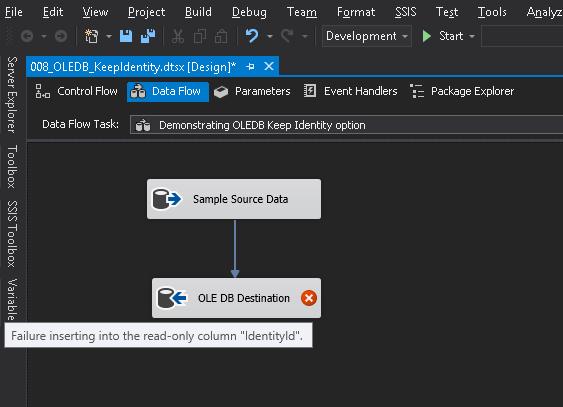
When an OLE DB destination is configured to load a table with identity columns, the OLE DB destination fails validation if the identity column is mapped to the input.

Mapping identity column in the target table with a source value

Mapping identity column in the target table with a source value

Validation errors if identity columns are mapped and “Keep Identity” is unchecked (default)

Even if I forcibly try to run the package, the package fails.

0390-execution-failure-with-keep-identity-unchecked

Execution Failure when trying to execute the package with “Keep Identity” unchecked

Inserting data into Identity tables (Keep Identity checked)

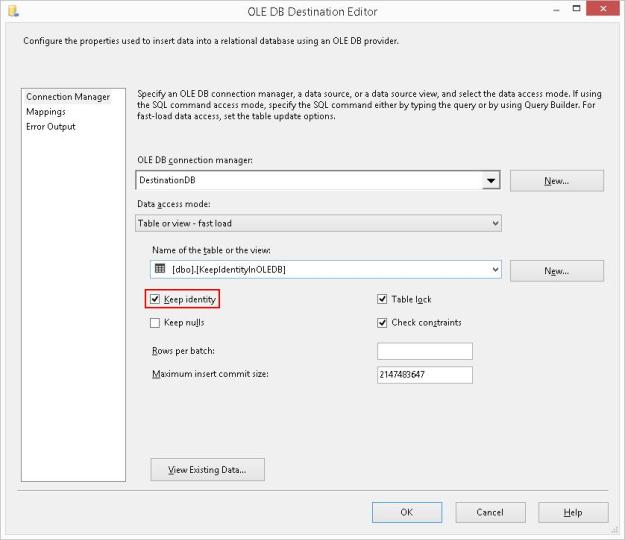
If I check the “Keep Identity” checkbox, the validation error disappears and the package runs successfully.

Checking the “Keep Identity” checkbox

Successful package execution with “Keep Identity” checked

When moving data from one system into another where the identity values can uniquely refer to the records being inserted, this option works perfectly.

However, keep in mind a side-effect of this checkbox. Let me take a look at the data that was inserted into the test table.

Inserting data with “Keep Identity” checked may cause duplicates in the identity column

The “Keep Identity” checkbox checked is like setting the IDENTITY_INSERT option to ON when inserting data into a table using T-SQL. Only difference is that the option is set to OFF once the package execution completes, and hence no explicit handling is required.

Further Reading

I have written a series of posts on T-SQL behaviour around identity values, and I trust you would find them interesting.

  • An introduction to IDENTITY columns [Link]
  • What are @@IDENTITY, SCOPE_IDENTITY, IDENT_CURRENT and $IDENTITY? [Link]
  • Myths – IDENTITY columns cannot have holes or “gaps” [Link]
  • Myths – Values cannot explicitly inserted into IDENTITY columns [Link]
  • Myths – Duplicate Values cannot exist IDENTITY columns [Link]
  • Myths – The value for SEED and INCREMENT must be 1 [Link]
  • Myths – IDENTITY values (including SEED & INCREMENT) cannot be negative [Link]
  • Myths – IDENTITY columns cannot be added to existing tables – Part 01 [Link]
  • Myths – IDENTITY columns cannot be added to existing tables – Part 02 [Link]
  • Myths – IDENTITY columns cannot have constraints defined on them [Link]
  • Myths – IDENTITY columns do not propagate via SELECT…INTO statements [Link]
  • Use IDENTITY() Function to change the Identity specification in a SELECT…INTO statement [Link]

Until we meet next time,

Be courteous. Drive responsibly.

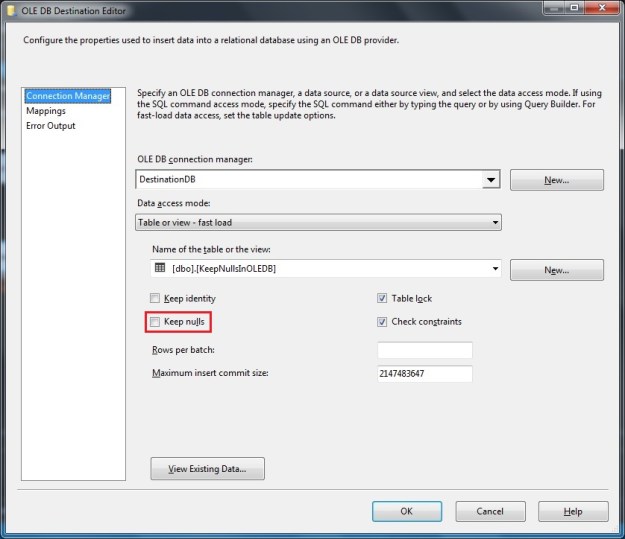
OLE DB Destination Configuration. Notice the "Keep nulls" switch is unchecked.

#0389 – SQL Server – SSIS – OLE DB Destination – Table Fast Load – Keep NULLs option


SQL Server Integration Services (SSIS) are typically called upon when integrating systems exchange data from one source to a given destination. The reason I use the term “source” and “destination” instead of a “database” because either of the two can be something other than a database (a flat file, some web-service, a script task, etc). This is possible because SSIS is more like any other .net framework based programming language (C# or VB.net).

OLE DB destination

Because one would commonly have either a Microsoft Access or a Microsoft SQL Server on at least one side of the integration, the most common source & destinations used in a SSIS-based data solution are the OLE DB Source and the OLE DB Destination. The OLE DB destination allows you to load data to a table, a view or even a SQL command (e.g. the results of a statement execution).

In order to load data as quickly into the destination as possible, the  OLE DB destination allows us to use a “Fast Load” mode. The “Fast Load” option allows the data team to configure various options that affect the speed of the data load:

  1. Keep Identity
  2. Keep NULLs
  3. Table Lock
  4. Check Constraints
  5. Rows per Batch
  6. Maximum Insert Commit Size

We will look at each option in detail over the next couple of weeks.

Keep NULLs option

The Keep NULLs option is normally something that most accidental SSIS developers do not pay much attention to. It comes unchecked by default and it left unchecked. However, the state of this checkbox can have a significant impact on the completeness and quality of data being inserted into the destination database.

To clarify, allow me to explain the functionality of this checkbox:

  1. Checked – If a column in the source data has NULL values, keep them as-is
  2. Unchecked – If a column in the source data has NULL values, try to replace them with the default values as defined by the destination DB

The state of this checkbox typically does not make much of a difference because in most cases, the domain and business rules in both the systems involved would be similar. Thus, the if a column in one system allows a NULL value, other systems in the same domain would also allow a NULL (e.g. in most enrollment forms, the last name would generally be mandatory but the first name is not). However, legacy systems (which have been around since decades) would have accumulated a lot data that does not conform to newer domain practices, causing issues during migration. This is when the “Keep Nulls” checkbox comes into action.

In the case I am going to present today, I have a set of Product Names and their corresponding Manufacturers. In a few of these cases, I don’t know the manufacturer and have therefore kept it blank.

USE tempdb;
GO
--Test Data
SELECT [ProductList].[ProductName],
       [ProductList].[ManufacturerName] 
FROM (VALUES ('Windows'     , 'Microsoft'),
             ('SQL Server'  , NULL       ),
             ('VisualStudio','Microsoft'),
             ('MySQL'       , 'Oracle'   ),
             ('PeopleSoft'  , 'Oracle'   )
     ) AS [ProductList] ([ProductName], [ManufacturerName]);
GO
Sample data with some NULL values

Sample data with some NULL values

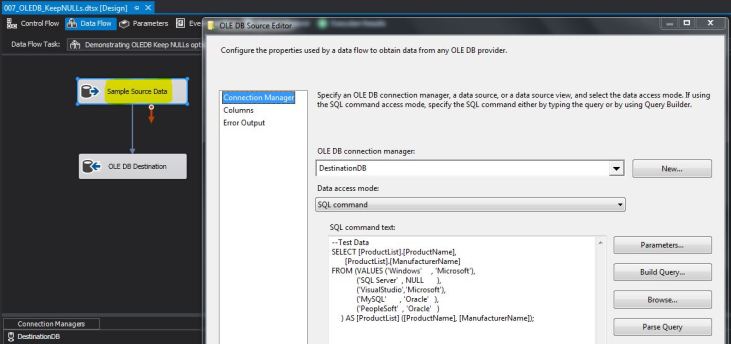
For the sake of this demo, I have used this query as my source in the test SSIS package. Below is a screenshot of my data flow task.

Using a test data query in the OLE DB source command

Using a test data query in the OLE DB source command

I directly take this dataset as input to the OLE DB destination. The OLE DB destination is configured to a test table ([dbo].[KeepNullsInOLEDB]) with the following table definition.

USE [tempdb];
GO
--Safety Check
IF OBJECT_ID('dbo.KeepNullsInOLEDB','U') IS NOT NULL
BEGIN
    DROP TABLE dbo.KeepNullsInOLEDB;
END
GO

--Create table
CREATE TABLE dbo.KeepNullsInOLEDB 
        ([ProductName]      VARCHAR(255) NULL,
         [ManufacturerName] VARCHAR(255) NULL     
                            CONSTRAINT df_KeepNullsInOLEDB_ManufacturerName 
                            DEFAULT ('Microsoft')
        );
GO

OLE DB Destination Configuration. Notice the “Keep nulls” switch is unchecked.

After executing the package, I query the [dbo].[KeepNullsInOLEDB] table in the destination database, and compare with the source data.

Values inserted into the destination table. Notice the default value from table definition is used.

Values inserted into the destination table. Notice the default value from table definition is used.

As can be seen from the screenshot, the [ManufacturerName] for “SQL Server” is not NULL. It is instead set to “Microsoft” which is the default value as set in the default constraint on the destination table.

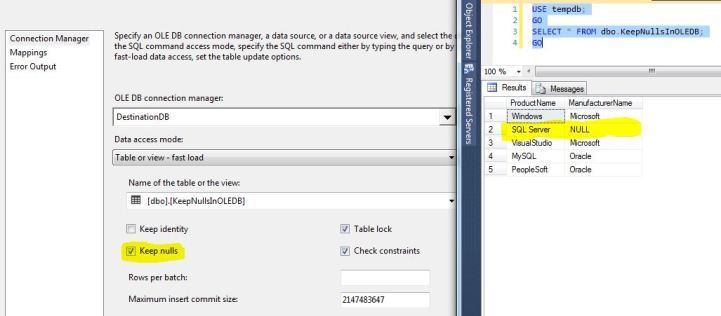
The data inserted in the destination table changes if the switch is kept checked in the OLE DB destination.

Notice how the value from the default constraint is not used when “Keep Nulls” is checked.

If the “Keep nulls” checkbox is checked, the default constraint on the target table is not used – thereby maintaining the same data as the source.

Summary

Depending upon the business requirements, it may be critical to migrate data from a source to a destination “as-is”, without the application of default constraints. In such situations, the “Keep nulls” switch on the OLE DB destination (“Fast Load” mode) needs to be checked.

If the “Keep nulls” switch is unchecked, the default constraints from the target table definition come into effect.

In my future posts, I will take a look at the other switches on the OLE DB Fast Load mode.

Until we meet next time,

Be courteous. Drive responsibly.

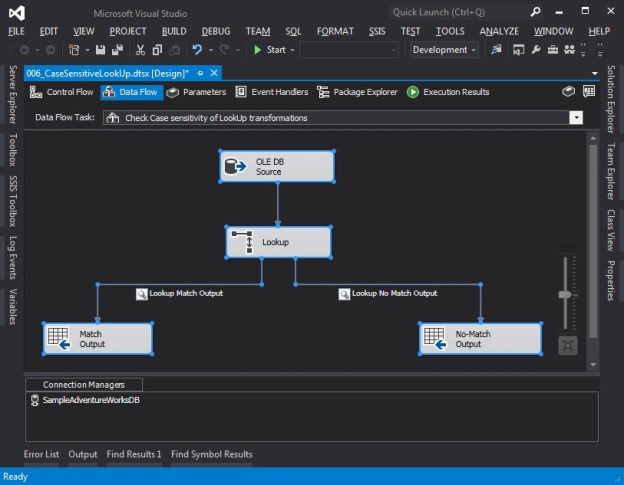
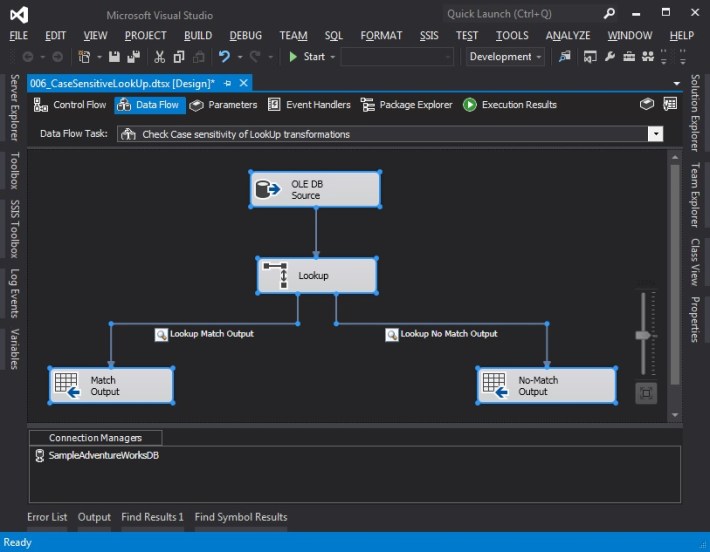
Data Flow Task used to demonstrate case-sensitivity of Lookup transformation

#0388 – SQL Server – SSIS – Lookup transformations are case-sensitive


I have been working with SQL Server Integration Services (SSIS) recently. In many ways, SSIS is counter-intuitive if you have been working with the database engine for long (more than a decade in my case). Working with SSIS is more like working with any other .net framework based programming language (C# or VB.net). Over the next couple of days, I will be writing about some of the salient aspects of SSIS which should be kept in mind in case you are working on multiple SQL Server technologies.

Lookup Transformations – A key to successful system integrations

Cross-referencing of Enumerations

One of the key challenges for any system integration is to ensure that the enumerations  and “default” values used in the source system (e.g. sales statuses, product categories, etc) align between the “source” & “target” systems.

Once the values aligned during business, high-level and low-level designs, implementation of this cross-referencing in SQL Server Integration Services (SSIS) is done by a data flow component called the “Lookup Transformation“. The Lookup transformation effectively performs a join between the input data with a reference data set. If values match, they are available in what is called the “Match Output” whereas values that do not match can be made available as a “No Match Output”. However, this comes with a tiny counter-intuitive behaviour that I learnt about the hard way.

The lookup performed by the lookup transformation is case-sensitive.

Demo

In order to demonstrate the case-sensitivity of lookup transformations, I have developed a SSIS package that does the following in a simple data-flow task:

  1. Get some static data from an OLEDB data source, basically some rows with text representation of numbers (One, Two, Three, and so on)
  2. The Lookup transform has a static mapping between the numeric and text values of various numbers – 1 through 10
  3. As the input data passes through the lookup transformation, we try to map the text values in the source data with the values available in the lookup transformation so that we can get the appropriate numeric representation
    • In my demo, records that find a valid lookup are written to a recordset destination (it could be any valid destination), whereas records that do not match are written to another destination
    • I have placed data viewers on the output pipelines to visually see the data being moved, which is what I will show below

The query used to generate the static data in the OLE DB source is provided below.

SELECT srcValues.RowName,
       srcValues.RowValue
FROM (VALUES ('Row1','One'),
             ('Row2','Two'),
             ('Row3','three'),
             ('Row4','Four'),
             ('Row5','Five'),
             ('Row6','Six'),
             ('Row7','seven'),
             ('Row8','eight'),
             ('Row9','Nine'),
             ('Row10','Ten')
     ) AS srcValues (RowName, RowValue);

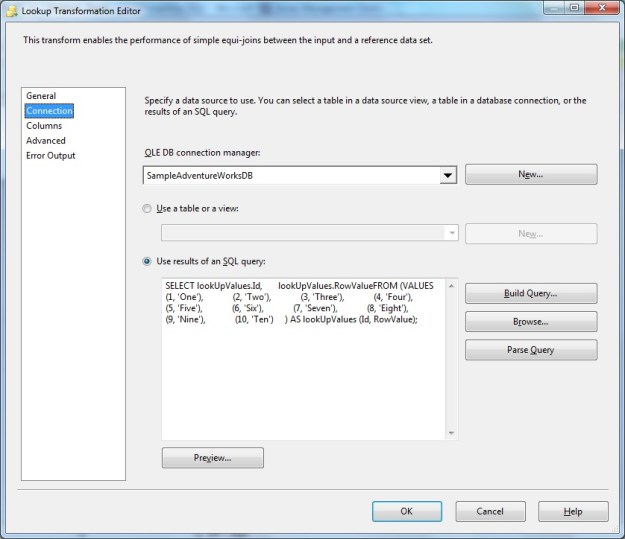
The query used to generate the lookup values for the lookup transform is provided below:

SELECT lookUpValues.Id,
       lookUpValues.RowValue
FROM (VALUES (1, 'One'),
             (2, 'Two'),
             (3, 'Three'),
             (4, 'Four'),
             (5, 'Five'),
             (6, 'Six'),
             (7, 'Seven'),
             (8, 'Eight'),
             (9, 'Nine'),
             (10, 'Ten')
     ) AS lookUpValues (Id, RowValue);

Observe that in the static source data, not all values have a consistent case – some are in sentence case, whereas some are in small case.

The screenshots below show the overall setup of the SSIS package.

Data Flow Task used to demonstrate case-sensitivity of Lookup transformation

Data Flow Task used to demonstrate case-sensitivity of Lookup transformation

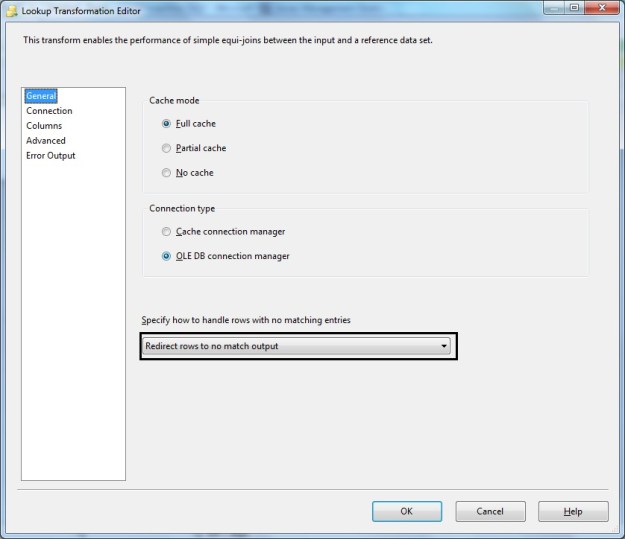
LookUp Transformation - General configuration (Notice redirection to no match output)

LookUp Transformation – General configuration (Notice redirection to no match output)

Lookup Transformation - Connection tab showing reference values

Lookup Transformation – Connection tab showing reference values

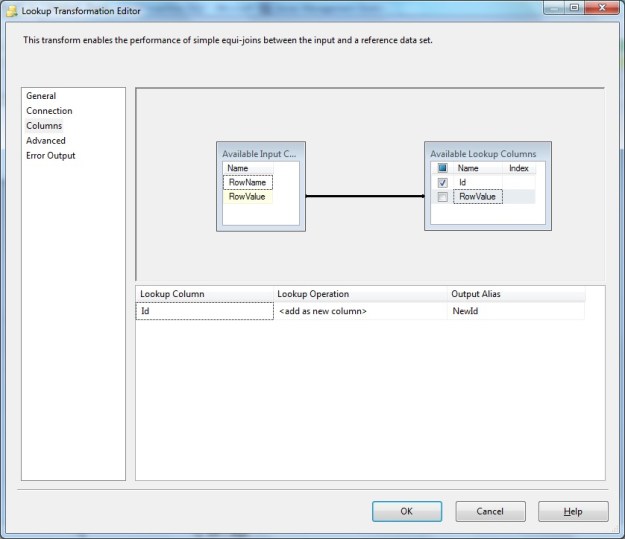
Lookup Transformation - Columns configuration showing "RowValue" used for matching whereas the reference Id is fetched to include in output

Lookup Transformation – Columns configuration

Notice here that we have used the text value from the source data (“RowValue” column) for matching/lookup to the reference data set. The reference Id is fetched to include in output.

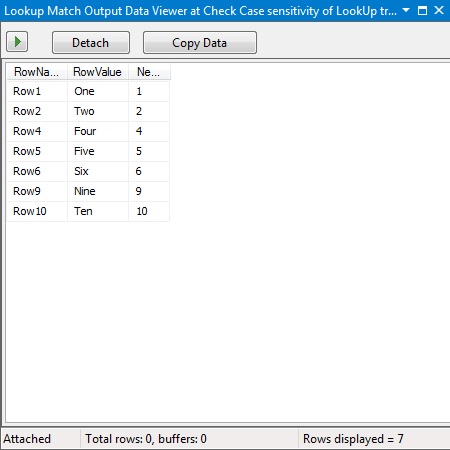
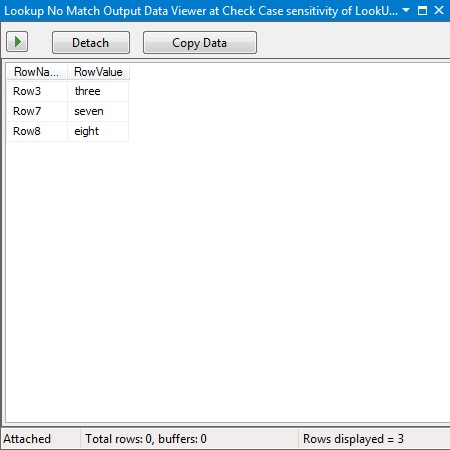
If a match is found the “Match Output” should contain the matching row from the source combined with the Id from the reference/lookup data. This is seen in the data viewer output below.

Lookup Transformation - Match Output (source rows with the Id from the reference data)

Lookup Transformation – Match Output (source rows with the Id from the reference data)

If a match is not found (which would be the case for the values with lower case in the source data), the “No Match Output” will contain the row from the source data that failed the lookup (since failures were redirected to the “No Match” output in the general configuration). Notice we do not get the Id from the reference because no match to the reference was found.

Lookup Transformation - No Match Output

Lookup Transformation – No Match Output

Summary

When working with a case insensitive database, we often tend to take data quality with respect to case of the data for granted. Having data with inconsistent case has multiple repercussions (especially with data grouping in front end applications), but the biggest negative impact due to inconsistent case of text data is the inaccurate cross-referencing during a master data cleanup, system integration or data migration exercise.

Call to action

Do take a few cycles in your development to take a look at your data quality, and if necessary, implement required data cleansing to ensure that your lookup data, enumerations and master data are using a case that is correct and consistent with the domain and business requirements.

Until we meet next time,

Be courteous. Drive responsibly.

"Default Cursor" scope set at the database level can be verified using the "Options" page of the "Database Properties" window in SSMS

#0386 – SQL Server – Cursor Scope – A cursor with the name ‘cursor name’ does not exist.; Msg 16916


It’s a well-known fact that using T-SQL cursors have a significant overhead on the query performance. At the same time, there are applications where one simply cannot use a set-based approach and use T-SQL cursors. Examples of such scenarios are when cascading complex calculations need to happen for each record (which are handled via CLR code or dedicated stored procedures) or when interfacing applications can only accept one record at a time.

Each T-SQL cursor has a specific scope. The cursor can be limited for use within the given stored procedure, trigger or batch making it a LOCAL cursor. If the context of the cursor is to be made available to multiple objects and scopes within the connection until explicitly deallocated, it is a GLOBAL cursor.

The cursor scope (GLOBAL/LOCAL) can be defined at the database level and can be overridden by the DECLARE CURSOR statement. Most implementations that I have seen rely on the database configuration. In such cases, if the cursor has been designed for GLOBAL access and someone changes the database configuration to a LOCAL cursor scope, the code will break.

Checking Default Cursor Scope: Database Configuration

Using T-SQL

A simple check on the [is_local_cursor_default] column of the [sys].[databases] will tell us if the default cursor scope is local or global.

--Confirm that Global cursors are set:
--        is_local_cursor_default = 0, i.e. GLOBAL cursor scope
--        is_local_cursor_default = 1, i.e. LOCAL cursor scope
--This is the default setting!
SELECT [sd].[is_local_cursor_default],
       [sd].* 
FROM [sys].[databases] AS sd 
WHERE [sd].[database_id] = DB_ID('AdventureWorks2012');
GO

As the column name suggests, a value of 0 indicates that the cursor is GLOBAL, whereas a value of 1 indicates that the cursor is LOCAL.

Using SSMS

In SSMS, we can check the value of default cursor scope by looking at the “Options” page of the Database Properties window.
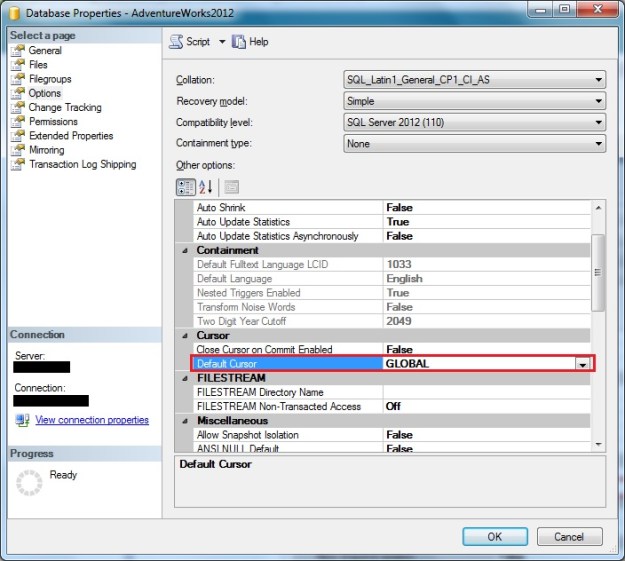
"Default Cursor" scope set at the database level can be verified using the "Options" page of the "Database Properties" window in SSMS

Checking “Default Cursor” scope set at the database level

Reproducing the Problem

For the purposes of this demo, I have created a simple stored procedure in the AdventureWorks database that is called once per each Product Category Id to get the product listing of products in that category.

USE AdventureWorks2012;
GO

--Create the test stored procedure
IF OBJECT_ID('Production.ProductListing','P') IS NOT NULL
    DROP PROCEDURE Production.ProductListing;
GO
CREATE PROCEDURE Production.ProductListing
    @productCategoryId INT
AS
BEGIN
    SET NOCOUNT ON;

    SELECT ppsc.ProductCategoryID AS ProductCateogry,
           pp.ProductID,
           pp.Name,
           pp.ProductNumber,
           pp.MakeFlag,
           pp.FinishedGoodsFlag,
           pp.StandardCost,
           pp.ListPrice,
           pp.SellEndDate,
           pp.DiscontinuedDate
    FROM Production.Product AS pp
    INNER JOIN Production.ProductSubcategory AS ppsc 
            ON pp.ProductSubcategoryID = ppsc.ProductSubcategoryID
    WHERE ppsc.ProductCategoryID = @productCategoryId;
END
GO

I can now create a cursor, access values from the cursor and call the stored procedure in an iterative manner. One would use this pattern when working with situations where dynamic SQL may need to be used to build the cursor (e.g. when fetching data from different tables of the same structure depending upon the configuration/situation).

USE AdventureWorks2012;
GO
--Create a CURSOR via Dynamic SQL and then 
--use the values from the CURSOR to call the stored procedure
DECLARE @productListCategoryId INT;
EXEC sp_executesql @sql = N'DECLARE ProductListByCategory CURSOR
                                FAST_FORWARD READ_ONLY
                            FOR SELECT ppc.ProductCategoryID
                                FROM Production.ProductCategory AS ppc;
                           ';

OPEN ProductListByCategory;

FETCH NEXT FROM ProductListByCategory INTO @productListCategoryId;
WHILE (@@FETCH_STATUS <> -1)
BEGIN
    EXEC Production.ProductListing @productCategoryId = @productListCategoryId;

    FETCH NEXT FROM ProductListByCategory INTO @productListCategoryId;
END

CLOSE ProductListByCategory;
DEALLOCATE ProductListByCategory;
GO

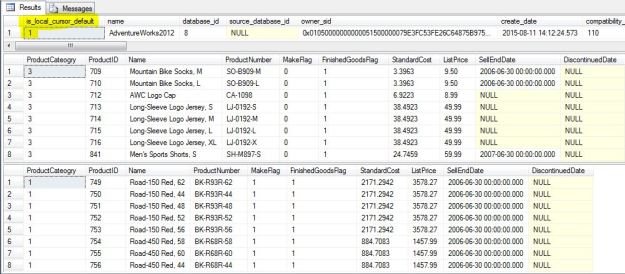
Normally the stored procedure calls will work just fine, as can be seen from the screenshot below.

Successful execution of cursor when Global cursor scope is configured

Successful execution of cursor when Global cursor scope is configured

Now, let us change the cursor scope to LOCAL at the database level.

--Now, enable local cursors by default
--for the AdventureWorks2012 database
ALTER DATABASE [AdventureWorks2012] SET CURSOR_DEFAULT LOCAL;
GO

Running the same query as above now results in errors! The errors simply state that the cursor with the name “ProductListByCategory” does not exist.

USE AdventureWorks2012;
GO
--Create a CURSOR via Dynamic SQL and then 
--use the values from the CURSOR to call the stored procedure
DECLARE @productListCategoryId INT;
EXEC sp_executesql @sql = N'DECLARE ProductListByCategory CURSOR
                                FAST_FORWARD READ_ONLY
                            FOR SELECT ppc.ProductCategoryID
                                FROM Production.ProductCategory AS ppc;
                           ';

OPEN ProductListByCategory;

FETCH NEXT FROM ProductListByCategory INTO @productListCategoryId;
WHILE (@@FETCH_STATUS <> -1)
BEGIN
    EXEC Production.ProductListing @productCategoryId = @productListCategoryId;

    FETCH NEXT FROM ProductListByCategory INTO @productListCategoryId;
END

CLOSE ProductListByCategory;
DEALLOCATE ProductListByCategory;
GO
Msg 16916, Level 16, State 1, Line 75
A cursor with the name 'ProductListByCategory' does not exist.

Learning the hard way

The error message above is exactly what we received after we restored a copy of our development database on a loaned SQL Server instance to facilitate a ramp-up activity.

After conducting an impromptu code review to confirm that there were no other obvious issues (like deallocating the cursor without closing), we set out to compare the server and database settings with a working environment to rule out environmental issues. That’s when we saw that the DBA on the loaned server had changed the cursor scope setting of our database.

The Solution

The ideal solution to this issue has two parts – a configuration piece and a failsafe embedded into standard coding practice.

Set and document database level cursor scope requirements

One part of the ideal solution is to define and document the cursor scope requirements during database design. This should then be part of the documentation and checklists that are referenced when deploying the databases in production.

Database deployment and setup scripts should also have scripts to set the default scope, similar to the one below.

ALTER DATABASE [AdventureWorks2012] SET CURSOR_DEFAULT GLOBAL;
GO

Ensure that cursor scope is defined when declaring a cursor

The fail-safe aspect of the solution is to ensure that when declaring a cursor, the code explicitly specifies whether the cursor is GLOBAL or LOCAL.

As can be seen from the example below, if scope is defined during cursor definition, it continues to work even if the cursor scope at the database level is not as expected.

--Set the cursor scope as GLOBAL when defining the cursor
--(as part of the DECLARE CURSOR statement)
--This overrides the default database configuration
USE AdventureWorks2012;
GO
DECLARE @productListCategoryId INT;
EXEC sp_executesql @sql = N'DECLARE ProductListByCategory CURSOR GLOBAL
                                FAST_FORWARD READ_ONLY
                            FOR SELECT ppc.ProductCategoryID
                                FROM Production.ProductCategory AS ppc;
                           ';

OPEN ProductListByCategory;

FETCH NEXT FROM ProductListByCategory INTO @productListCategoryId;
WHILE (@@FETCH_STATUS <> -1)
BEGIN
    EXEC Production.ProductListing @productCategoryId = @productListCategoryId;

    FETCH NEXT FROM ProductListByCategory INTO @productListCategoryId;
END

CLOSE ProductListByCategory;
DEALLOCATE ProductListByCategory;
GO
If the GLOBAL scope is defined when declaring a cursor, the code works as expected even though the database configuration is set to default cursor scope of LOCAL

If the Global scope is defined when declaring a cursor, the code works as expected irrespective of database configuration

Further Reading

The same error message (Msg. 16916) will be thrown due to a simple coding error – when we code deallocates a cursor before closing it first. This can easily be caught by implementing a code review practice and is a lesson for sustenance teams. That is what I recommend as a further reading into this topic.

Until we meet next time,

Be courteous. Drive responsibly.